
Adding money and recording spends
Quiddo doesn’t hold real money. When your kid gets birthday money or you buy them something, you record it here and their balance moves to match. There’s a slightly different sheet depending on where you start.
Where the sheets open
Section titled “Where the sheets open”| You tap | On | Opens | Already picked |
|---|---|---|---|
| Add money | Money tab | Add Funds | Nothing (unless you have only one kid) |
| Spend | Money tab | Log a Spend | Nothing |
| Add | A kid’s page | Add Money | The kid |
| Spend | A kid’s page | Spend | The kid, and their default spending bucket |
| Add | A bucket’s page | Add Money | The kid and that bucket |
| Spend | A bucket’s page | Spend | The kid and that bucket |
| Allocate | A kid’s page, on the unallocated card | Allocate Money | The kid and the money |
If the family’s subscription has lapsed, the final button in each sheet shows a subscription prompt instead of saving. See Billing.
Adding money from the Money tab
Section titled “Adding money from the Money tab”The Add Funds sheet:
- Which kid? Tap a kid. With more than one kid, their name then shows at the top with change next to it.
- Amount. Tap a suggestion chip or type it.
- Description, like “Birthday money”. Chips suggest ones you’ve used before.
- Choose Leave unallocated or Split to buckets. With Split to buckets, divide the amount across the kid’s buckets until it says Balanced (see Splitting across buckets).
- Tap Add Funds.
Adding money for one kid
Section titled “Adding money for one kid”The Add Money sheet opens from a kid’s page or a bucket’s page, so the kid is already picked.
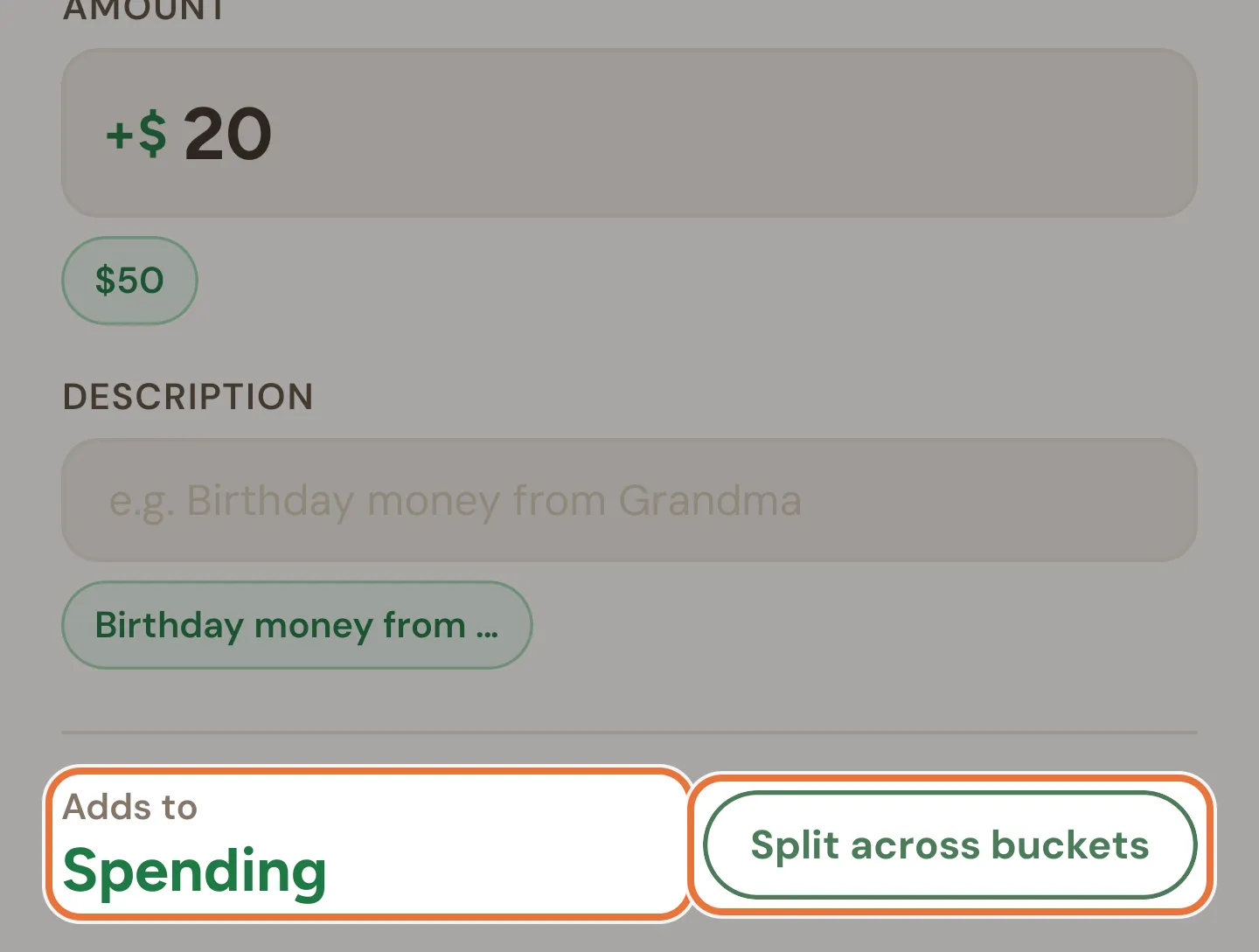
- Amount, with suggestion chips.
- Description, with suggestion chips.
- Once there’s an amount, the sheet shows where it’ll go: Adds to and a bucket name. From a bucket’s page, that’s the bucket you came from. From a kid’s page, it’s their default spending bucket.
- To divide it instead, tap Split across buckets. Tap All to (the bucket name) to go back to one bucket.
- Tap the Add button, which shows the amount (“Add $20.00”).
If you split it and don’t place all of it, the rest stays unallocated and shows on the kid’s page, ready to allocate later.
Known issue: Wrong “Adds to” label
From a kid’s page, Adds to always names their default spending bucket. If you’ve set a different Income default, the money goes there instead; only the label is wrong.
Known issue: Split checks differ between sheets
The sheets don’t agree on unfinished splits. Add Funds won’t save until the split is Balanced, but Add Money saves anyway and leaves the rest unallocated.
Suggestions
Section titled “Suggestions”The chips under Amount and Description (and What was it for? when spending) are the five most recent different amounts and descriptions used in your family. Money-in sheets suggest past money in; spend sheets suggest past spends. Tap one to fill it in, then change it if you need to.
Splitting across buckets
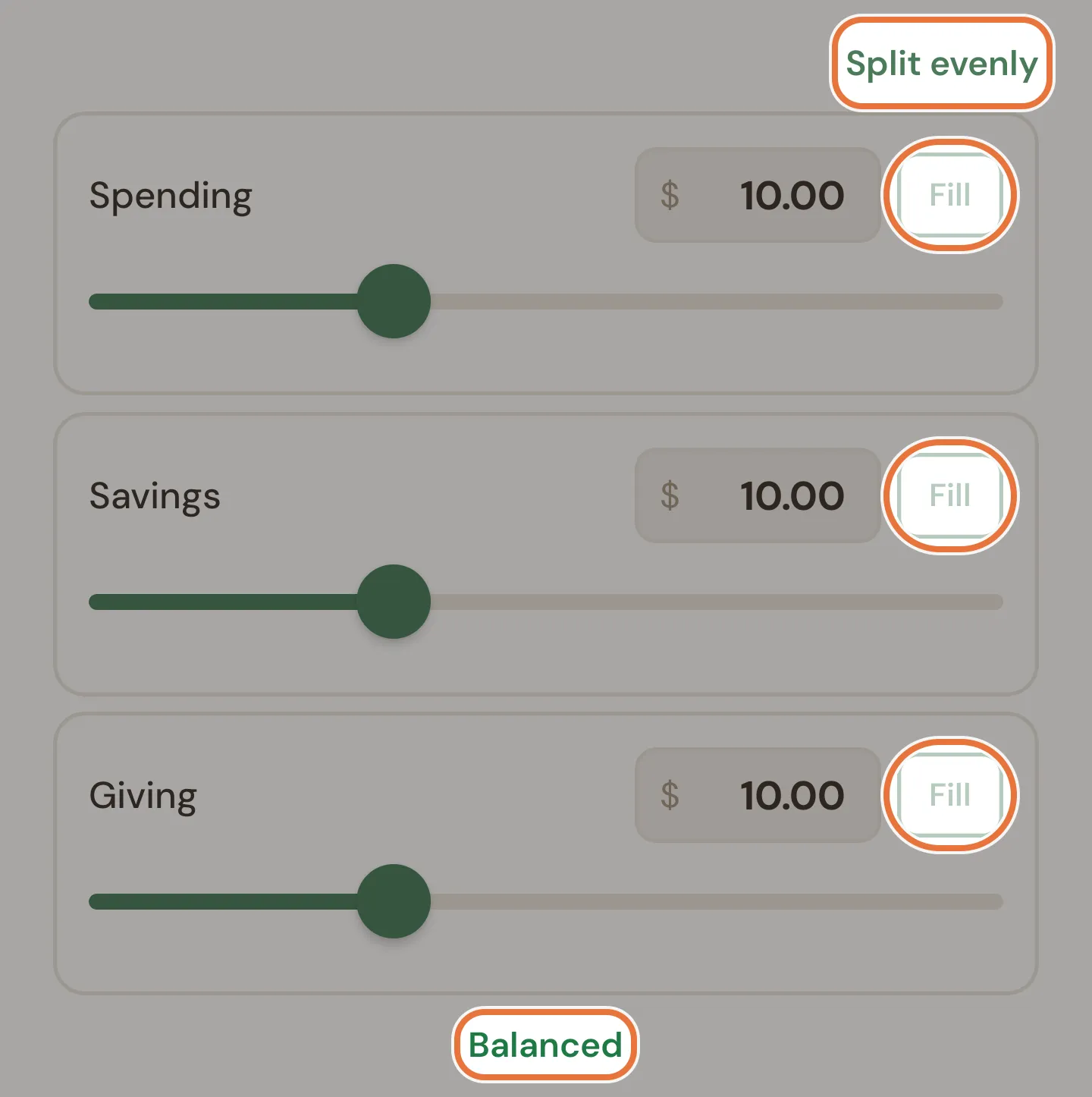
Section titled “Splitting across buckets”The splitter appears when you split money across buckets. Each bucket gets a row with an amount box, a Fill button and a slider.
| Control | What it does |
|---|---|
| Split evenly | Divides the amount equally across every bucket. |
| Slider | Drag to set a bucket’s share, in 5-cent steps (whole numbers for kids on whole-number currencies). |
| Amount box | Type a bucket’s share. When you finish, the other buckets that already have an amount adjust to fill the rest. |
| Fill | Gives this bucket whatever’s left over. |
| Reduce | Replaces Fill when you’ve gone over, and takes the extra off this bucket. |
The line underneath tells you where you are: Balanced, “$2.00 remaining” or “$1.50 over”.
Allocating unallocated money
Section titled “Allocating unallocated money”When a kid has money that isn’t in any bucket, their page shows an Unallocated card. Allocate opens the Allocate Money screen for one lot of that money at a time.
The top shows where the money came from and how much it is. Under Split to buckets, divide it with the splitter until it says Balanced, then tap Confirm Allocation.
Recording a spend from the Money tab
Section titled “Recording a spend from the Money tab”The Log a Spend sheet can record one spend for one kid or share it across several.
- Total amount.
- What was it for?, like “Movie tickets”. Left blank, it’s saved as “Spend”.
- Which kids? Tap each kid who’s paying.
What happens next depends on how many kids you picked.
One kid:
- Spend from (their default spending bucket) records it straight away.
- Select bucket shows each of their buckets with its balance and goals. Pick one, check any warnings, and tap Confirm spend.
Several kids:
- Auto split divides the total evenly, using each kid’s default spending bucket. Any odd cents go to the first kid. You’ll see who pays what on Confirm auto split: tap Confirm spend, or Change to adjust it.
- Custom opens Custom split: set each kid’s amount (with Fill and Reduce, like the bucket splitter) and, for kids with more than one bucket, which bucket it comes from. Confirm works once it says Balanced.
Recording a spend for one kid
Section titled “Recording a spend for one kid”The Spend sheet opens from a kid’s page or a bucket’s page.
- Amount, with chips of recent spend amounts.
- What was it for?, with chips of recent descriptions. Left blank, it’s saved as “Spend”.
- From bucket, if the kid has more than one. It starts on the bucket you came from, or their default spending bucket.
- Check any warnings, then tap the Spend button, which shows the amount (“Spend $4.50”).
Warnings
Section titled “Warnings”Quiddo warns you before a spend, but doesn’t stop you:
- Going below zero. “Balance will be -$3.00”. Buckets can go negative, which is handy when you’ve fronted the money and they’ll pay you back.
- Eating into goals. “This spend will reduce savings below the target for 1 goal in Savings.” It appears when the bucket currently covers its goals’ targets and the spend would take it under.
The warnings show on the Spend sheet and on Select bucket in Log a Spend. Spend from, Auto split and Custom don’t show them.
If a spend leaves a bucket with less than its goals have set aside, Quiddo takes back goal funding to match, starting with the last goal in the funding order.
Calculator keyboard
Section titled “Calculator keyboard”Every amount box uses Quiddo’s own number pad instead of your phone’s keyboard.
- Digits, a decimal point and ⌫ to delete.
- The calculator key shows +, −, ×, ÷ and =. Type
12.50+8, and the sum is worked out when you tap = or close the keypad. - The down arrow closes the keypad.
For kids on a whole-number currency (like stars), most amount boxes switch the decimal point off and round sums to whole numbers.
Editing or deleting a spend
Section titled “Editing or deleting a spend”You can fix a spend from a kid’s History view or a bucket’s Recent history. Tap the spend, then Edit transaction.
The Edit Transaction sheet lets you change the Amount and Description. Tap Save changes, or Cancel. The entry is marked “edited” in history, and its details show an Edit history of who changed what and when.
To remove it, tap Delete transaction, then Delete. That puts the money back in the bucket, and can’t be undone.
Only plain spends can be edited. Money added, pocket money, task rewards, transfers and goal purchases can’t.