
Pocket money setup and runs
This is where you decide how much pocket money each kid gets, when, and which buckets it lands in. It’s also where you’ll find every payment Quiddo has made or held back.
Open it from the Family tab, under Setup › Pocket money setup. You can also get to one kid’s schedule from the POCKET MONEY card on their settings, or from the Set up schedule button on the Family tab when nobody has pocket money yet.
For the whole setup from scratch, including the jobs that decide whether it pays, follow Weekly pocket money, with jobs that have to get done.
Pocket money setup
Section titled “Pocket money setup”The Pocket Money screen lists every kid, with:
- Their amount and schedule, like “$10.00 · Weekly on Fri” or “Monthly on the 1st”.
- When the next payment is due: “Next in 40 mins”, “Next in 3 hours”, or a date.
- “No schedule set up” if they don’t have one yet.
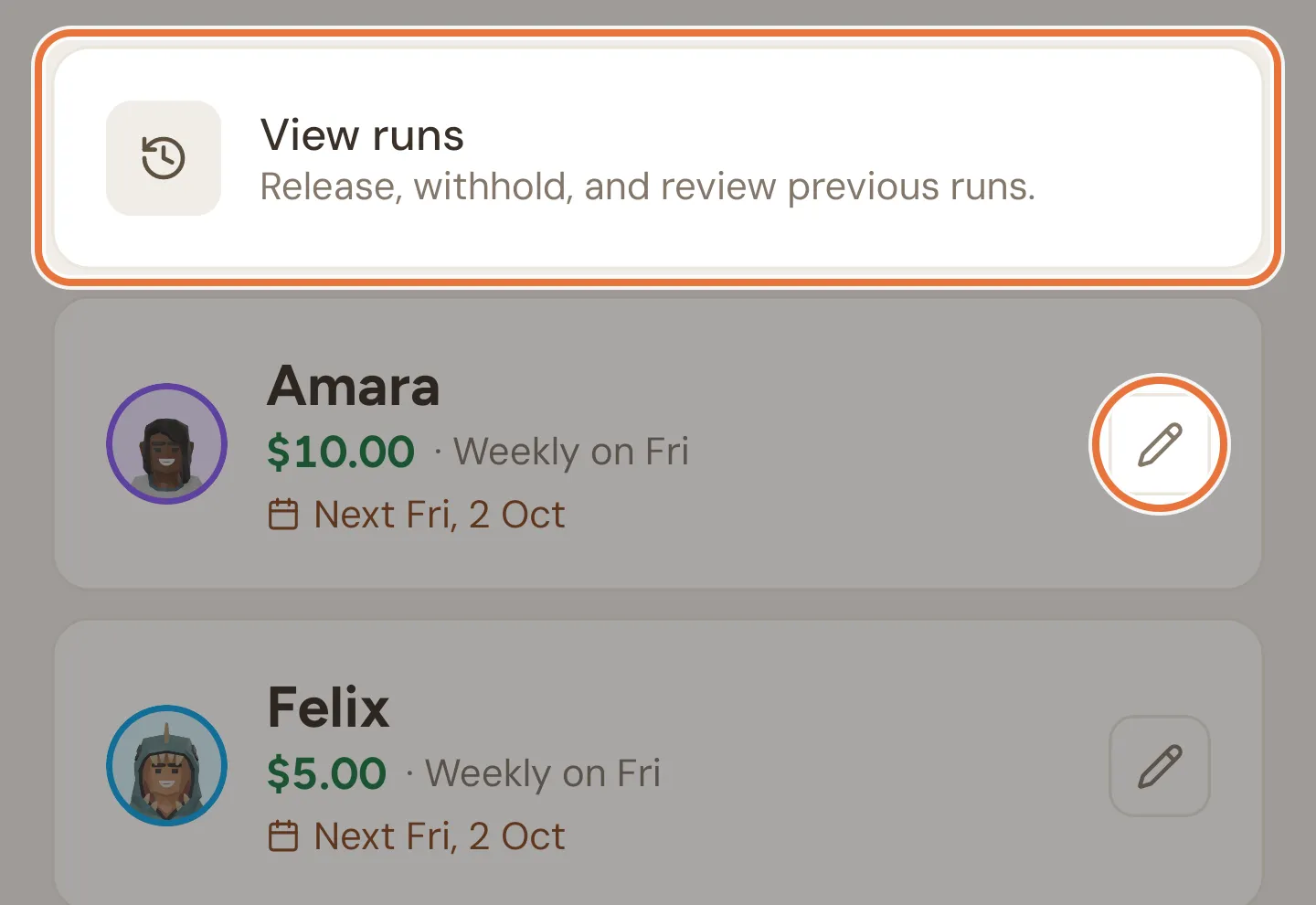
| Tap | Opens |
|---|---|
| View runs (at the top) | Pocket money runs |
| A kid’s name | Their page |
| The pencil (or + if they have no schedule) | Their schedule |
Setting a schedule
Section titled “Setting a schedule”The schedule screen is titled with the kid’s name, like “Pocket Money: Zara”.
| Field | What to enter |
|---|---|
| AMOUNT | How much each payment is. For a kid on a whole-number currency like stars, the keypad has no decimal point. |
| FREQUENCY | Weekly or Monthly. |
| PAY DAY | For weekly: tap a day, Mon to Sun. It starts on Fri. |
| DAY OF MONTH (1-28) | For monthly: the day of the month it pays. |
| RELEASE TIME (HH:MM) | The time it pays, in 24-hour time, like 08:00 or 17:30. It starts at 08:00. |
Tap Set schedule to save. The amount has to be more than zero.
Setting up a second kid? If another kid already has a schedule, a Copy from another kid button appears above the form on a new schedule. Pick a kid to copy their amount, frequency, day and release time. The split between buckets isn’t copied; it resets to even across this kid’s buckets.
Where the money goes
Section titled “Where the money goes”What you see depends on how many buckets the kid has.
One bucket. Everything goes there. There’s nothing to choose.
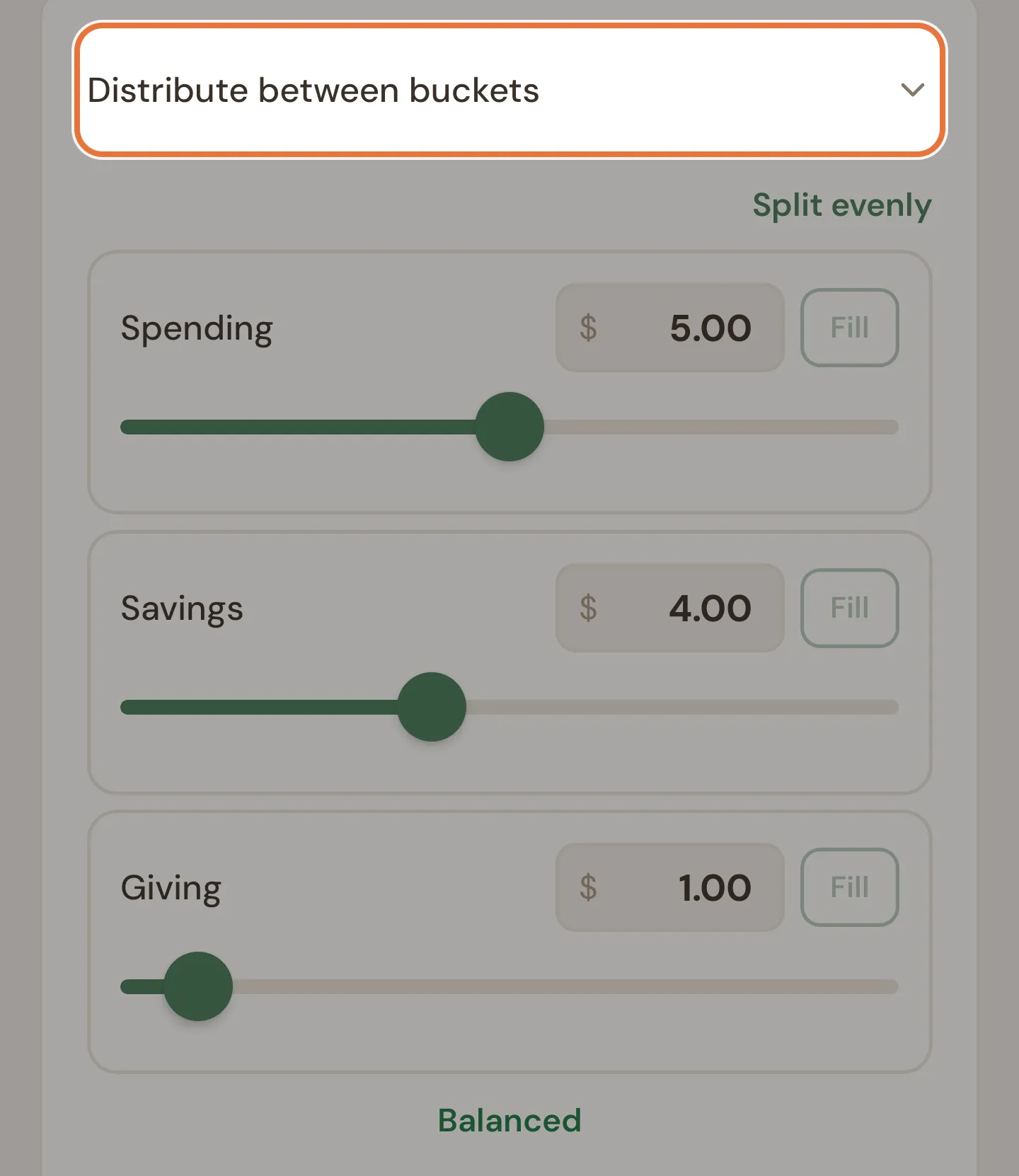
Two or more buckets. Pick one of these:
- DEPOSIT INTO ACCOUNT: tap one bucket, and the whole amount goes there.
- Distribute between buckets: tap to open the splitter and share the amount across buckets. The amounts have to add up to the total before you can save; if they don’t, you’ll see “Amounts must add up to” and the total. The splitter itself is explained in Adding money and recording spends.
If you change the amount later, an existing split scales with it.
Letting kids adjust the split
Section titled “Letting kids adjust the split”For kids with two or more buckets, Kids can adjust their split lets them move their pocket money between buckets from their own Quiddo page. It’s on for new schedules.
- On: “Zara can redistribute pocket money between buckets.” With Distribute between buckets open, you can also set a MINIMUM PER BUCKET (OPTIONAL), so a bucket like Savings never drops below an amount you choose.
- Off: “The split is fixed. Only parents can change it.”
If the schedule currently pays into a single bucket and you switch this on, Quiddo asks Set up split for Zara? Tap Set up equal split to share the amount evenly across their buckets, which you or your kid can then change.
A kid with only one bucket sees “To let your kid adjust their split, add more buckets first.” Buckets are added in their settings.
The full how-to, with minimums, is in Save, spend, give.
Changing or cancelling a schedule
Section titled “Changing or cancelling a schedule”When a kid already has a schedule, a green box at the top sums it up, like “Active: $10.00 every Fri at 8:00 am”, with the date of the next payment underneath.
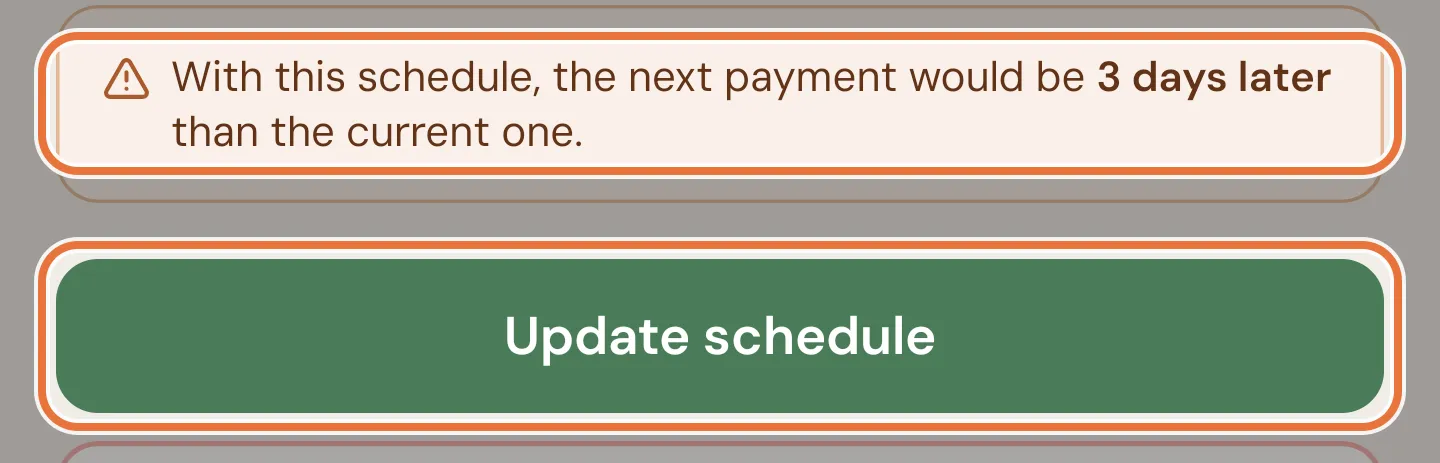
Change anything and tap Update schedule.
If your change moves the next payment more than two days earlier or later, a warning appears above the button first: “With this schedule, the next payment would be 4 days earlier than the current one.” It’s a warning only; you can still save.
To stop pocket money for this kid, tap Cancel schedule, then Cancel schedule again to confirm (or Keep it to back out). Payments that already happened stay in their history and in Pocket money runs.
Pocket money runs
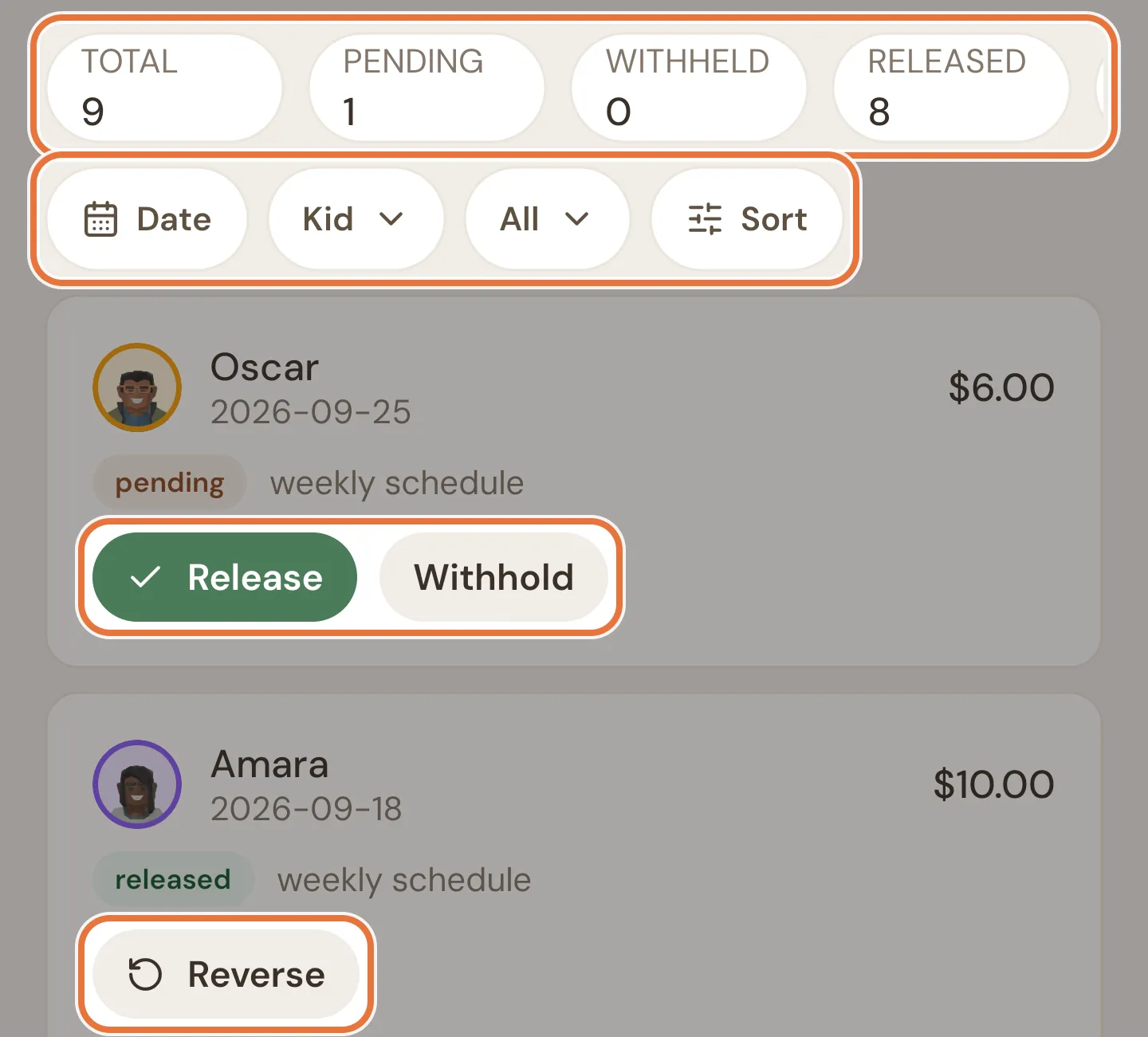
Section titled “Pocket money runs”Every payment Quiddo has made, is waiting on, or has held back, for every kid. Open it from View runs at the top of the Pocket Money screen, or from Family › Records › Pocket money runs.
Totals
Section titled “Totals”The strip across the top counts what’s in the list right now: Total, Pending, Withheld, Released, and the Amount they add up to. It follows your filters.
Filters
Section titled “Filters”| Filter | Options |
|---|---|
| Date | Type a from and to date (as YYYY-MM-DD), or tap 7 days, 30 days, 90 days, This month or Last month. Clear dates resets it. |
| Kid | All kids, or one kid. Archived kids are listed too. |
| Status | All, Pending, Withheld or Released. |
| Sort | Newest scheduled date first. That’s the only order. |
With no dates set, the list shows the last 90 days. Clear (with the number of filters in use) resets everything. Scroll down to load older runs.
Each run
Section titled “Each run”A row shows the kid, the date the payment was due, the amount, whether it came from a weekly or monthly schedule, and a status badge:
| Badge | Meaning | Buttons |
|---|---|---|
| released | Paid. | Reverse |
| pending | Pay day came with jobs outstanding. Waiting for you. | Release, Withhold |
| withheld | You confirmed you’re not paying it. | Release, Pending |
| withheld pending | Held back, but not yet confirmed by a parent. | Release, Withhold |
What the buttons do:
- Release pays the run now, straight away.
- Withhold confirms you’re not paying it. Quiddo asks first.
- Pending moves a confirmed withhold back to pending. Quiddo asks first.
- Reverse takes a paid run back out of the kid’s buckets and returns it to pending (or withheld, if you’d withheld it before releasing it). Quiddo asks first, because it changes balances.
After an action, the row briefly says where it moved, like “Moved to Released”.
Runs for an archived kid say Read-only and have no buttons. If the family’s subscription has lapsed, the buttons open a Subscription required sheet instead, with Go to Billing or Continue read-only.
Late releases use today’s split
When you release a run after the fact, the money is split using the kid’s current schedule, not the split they had on the day. If they no longer have a schedule, it follows the income setting in their settings, or goes to their default spending bucket.
Known issue: Only the full amount can be released
Release always pays the full amount. You can’t pay part of a run, or pay early before pay day, from the mobile app yet.