
Your first ten minutes
This gets your family going: an account, your kids, weekly pocket money and a couple of jobs. It takes about ten minutes, most of which is deciding how much pocket money to pay.
When you’re done, the recipes take each part further.
Have these handy: your kids’ names, roughly how much pocket money you’ll pay, and two or three jobs you’d like them to do.
1. Create your account
Section titled “1. Create your account”-
Download Quiddo from the App Store or Google Play, open it, and tap Sign up.
-
Sign up with Google, Apple (on iPhone), or your email and a password. There’s an optional question about how you heard about Quiddo. You can skip it.
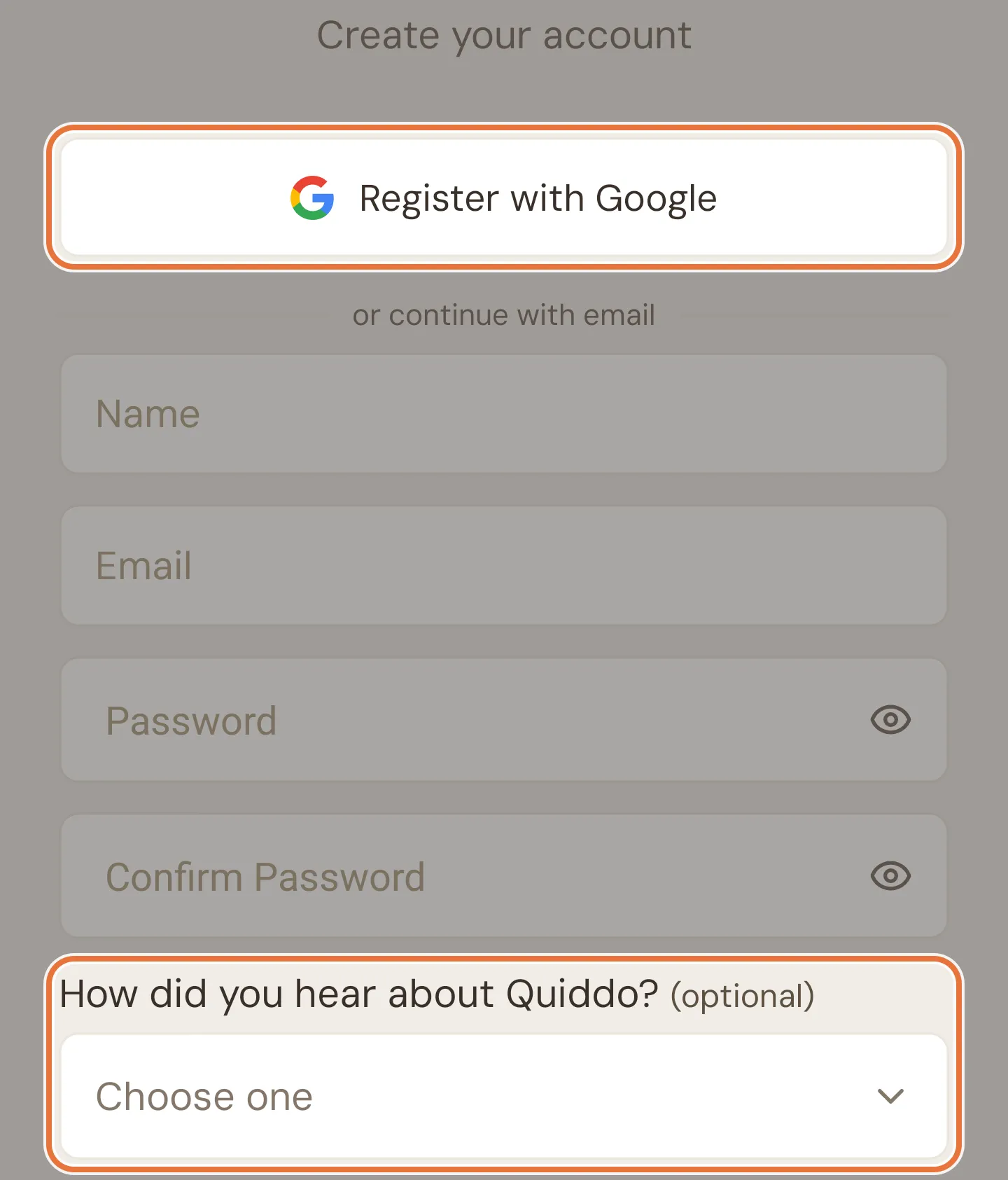
The setup wizard starts straight away.
2. Set up your family
Section titled “2. Set up your family”-
Give your family a name (“The Smiths” works fine).
-
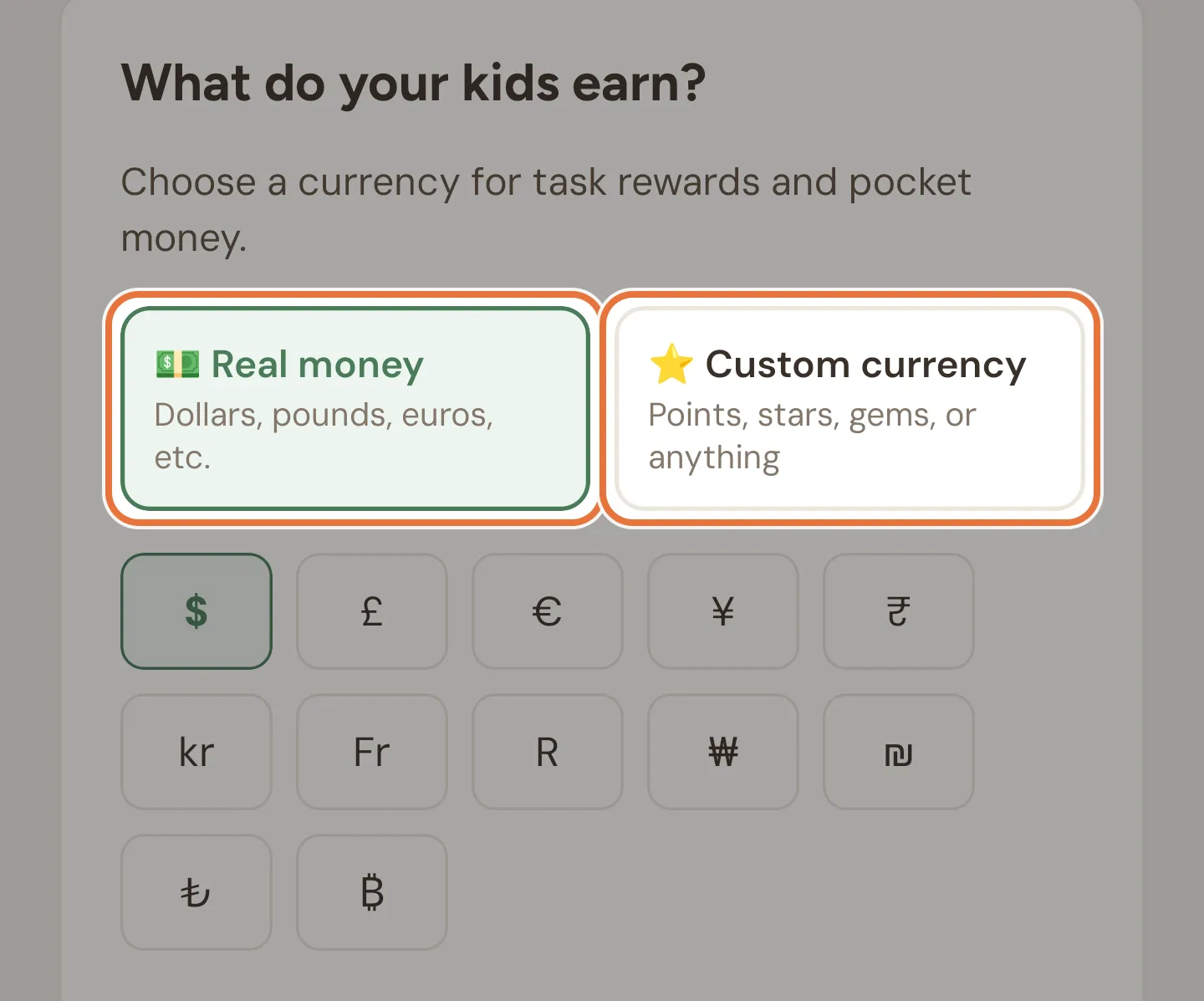
Choose Real money and pick your symbol ($ for Australian dollars), or Custom currency for stars, points or anything else. Little kids? See Stars, not dollars.
-
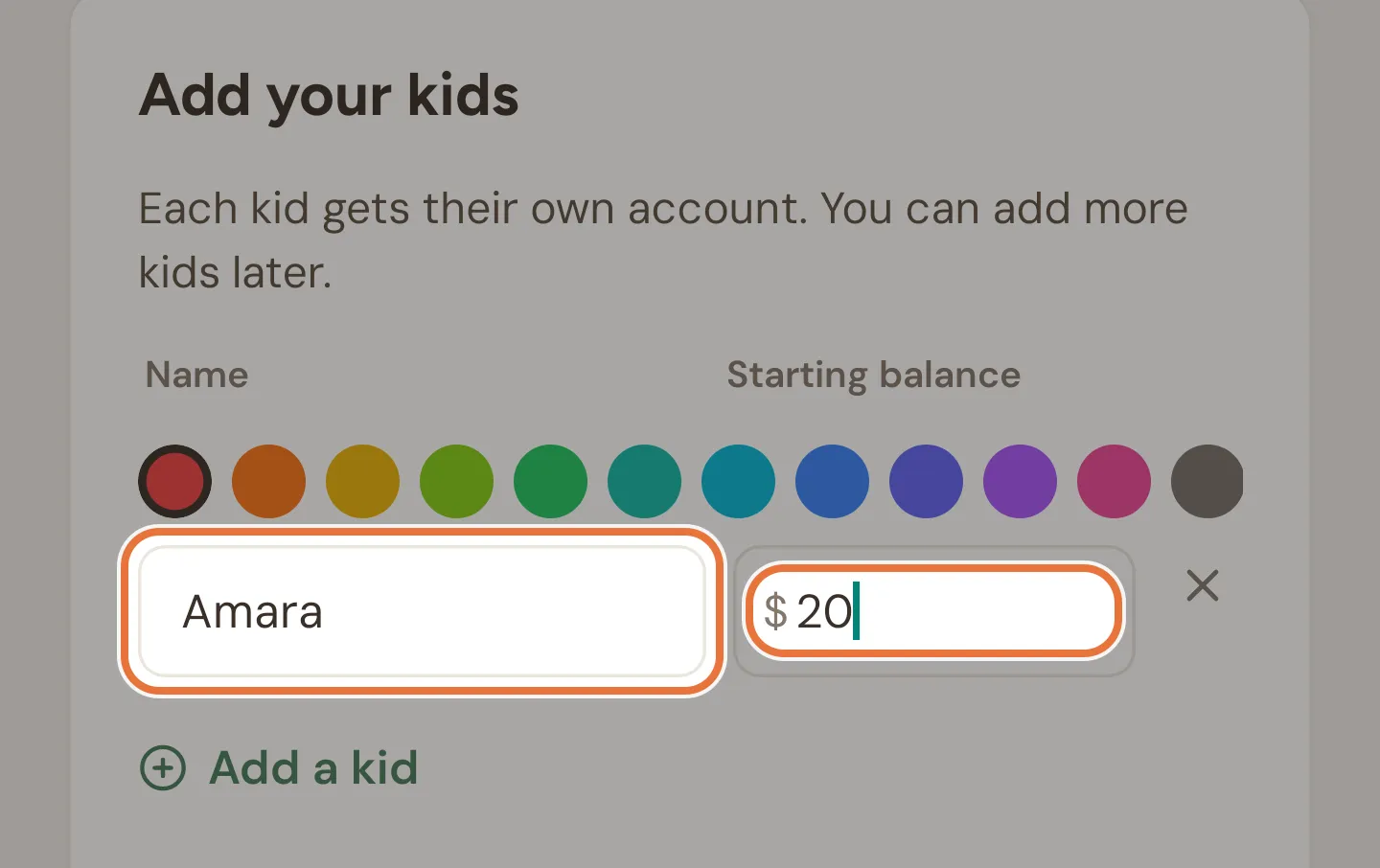
Tap Add a kid for each of your kids: pick a colour and type their name. If they already have savings, put them in Starting balance.
-
Tap Create family.
Adding a kid later
Missed someone? Open the Family tab and tap Add kid next to the Kids heading. On smaller phones the button is just a +.

Starting balances are a one-time offer
The Starting balance box only appears here. Later, you can add existing savings as an opening balance when you create a bucket, or with Add money.
3. Set up pocket money
Section titled “3. Set up pocket money”-
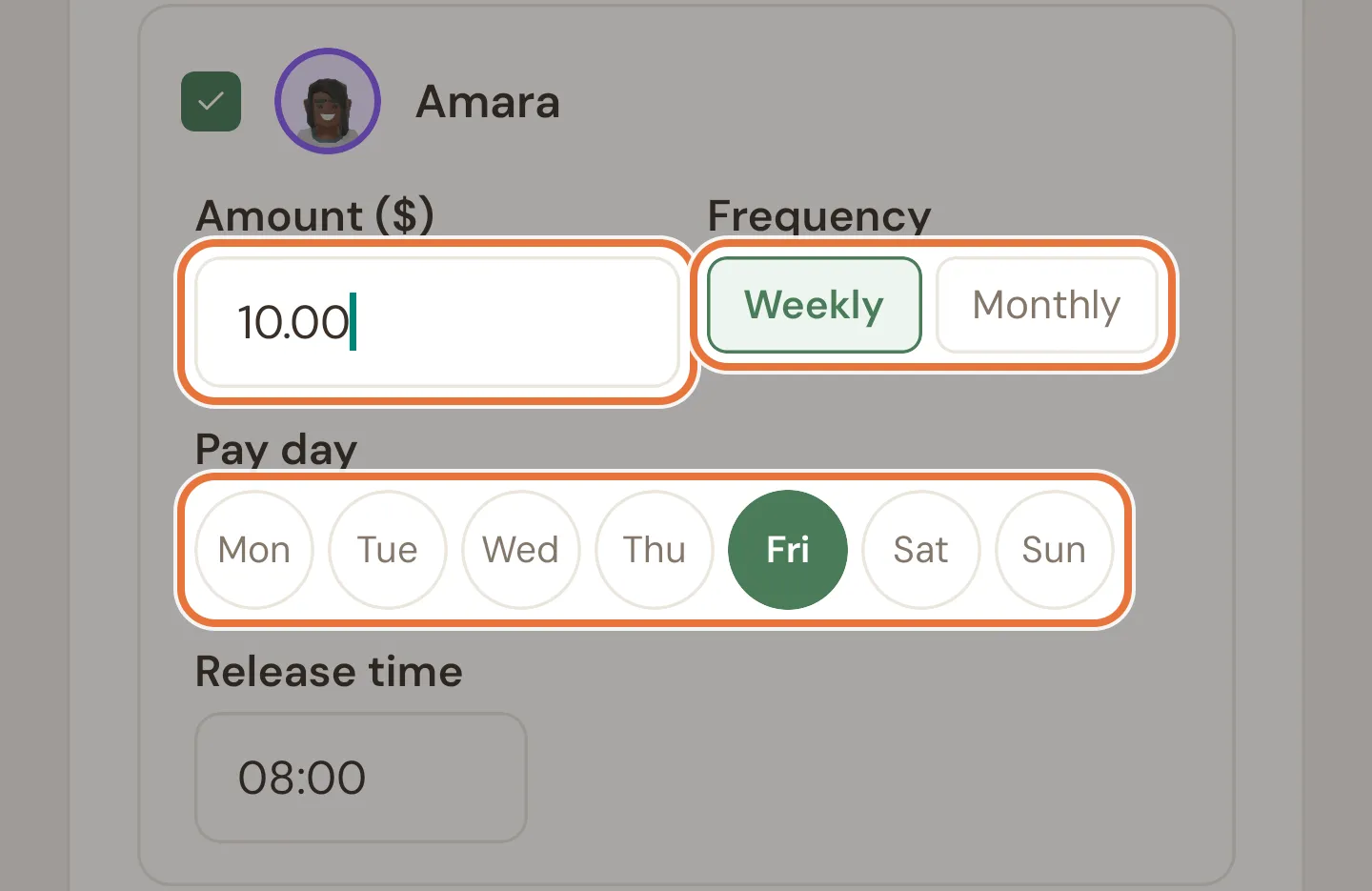
Tick each kid who gets pocket money and enter the amount.
-
Choose Weekly (and a pay day) or Monthly (and a day of the month from 1 to 28).
-
Set the release time in 24-hour time, like
08:00. That’s when the money lands each pay day. -
Tap Continue.
Not sure yet? Tap Do this later. You can set it up any time from Family › Pocket money setup.
4. Add a couple of jobs
Section titled “4. Add a couple of jobs”-
Tap Add a task. Pick an emoji and give it a name.
-
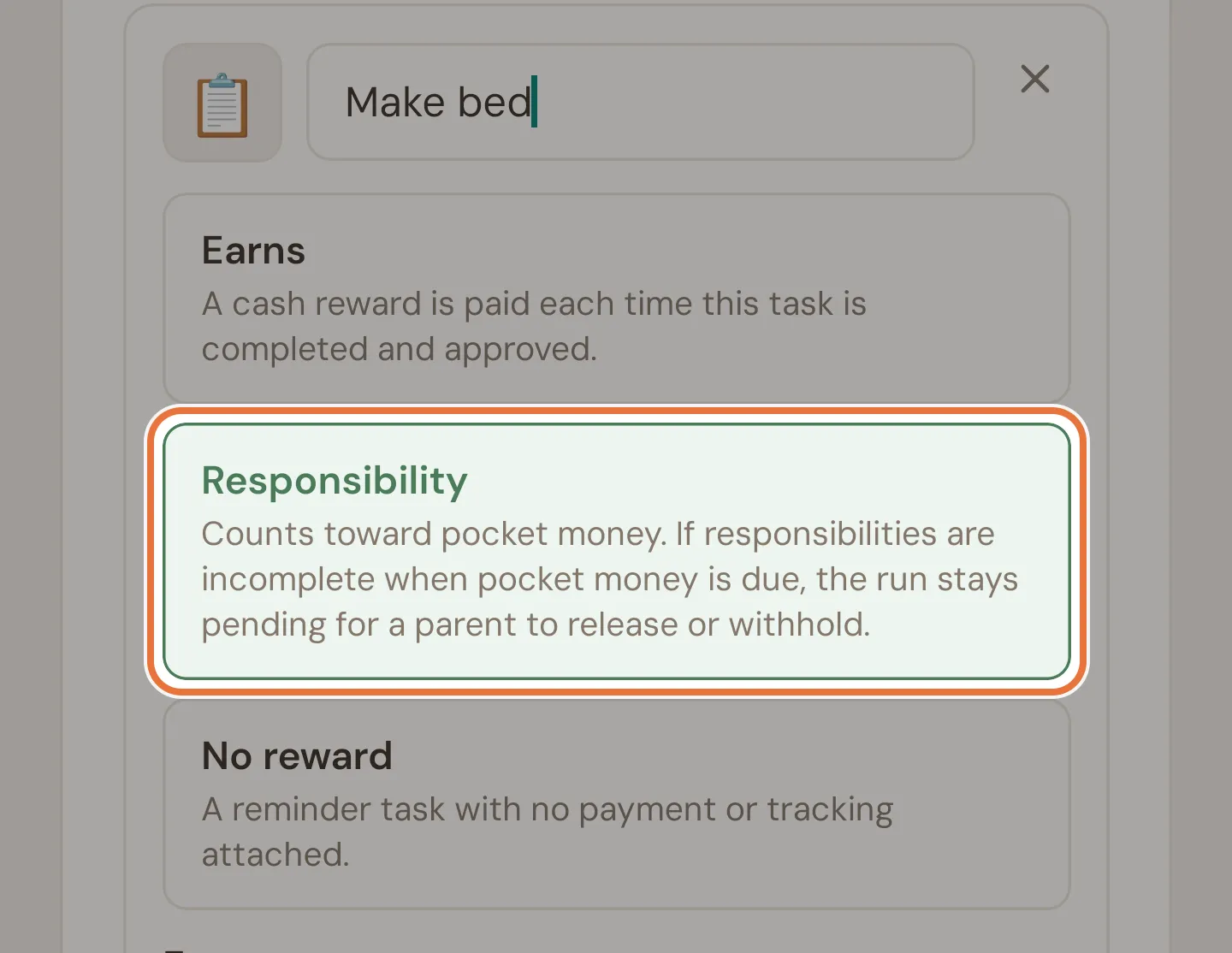
Choose a reward type:
- Earns pays a set amount each time it’s done and approved.
- Responsibility earns nothing on its own, but has to be done for pocket money to be paid.
- No reward is a simple reminder.
-
Set how often: Weekly (tick the days), Monthly (a day of the month) or One-off. Every kid is assigned to start with; tap a kid to take them off.
-
Add another job or two, then tap Continue.
Known issue: Weekly job can save with no days
A weekly job can be saved here with no days ticked, and it then never shows up. Tick at least one day.
Not sure which reward type?
Start with one Responsibility (a job that must happen, like making their bed) and one Earns job (an optional extra, like washing the car). The weekly pocket money and paid jobs recipes explain both.
5. You’re ready
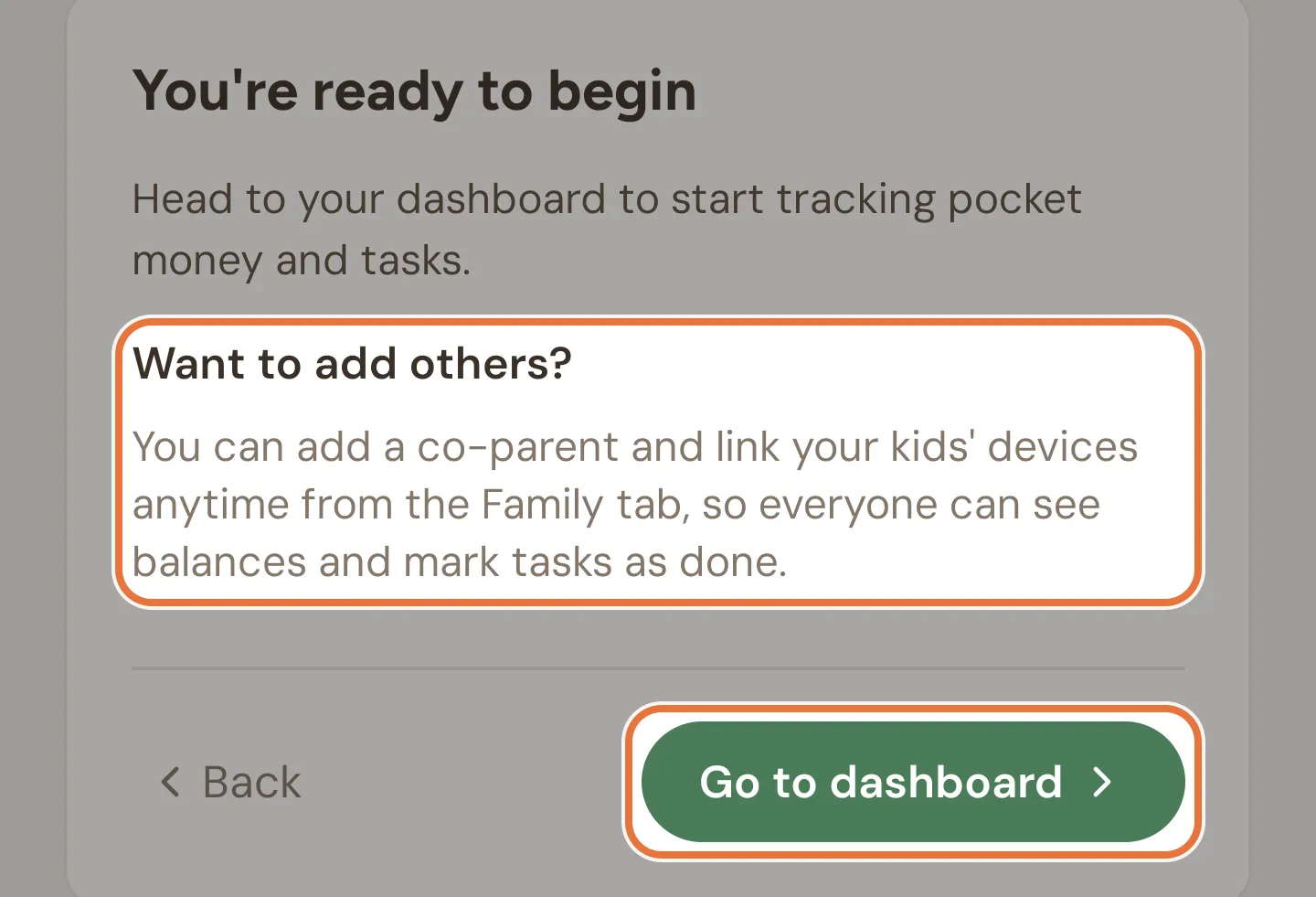
Section titled “5. You’re ready”The last screen suggests what to do next and has a Go to dashboard button. If you haven’t verified your email yet, it has a Verify your email button too. You’ll land on the Money tab with a card for each kid.
Two things are worth doing now:
- Verify your email. Tap Verify your email (or the Unverified badge at the top of the app) and click the link we send. You need a verified email to invite another parent or link a kid’s device.
- Turn on Face ID or your fingerprint when Quiddo offers. It keeps curious kids out of the parent side of the app.
Verify before your trial ends
Accounts that are still unverified at the end of the free trial are deleted. It takes a minute; do it now.
Your trial and what comes after
You get 14 days free. After that it’s $1.99 a month or $15 a year (AUD), paid by one parent and covering every family they set up. Other parents who join your family don’t pay. If a subscription lapses, the app goes read-only: nothing is deleted, you just can’t make changes until you subscribe.
Your first ten minutes, in order
Section titled “Your first ten minutes, in order”| Minute | What happens |
|---|---|
| 0 | Download Quiddo |
| 1 | Sign up |
| 2 | Name your family, pick dollars |
| 3 | Add the kids |
| 4–5 | Pocket money: $10 on Fridays, 8 am |
| 6–8 | Two jobs: Make bed (responsibility), Wash the car (earns $5) |
| 9 | Verify your email |
| 10 | First kid asks when pay day is |
Where to go next
Section titled “Where to go next”| If you want to… | Read |
|---|---|
| Tie pocket money to jobs getting done | Weekly pocket money, with jobs that have to get done |
| Pay for extra jobs | Paid jobs, so they can earn a bit extra |
| Split money into spend, save and give | Save, spend, give |
| Help them save for something big | Saving for the big thing |
| Make mornings run themselves | A morning routine that runs itself |
| Share with the other parent or grandparents | Two households, one set of kids |
| Use stars for little kids | Little kids: stars, not dollars |