
Family screen
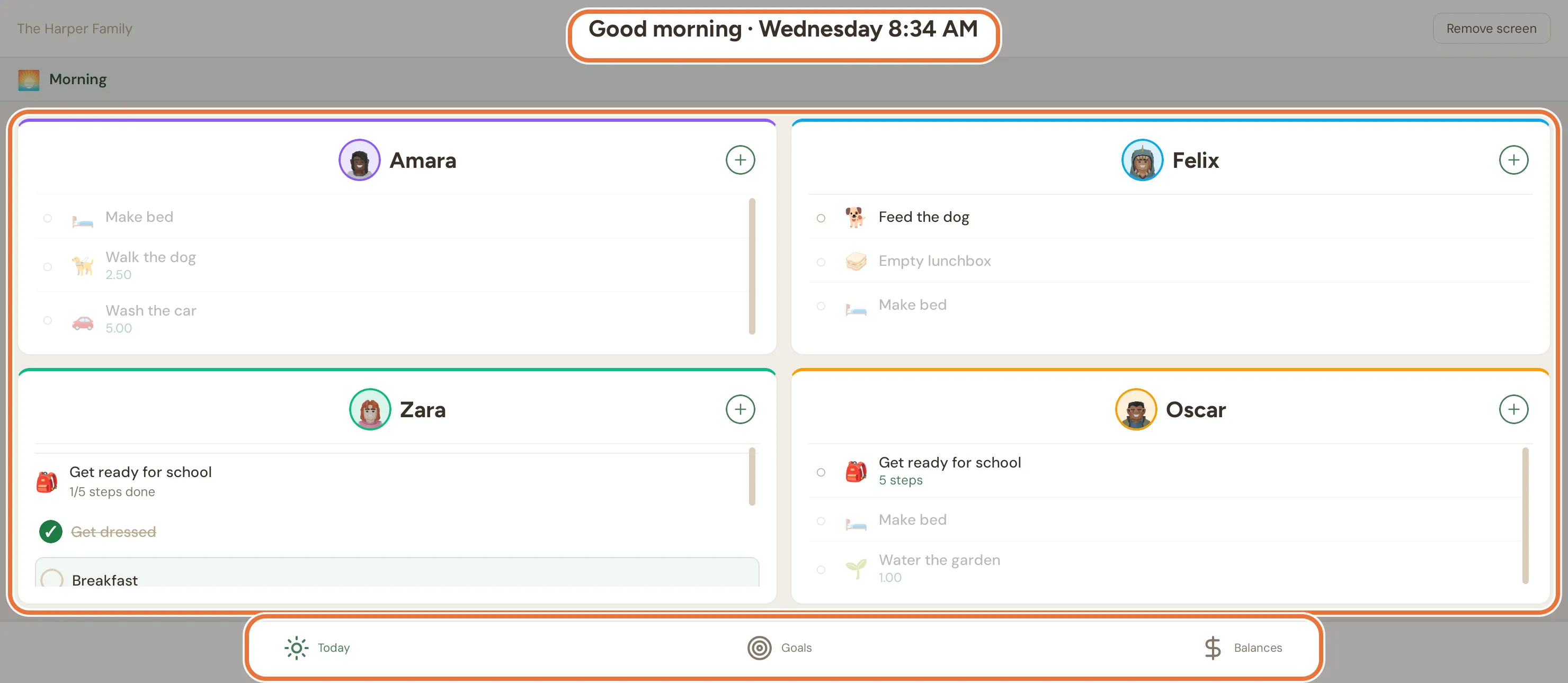
A family screen is a tablet (or any spare device) linked to your whole family rather than to one person. It shows a card for each kid with their jobs, plus boards for goals and balances. It’s made for the kitchen bench, so kids who don’t have their own device can still tick things off.
You set it up and manage it from the Family screen section on the Family tab. The screen itself always runs sideways (landscape).
Linking a tablet
Section titled “Linking a tablet”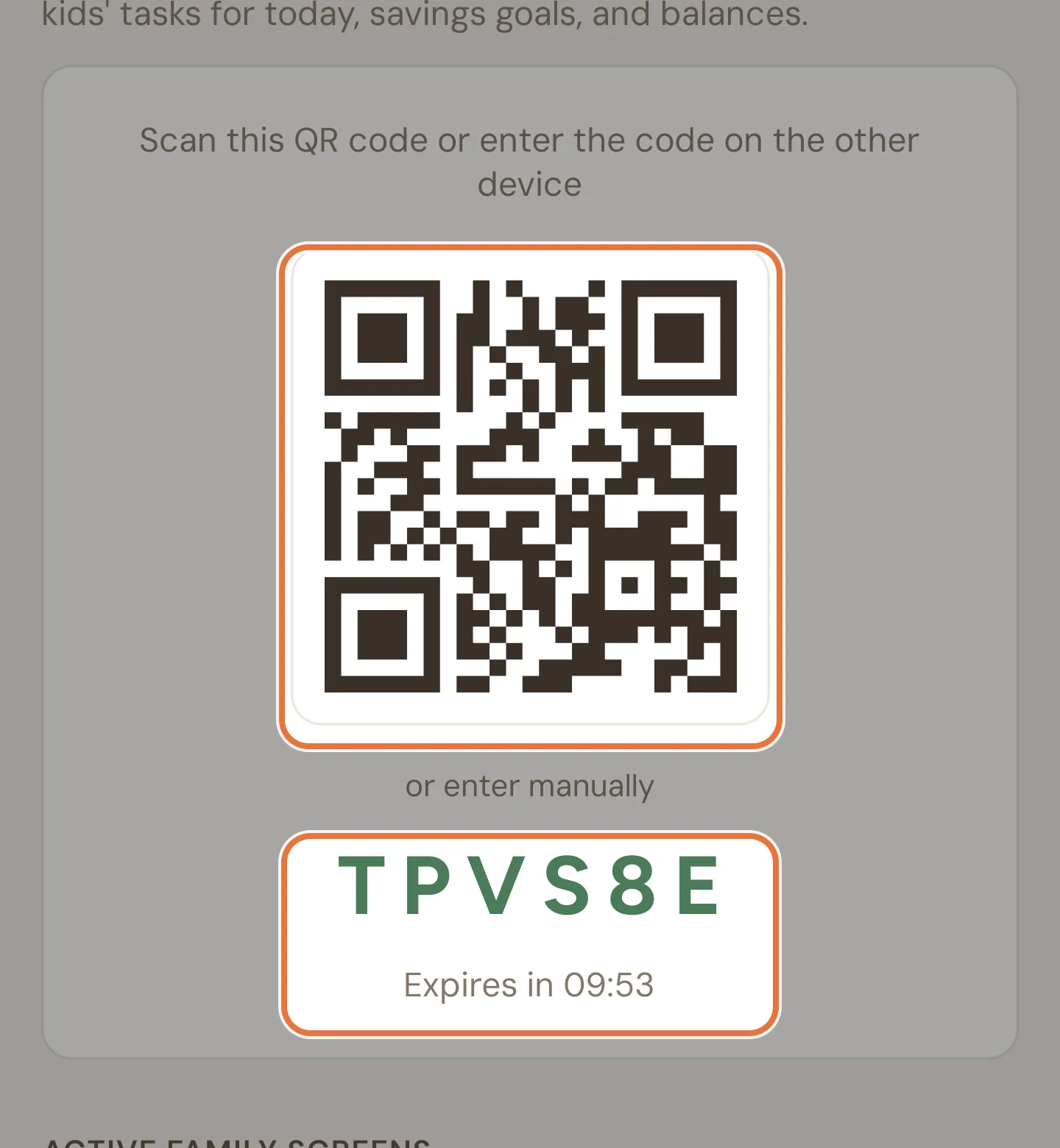
- On your phone, open the Family tab and scroll to Family screen. Tap Generate Link Code.
- You get a QR code and a six-character code, with an Expires in countdown. Codes last 10 minutes, and generating a new one cancels the old one.
- On the tablet, install Quiddo and tap Have a code? Enter it here on the sign-in screen. Tap Scan QR Code or type the code.
- The tablet shows Link family screen with your family’s name. Tap Set up family screen.
Your phone switches to Family screen connected when the tablet links. Any parent in the family can do this, and you can link as many screens as you like (one in each house, say).
The tablet doesn’t need anyone’s email or password to link. The code is the only thing it needs, which is why it expires quickly.
The Today tab is the main board. Along the top are your family name, a greeting with the day and time (“Good morning · Monday 7:30 AM”), and a Remove screen button. When a routine is on, its name appears in a banner underneath.
Each kid gets a card in their colour. With one or two kids the cards sit side by side; with three or more they fill two rows.
A kid’s card lists their jobs. Jobs in the routine that’s on right now come first, and the rest are faded. Each job shows its emoji, its reward (for paid jobs) and how many steps it has.
What happens when a kid taps a job:
| Job | Tap | Then |
|---|---|---|
| Plain job | Asks “Mark as done” | Tap Done to send it in |
| Job with steps | Asks “Start the checklist for this task?” | Tap Start, then tick off each step |
| Timed job without steps | Starts the timer straight away | A bar fills as time passes |
With a checklist, the next step is highlighted, and steps can be ticked or unticked in any order. When every step is ticked, a button appears to send it in (Submit for approval, or All done! for jobs with no reward). For a timed job, the button shows alongside the running time.
Sent-in jobs show a ⏳ and Awaiting approval while they wait for you. You approve them from the Daily screen as usual.
The tablet stays awake while a checklist or timer is running.
Anytime jobs
Section titled “Anytime jobs”If there are anytime jobs a kid hasn’t done today, their card has a + button in the top corner. It opens Anytime Tasks, “Tasks Mia can pick up any time”, with each job’s reward and step count.
- Claim asks to mark the job as done, then sends it in.
- Start (for jobs with steps) starts the checklist on their card.
See Paid jobs for setting up anytime jobs.
The Goals tab (Savings goals) has a card for each kid with active goals. Each goal shows how much is saved out of the target, a progress bar (green once it’s reached), and the target date if it has one (“By 14 Nov 2026”). It’s read-only: kids fund goals from their own Quiddo page.
Kids with no goals don’t get a card. If nobody has one, it says “No active savings goals.”
Balances
Section titled “Balances”The Balances tab has a card for each kid with:
- Their total balance.
- Up to three bucket tiles.
- A pocket money box, if they have a schedule: the amount, when it’s paid (“every Friday” or “on the 1st”), and how far away it is (“Tomorrow”, “3 days away”). On pay day it lights up with Payday today!.
All three boards update on their own, so there’s no need to refresh.
Removing a family screen
Section titled “Removing a family screen”There are two ways:
- On the tablet: tap Remove screen. It asks for a parent’s email and password (any parent in the family) before Confirm removal signs the tablet out, so kids can’t unlink it by accident.
- On your phone: on the Family tab, under Active family screens, tap the bin next to the device and confirm Remove.
Active family screens lists each linked device by name (“Unnamed device” if it doesn’t have one), with when it was last active or when it was added. It says “No family screens linked yet.” when there are none.