
Weekly pocket money, with jobs that have to get done
This is how we run pocket money in our house, and it’s the setup Quiddo was built around.
Every Friday morning, each kid gets their pocket money automatically. There’s one condition: the jobs they’re expected to do anyway (make the bed, feed the dog, empty the lunchbox before it becomes a science project) have to be done and ticked off. If they are, the money lands without anyone lifting a finger. If they aren’t, Quiddo holds the payment and asks you what to do.
It takes about ten minutes to set up. After that, the only regular job left for you is tapping approve.
You’ll need: a family with at least one kid added. If you haven’t got that far, start with Getting started.
What you’re setting up
Section titled “What you’re setting up”| Piece | What it does |
|---|---|
| A pocket money schedule | Pays a set amount on a set day and time, every week or month. |
| A few responsibilities | Jobs with no money attached. They decide whether pocket money pays out. |
| Approvals | Your kid says “done”, you confirm it. Only confirmed jobs count. |
| Pay day | Quiddo pays if everything’s done. Otherwise it waits for you to release or withhold. |
1. Agree on the deal first
Section titled “1. Agree on the deal first”Do this bit at the kitchen table, not in the app. Settle three things:
- How much, and how often. Weekly suits most kids. Monthly suits teenagers who like to pretend they have a salary.
- Which day. We use Friday so it lands before the weekend, when the spending tends to happen.
- Which jobs are non-negotiable. Keep this list short. Three or four daily jobs is plenty. If everything is a responsibility, nothing is.
Paid extras (washing the car, weeding) are a different thing. Those are covered in Pay-per-job extras.
2. Set up the pocket money schedule
Section titled “2. Set up the pocket money schedule”-
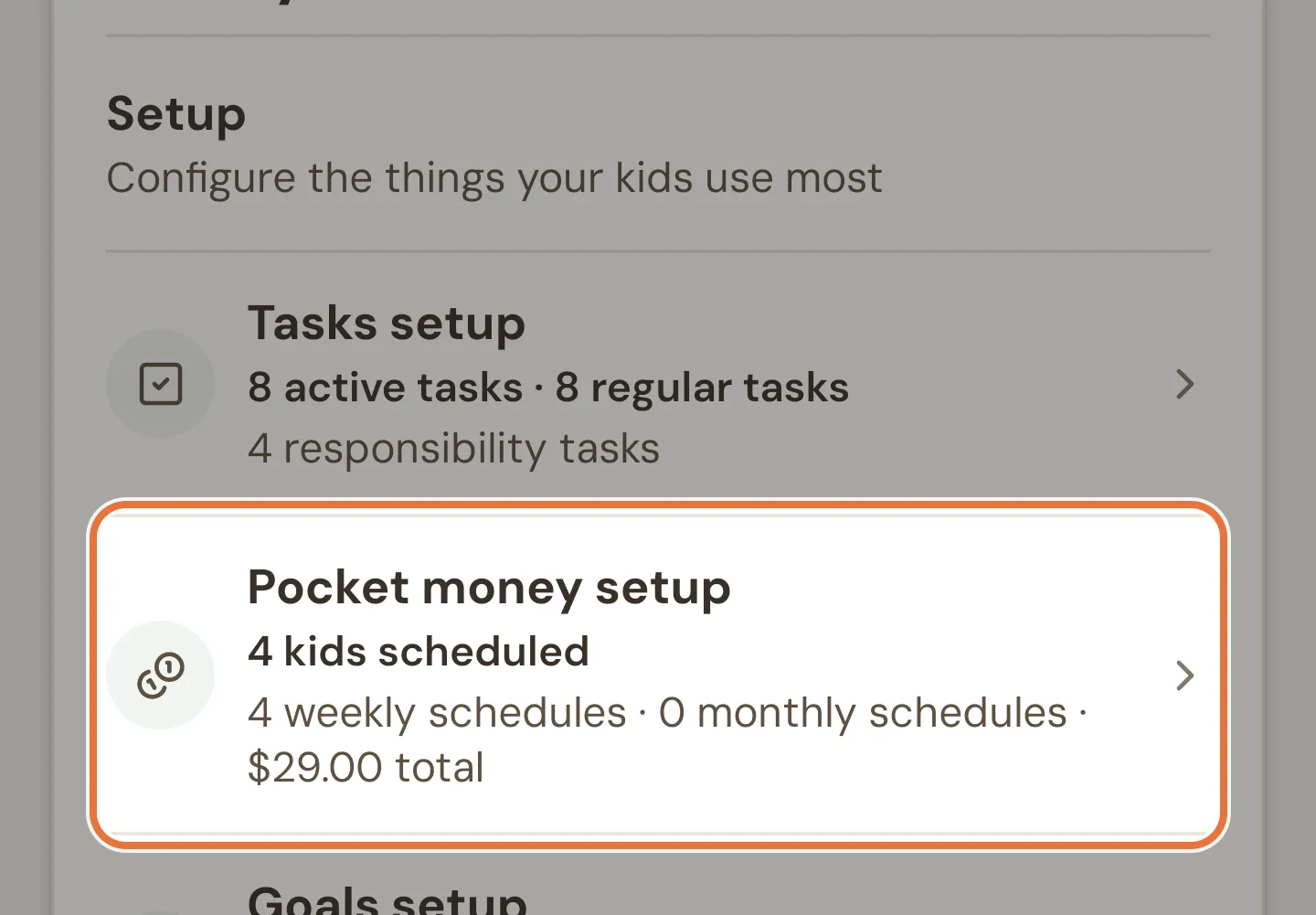
Open the Family tab, then Pocket money setup under Setup.
-
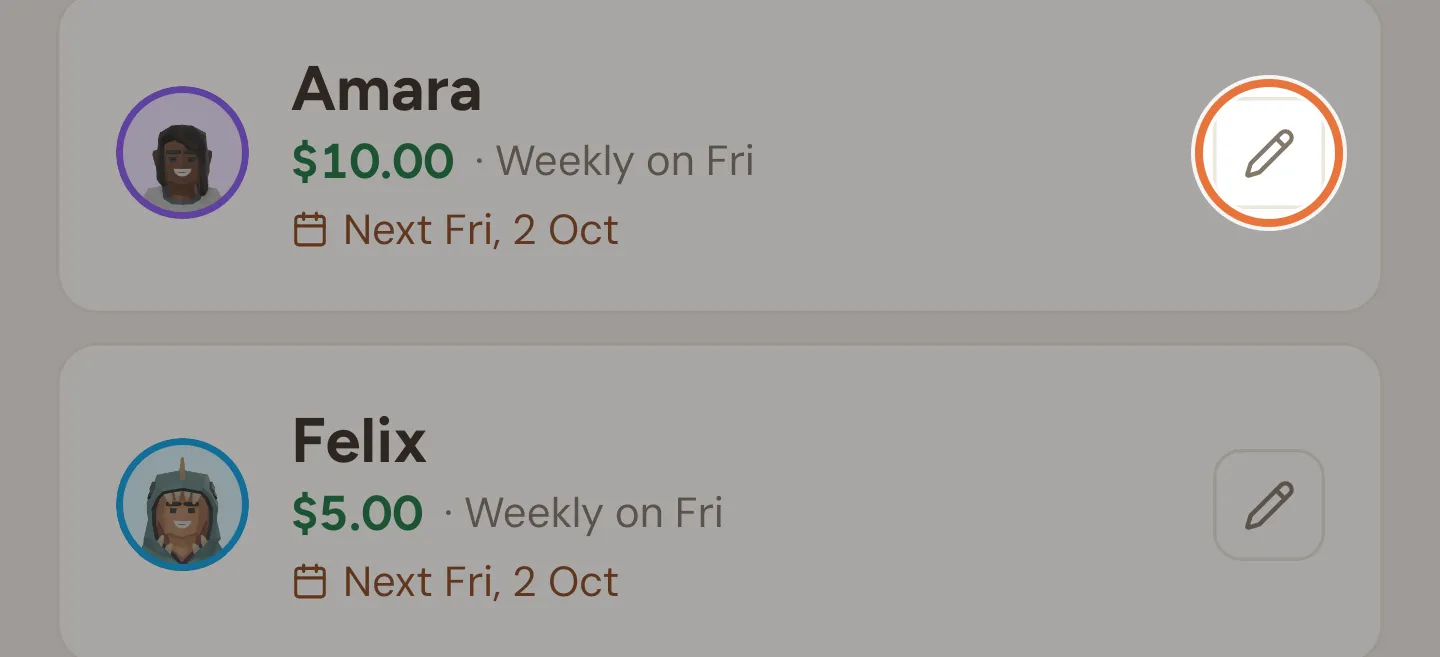
Tap + next to your kid’s name. If they already have a schedule, tap the pencil to change it.
-
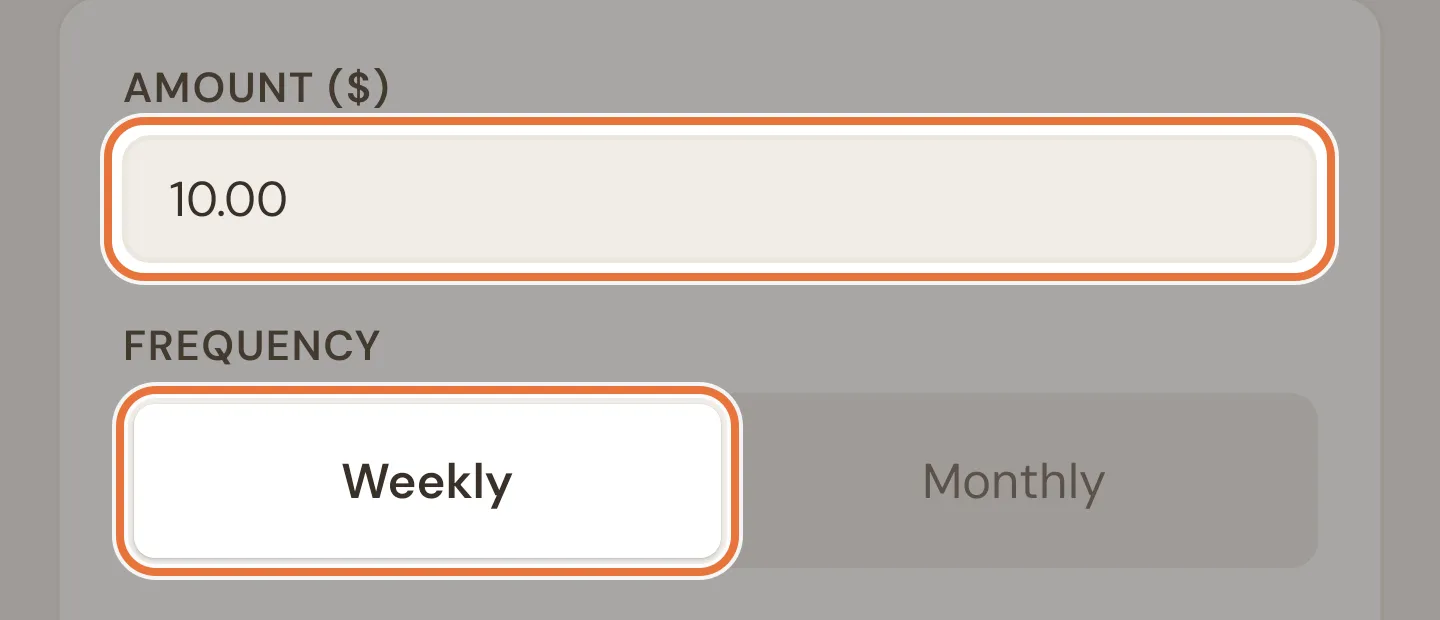
Enter the amount, then pick Weekly or Monthly.
-
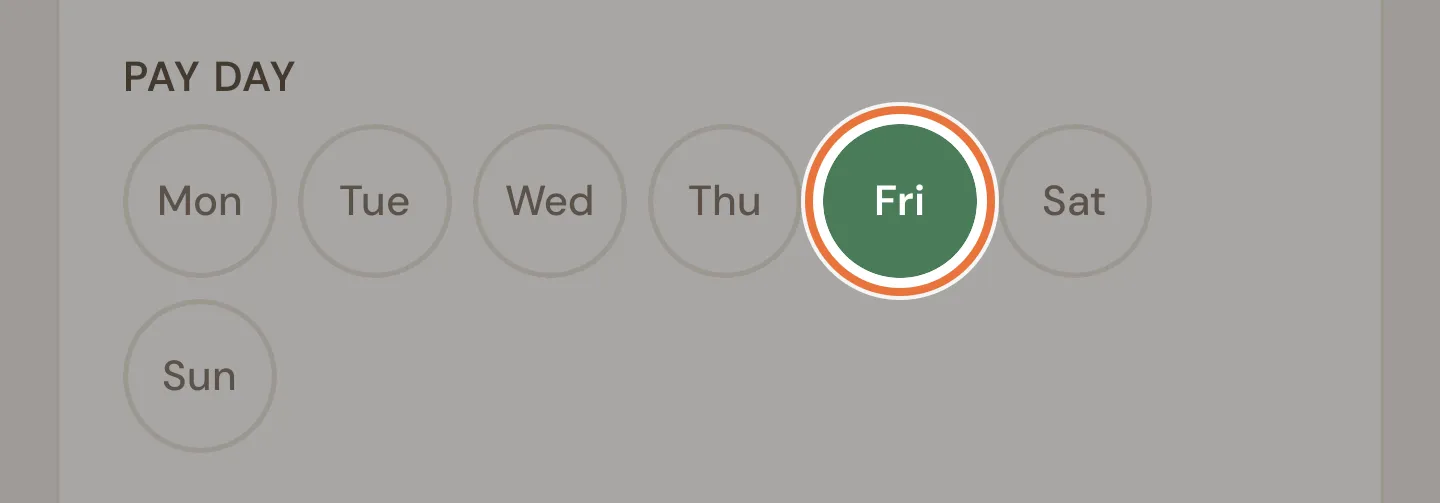
Pick the pay day (it starts on Friday) or, for monthly, the day of the month.
-
Type a release time in 24-hour time, like
08:00or17:30. This is when the money actually lands.
-
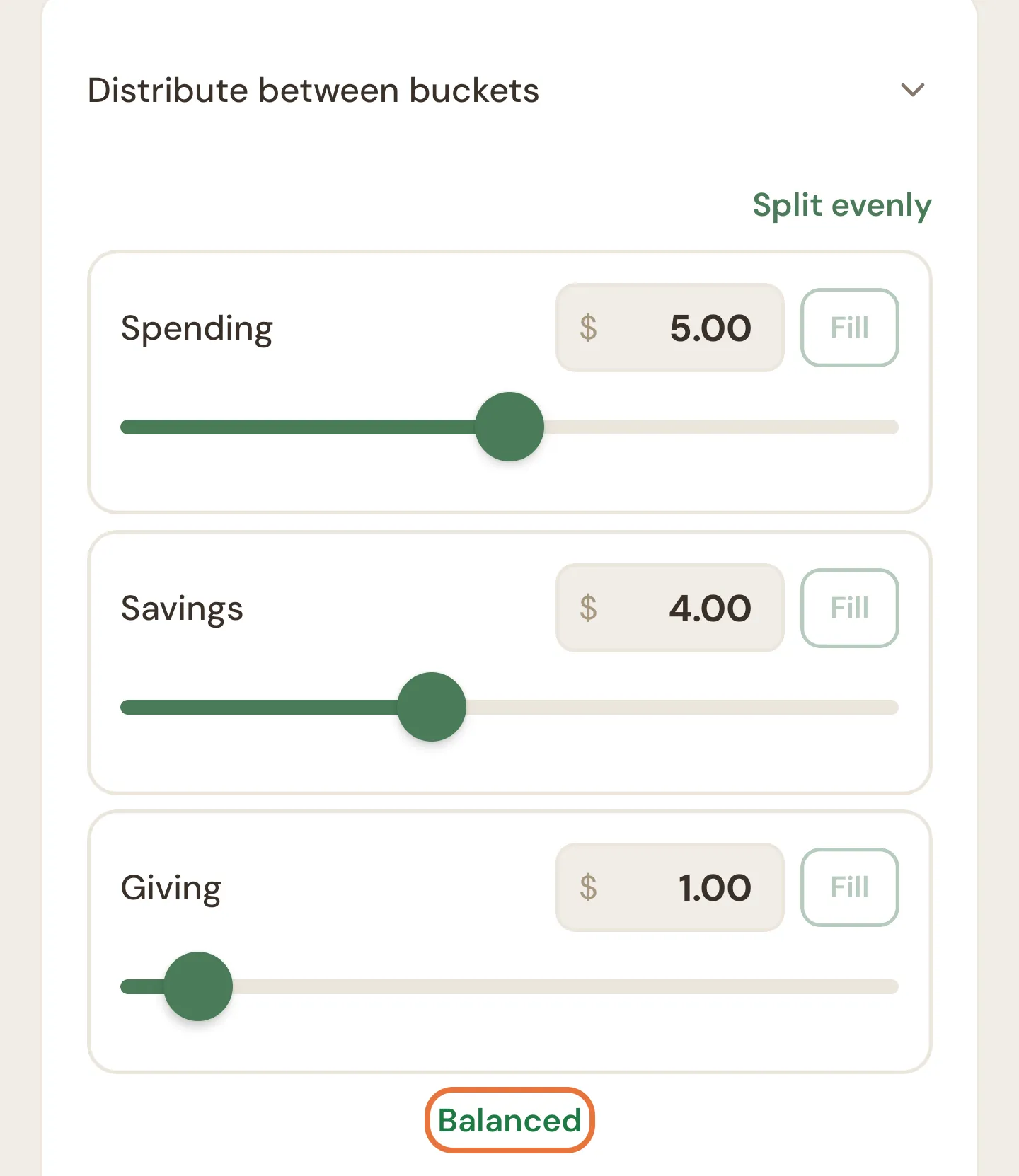
Choose where the money goes. Pick one bucket, or tap Distribute between buckets to split it (say, $5 to Spending, $4 to Savings and $1 to Giving).
-
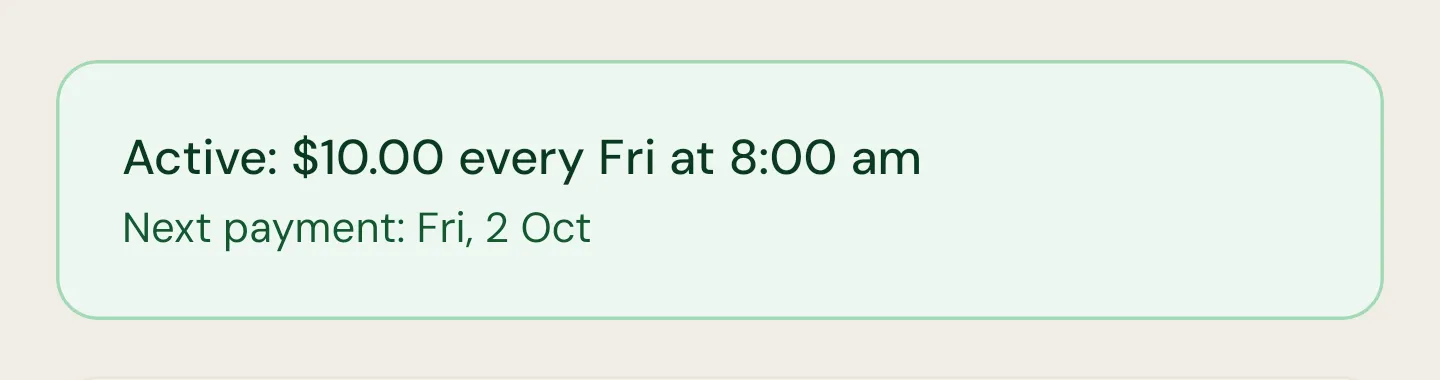
Tap Set schedule (or Update schedule if you’re changing one). You’ll see a summary like “Active: $10 every Fri at 8:00 am” with the date of the next payment.
Got more than one kid? When you set up the next one, tap Copy from another kid to reuse the amount, day and time. The split resets to even, so check it before saving.
Moving pay day
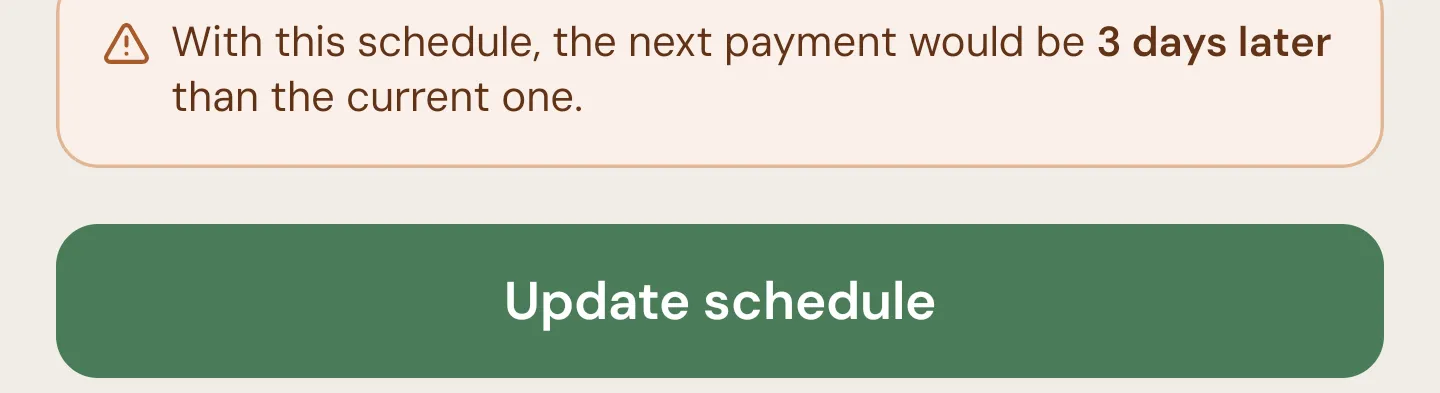
If you change the day or time on an existing schedule, Quiddo tells you how much earlier or later the next payment will land before you save. Handy for avoiding the “but it’s meant to be TODAY” conversation.
Paying on the 29th, 30th or 31st
Monthly pocket money can go out on any day. If the month is too short, it goes out on the last day instead, so a 31st pay day lands on 28 February and 30 April.
Release time uses your family’s time zone
Pocket money releases at the time you set in your family’s time zone, wherever your phone happens to be. The family admin can change the time zone in Family details.
Kids can change their own split
Kids can adjust their split is switched on for new schedules. With it on, your kid can move their pocket money between buckets from their own Quiddo page. You can set a minimum for each bucket so the savings bucket never drops to zero. Turn it off if you’d rather decide the split yourself. See Save, Spend, Give buckets.
Splits can be a few cents out
Splits are saved as whole percentages. A $3.33 share of $10 is stored as 33%, which pays $3.30. The last bucket picks up the leftover cents, so the total is always right.
3. Create the responsibilities
Section titled “3. Create the responsibilities”-
Open the Tasks tab and tap Assign tasks, then the round + button at the bottom right.
-
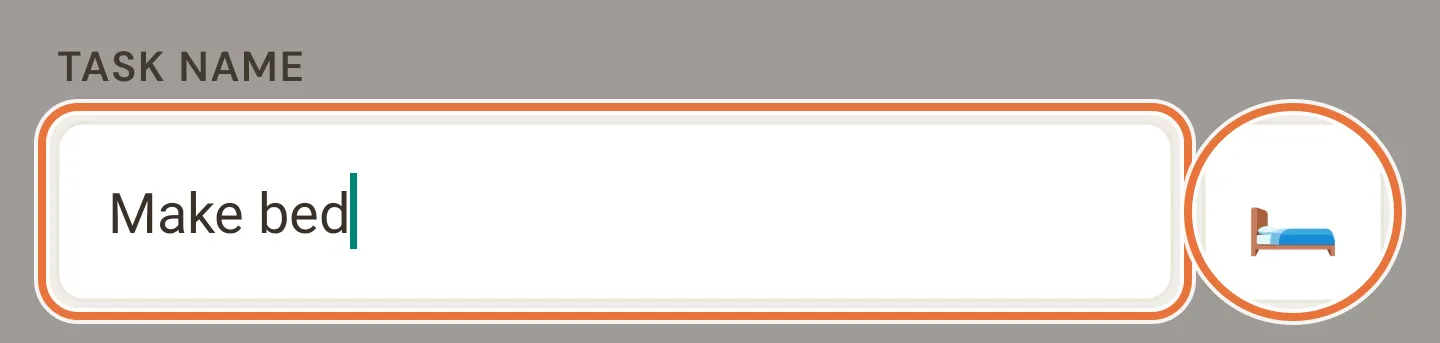
Give it a name and an emoji. “Make bed” with a 🛏️ works.
-
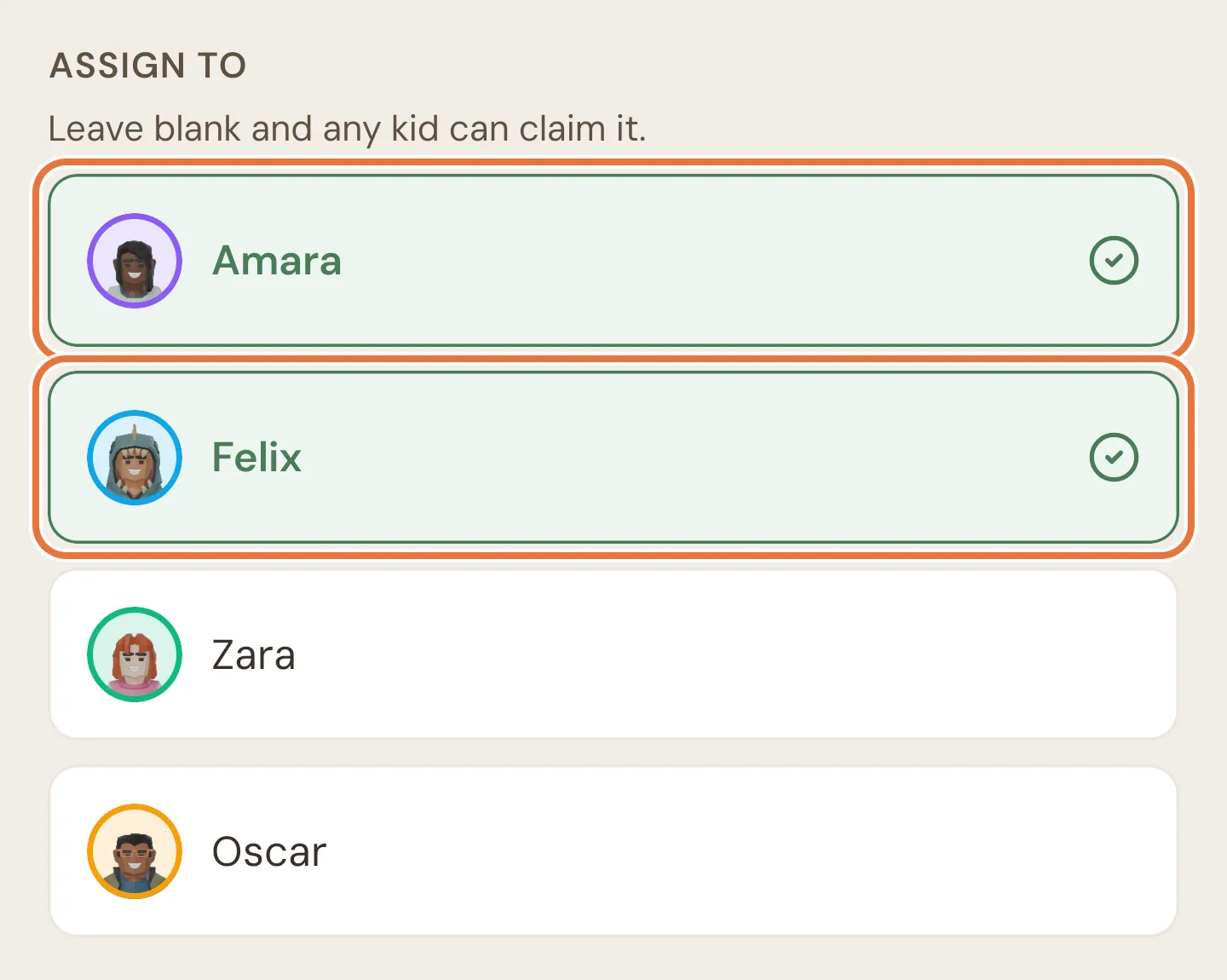
Under Assign to, tap each kid who should do it.
-
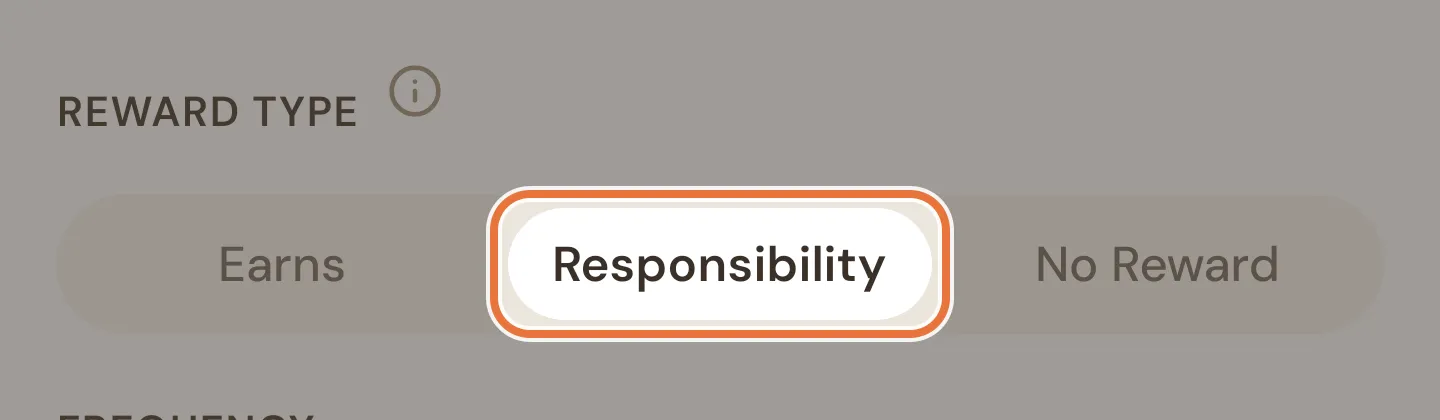
Under Reward type, choose Responsibility.
-
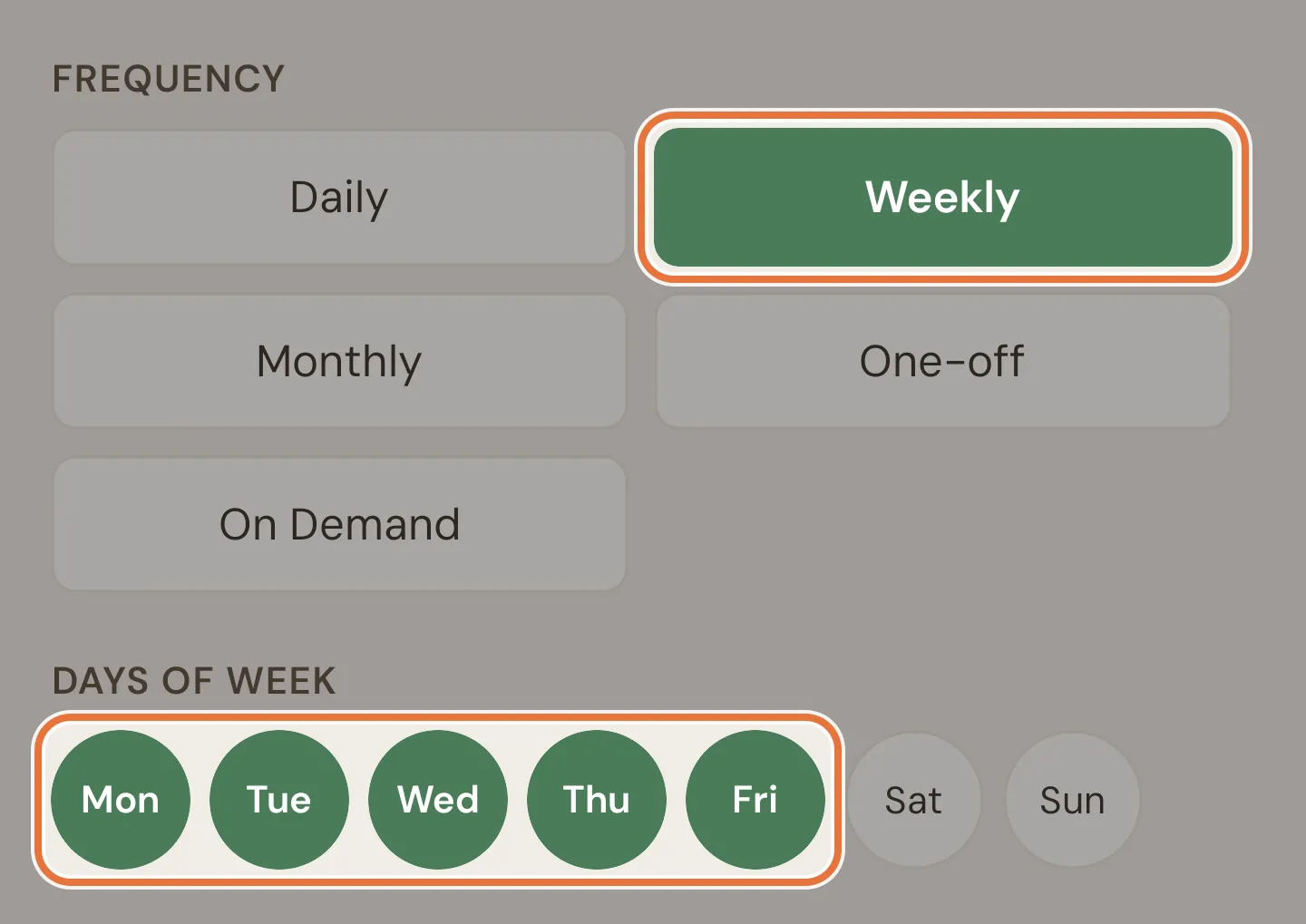
Under Frequency, choose Daily, or Weekly and tap the days it applies (school days only, for example).
-
Leave Requires approval on Yes. That’s the whole point.
-
If you’ve set up routines, tap one (like Morning) so the task shows up at the right time of day.
-
Tap Create Task. Repeat for each job.
Known issue: Unassigned scheduled jobs may not show
Always tap at least one kid under Assign to for scheduled jobs. The form says that leaving it blank lets any kid claim the task, but at the moment an unassigned daily or weekly task may not appear on your kid’s own device.
Responsibilities can’t be “any time” tasks
The On Demand frequency is for optional jobs kids pick up when they feel like it, so it can’t be a responsibility. If you switch a responsibility to On Demand, it becomes a No Reward task.
Changing a job later is safe
Editing a task only affects what happens next. Past completions, and anything already paid, stay as they were.
4. Get your kid ticking things off
Section titled “4. Get your kid ticking things off”Your kid needs somewhere to mark jobs done. Pick whichever suits:
- Their own phone or tablet. Link it with a one-off code, no password needed. See Link a kid’s device.
- A shared tablet on the kitchen bench. See Family screen.
- Your phone. Open your kid’s page and tap the starry Quiddo page button (it says “Zara’s Quiddo page” if your kid is Zara) to see exactly what they see, then hand it over.
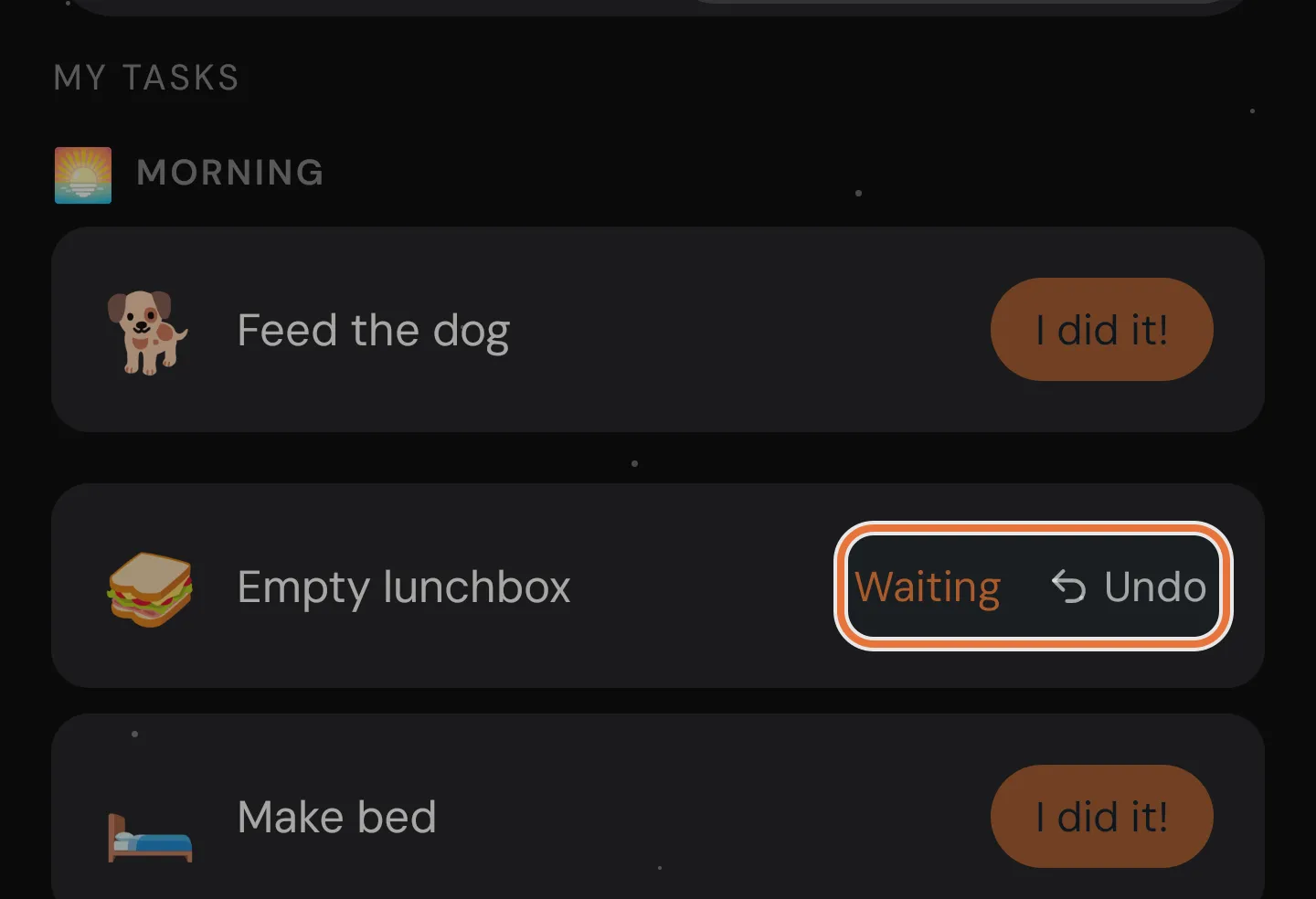
On their Quiddo page, each job has an I did it! button.
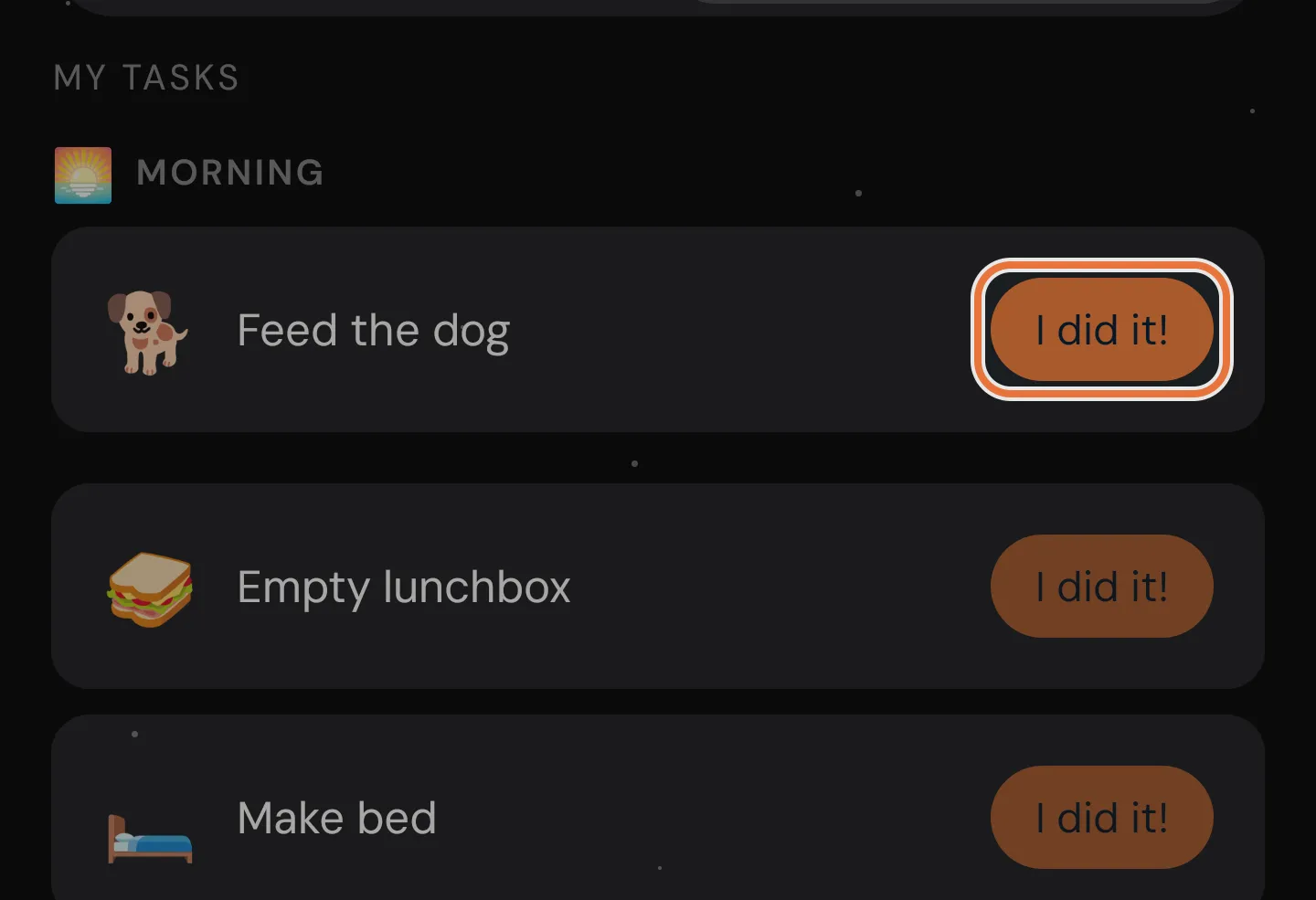
Once they tap it, the job shows Waiting until you approve. If they tapped the wrong one, Undo is right there.
5. Approve during the week
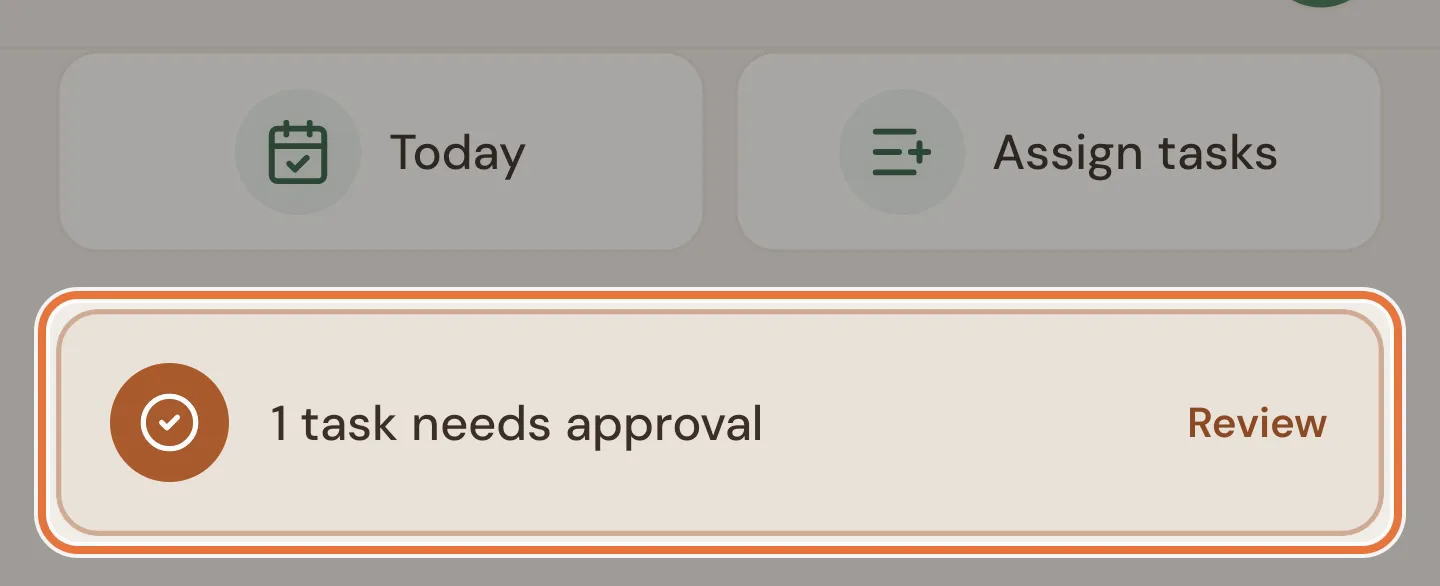
Section titled “5. Approve during the week”When something’s waiting, a yellow bar reading “1 task needs your approval” appears at the top of the Money tab, and a banner shows on the Tasks tab. Tap the bar, or Review on the banner, to open the Daily screen.
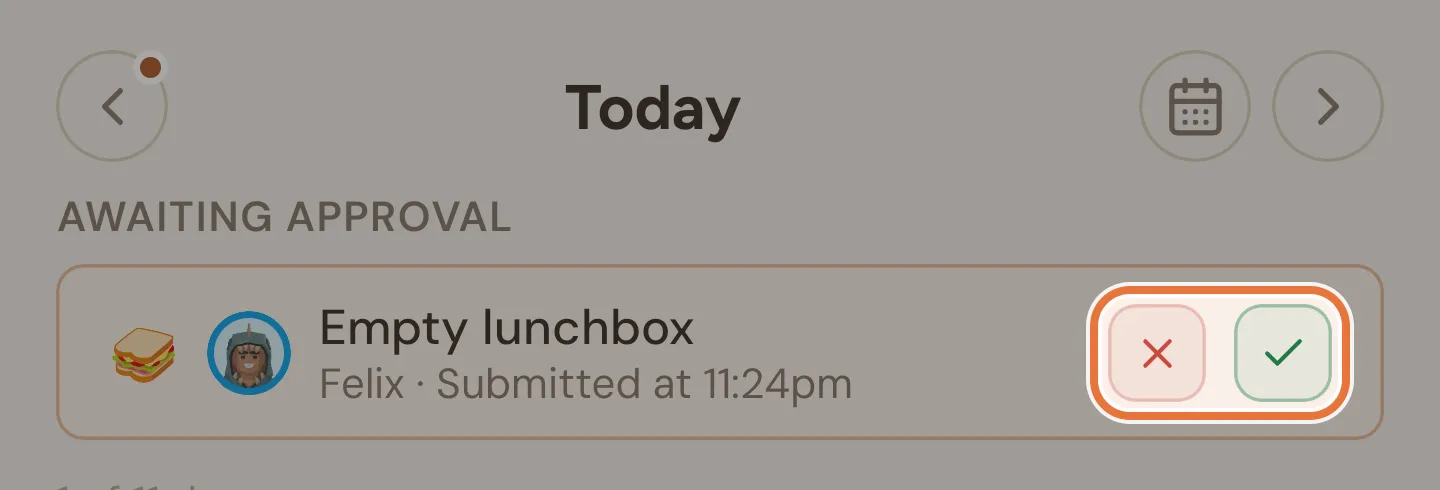
- Tap ✓ to approve, or × to send it back. A declined job shows “Your parent sent this back” on your kid’s page so they can have another go.
- Did your kid do the job without telling the app? Tap ✓ on the unticked row to mark it done yourself. For a day that’s already gone, open Family › Task completions, filter by Scheduled and approve it there.
- Approved something by mistake? Tap Undo.
You don’t have to approve as you go. Plenty of parents clear the lot on Thursday night.
Waiting isn’t done
A job that’s waiting for approval doesn’t count toward pocket money yet. If pay day arrives with approvals still waiting, the payment goes to pending. Approve them before the release time.
Marking done versus ticking steps
Tapping ✓ marks a job done and approved in one go. If the job has steps and you tick each step on your kid’s behalf, it’s only submitted, and it still needs approving.
Finding older approvals
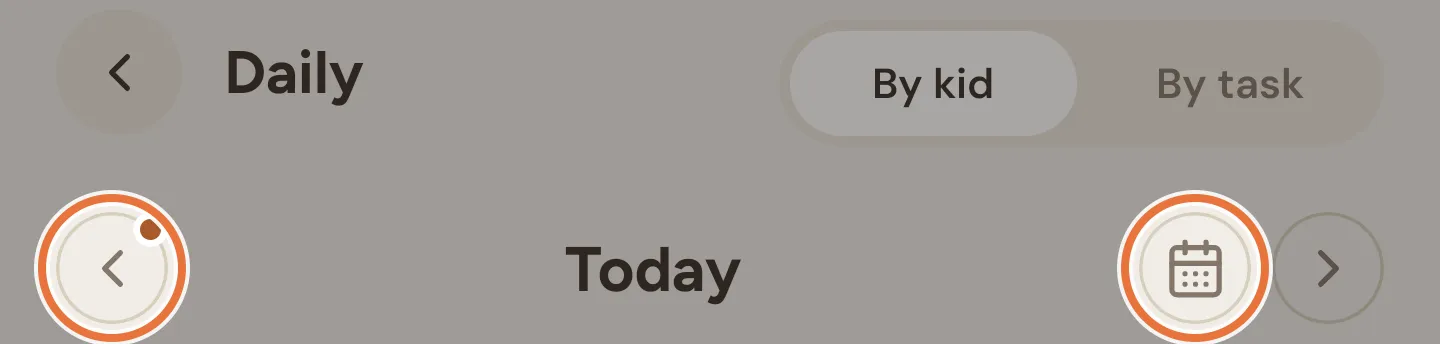
The Daily screen shows one day at a time. A small dot on the ‹ or › arrow means the day before or after has something waiting. For anything older, go to Family › Task completions and filter by Pending.
6. Keep an eye on the status
Section titled “6. Keep an eye on the status”Each kid’s card on the Money tab has a pocket money line that tells you where this week stands:
| Status | Meaning |
|---|---|
| On track for Friday | Every responsibility from earlier days this week is ticked off. Today’s jobs don’t count until the day is over. |
| At risk for Friday | A responsibility from an earlier day this week hasn’t been done. |
| Ready today / At risk today | It’s pay day, and the payment hasn’t gone out yet. At risk today means something is still undone. |
| Pending | Pay day passed with jobs outstanding. Quiddo is waiting for you. |
| Withheld | You decided not to pay this one. |
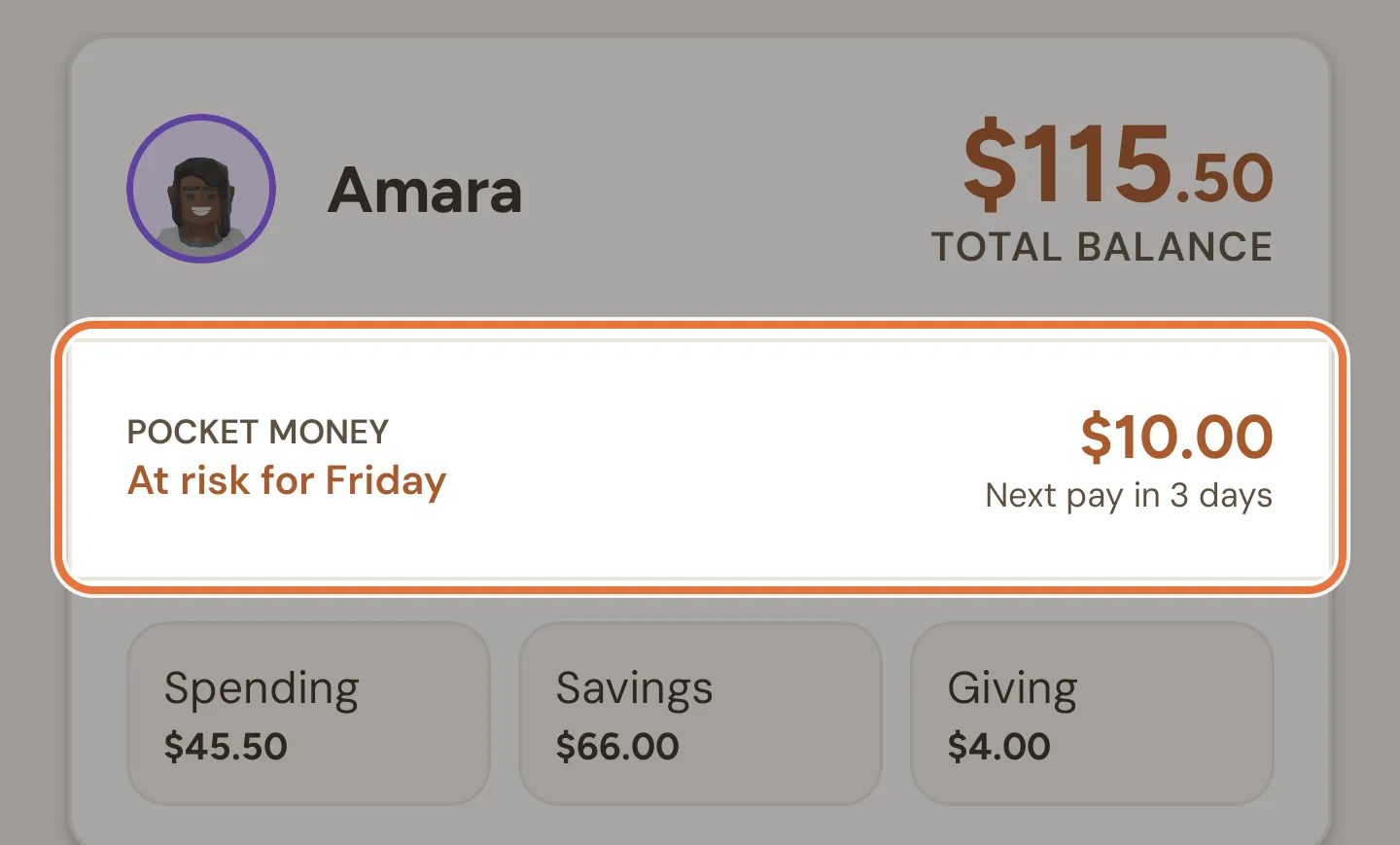
Tap that line to open your kid’s Tasks tab. The Pocket money check card shows how many responsibilities are missing. Tap Details for a row of day dots (✓ done, ✗ missed). Tap any dot to approve or excuse that day’s jobs from there.
Known issue: On track counts unapproved jobs
On track counts jobs your kid has ticked off, including ones still waiting for your approval. Pay day only counts approved jobs. If approvals are still waiting at the release time, the payment goes to pending even though the status said on track. Clear your approvals before pay day.
Today doesn’t count against them yet
On an ordinary day, today’s jobs don’t count until the day is over, so a kid who hasn’t got to them yet still reads On track. A job that’s still undone once its day has passed turns the status to At risk. Pay day is the exception: anything still undone at the release time holds the payment, so the status reads At risk today while jobs are outstanding.
Late jobs on pay day roll over
On pay day, a job that falls after the release time (an evening job, say) counts toward next week’s payment, not this one.
7. When a day goes sideways, excuse it
Section titled “7. When a day goes sideways, excuse it”Kids get sick. Sleepovers happen. When a responsibility couldn’t reasonably be done, excuse it so it doesn’t hold up the week.
-
On the Daily screen, go to the day in question.
-
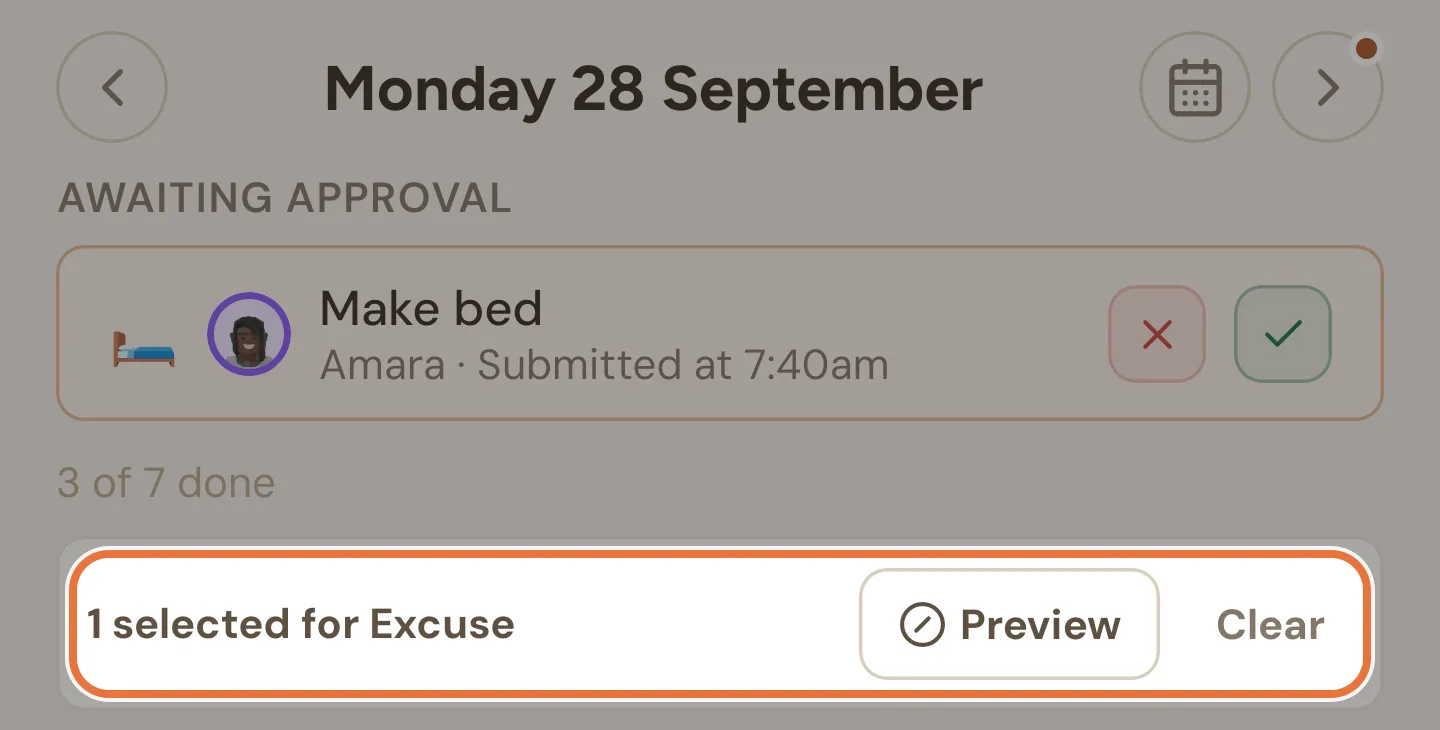
Tap Excuse on the job. To excuse several at once, tick the small boxes beside them and tap Preview in the bar that appears.
-
Confirm. The job turns grey and shows who excused it.
If that was the last thing holding up the payment, Quiddo asks whether to Release it now.
What you can and can’t excuse
You can only excuse responsibilities, not paid jobs or reminders. Future days can’t be excused. For today, you can excuse a job once its routine has finished, or from tomorrow if it isn’t in a routine. Until then you’ll see “Too early to excuse”.
Planned breaks: the Task Calendar is coming soon
For school holidays or a week away, you won’t have to excuse every day. The Task Calendar (coming soon) lets you add the dates and tasks switch off for those days. Pocket money still pays on schedule, and the days off don’t count against your kid. Until it arrives, excuse the days as above. See School holidays and sick days.
8. Pay day
Section titled “8. Pay day”At the release time on pay day, one of two things happens.
Everything’s done. The money goes into your kid’s buckets, split the way you set it up. You get a notification. Nothing else to do.
Something’s outstanding. The payment goes to Pending and you get a notification. A red banner appears on your kid’s card on the Money tab:
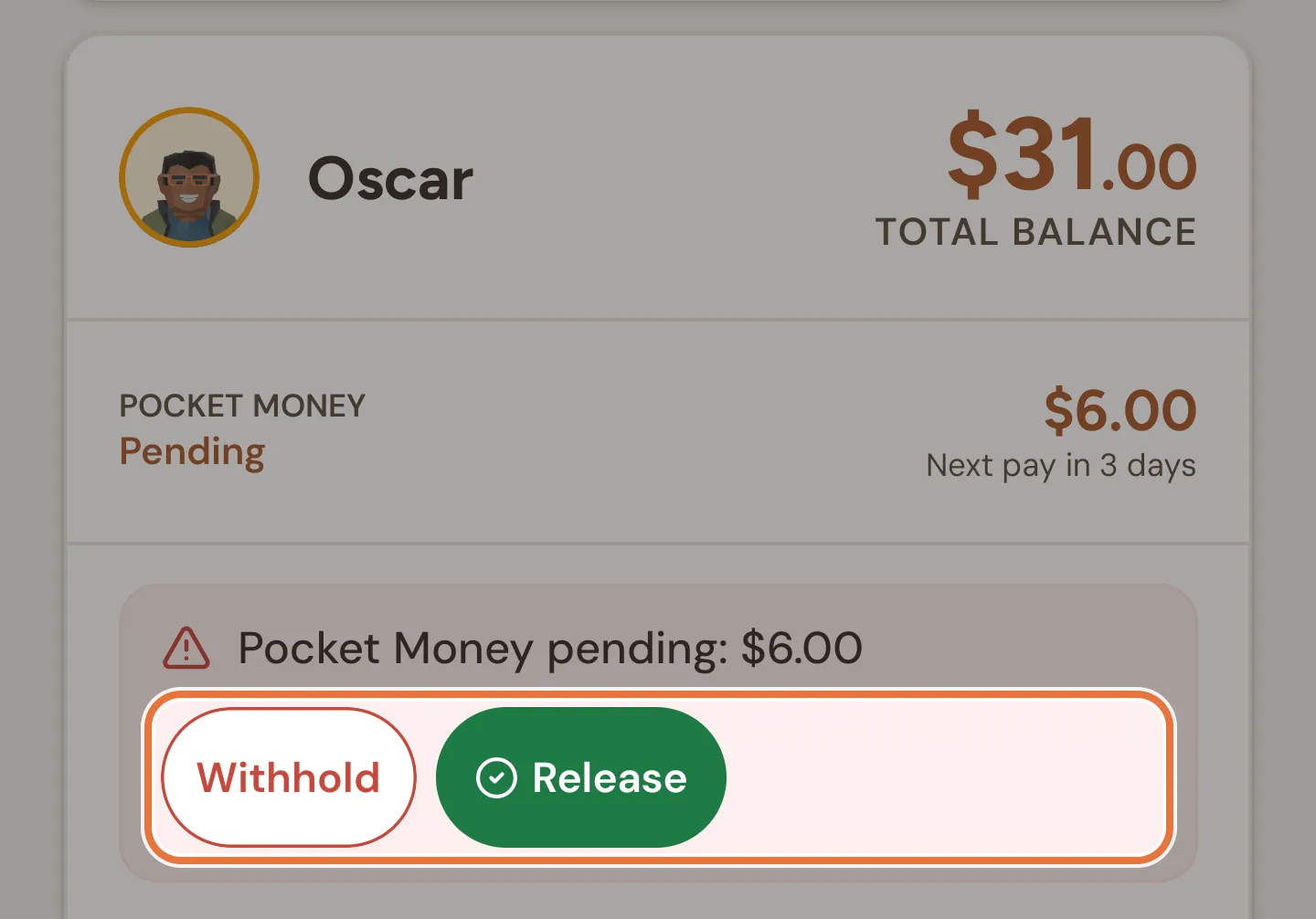
- Release pays the full amount now. Good for “fine, but next week you’re doing it without being asked”.
- Withhold confirms you’re holding it back. A grey bar appears with Undo, which puts it back to pending.
Changed your mind next Tuesday? Open History, filter to Pocket Money, tap the withheld payment and choose Release pocket money. It’s paid straight away, split across their buckets the way their schedule is set up now.
Known issue: Only the full amount can be released
You can’t currently pay part of a pending payment, or pay early before pay day, from the mobile app. Release always pays the full amount.
The full ledger
Family › Pocket money runs lists every payment for every kid, with filters for date, kid and status. From there you can release, withhold, or Reverse a payment that already went out.
What a normal week looks like
Section titled “What a normal week looks like”| When | Kid | You |
|---|---|---|
| Mon to Thu | Taps I did it! on each job | Approves in a batch whenever |
| Wednesday, sick day | Stays in bed | Excuses Wednesday’s jobs |
| Thursday night | Checks the Money tab says On track for Friday | |
| Friday 8:00 am | Gets paid | Gets a notification and does nothing else |
Where to go next
Section titled “Where to go next”- Add some paid extras for kids who want to earn more: Pay-per-job extras.
- Split pocket money into Save, Spend and Give: Save, Spend, Give buckets.
- Put the savings toward something specific: Saving for the big thing.