
Save, spend, give
One pile of money is easy to spend and hard to save. Split it three ways (some to spend now, some to save, some to give away) and suddenly there’s a plan. Kids can see the savings growing while still having something to spend at the canteen.
In Quiddo each pile is a bucket. This recipe sets up Spending, Savings and Giving buckets, sends pocket money and rewards into them automatically, and hands older kids some control over the split.
You’ll need: a family with at least one kid added. The split works best alongside a pocket money schedule, so if you haven’t got one yet, start with Weekly pocket money, with jobs that have to get done.
What you’re setting up
Section titled “What you’re setting up”| Piece | What it does |
|---|---|
| Buckets | Separate balances for each kid, like Spending, Savings and Giving. |
| A default spending bucket | The one Quiddo picks when you record a spend. |
| A pocket money split | Divides each payment across the buckets automatically. |
| Money routing | Decides where task rewards and other money land. |
| Transfers | Move money between a kid’s buckets when plans change. |
1. Pick your split
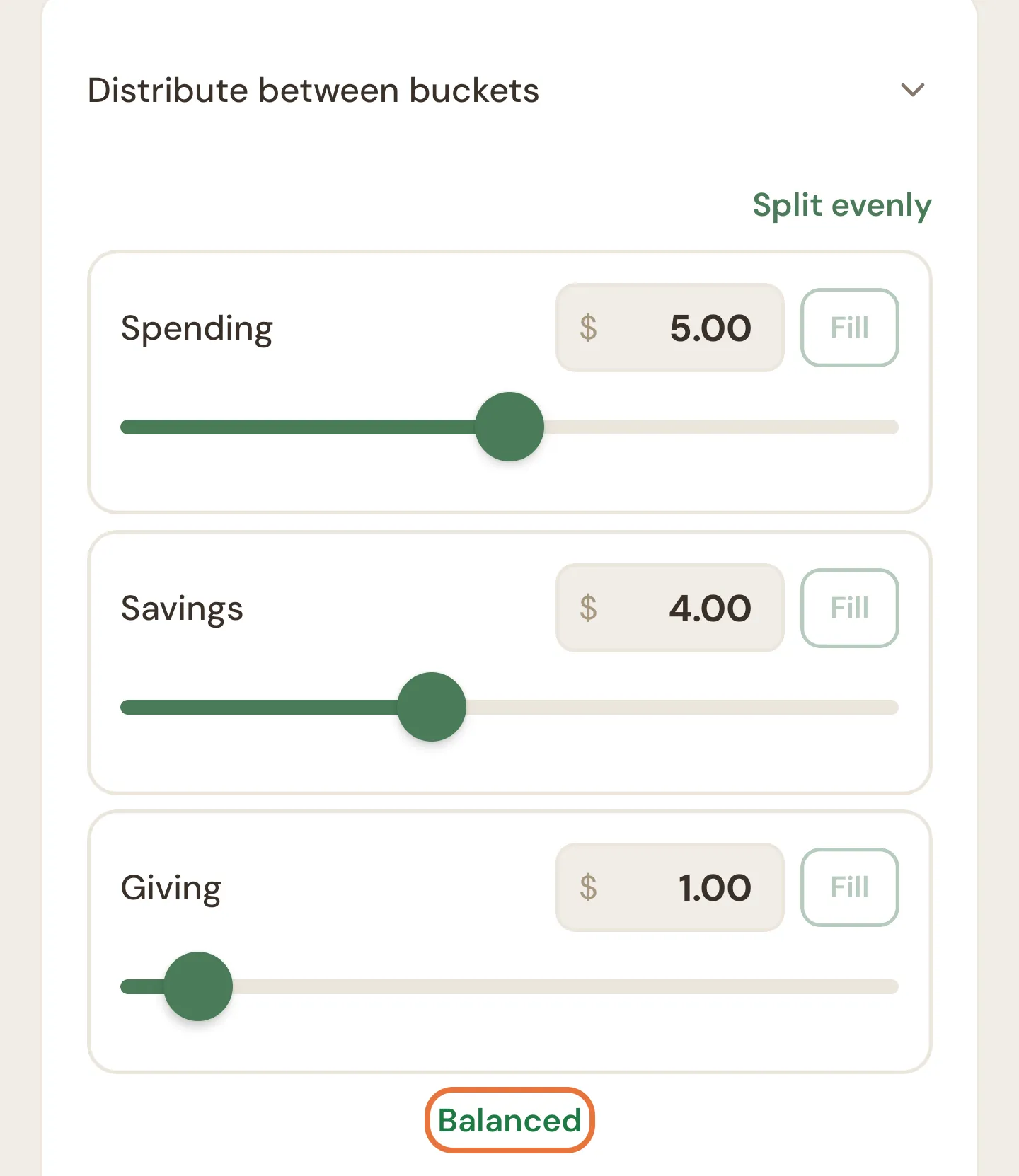
Section titled “1. Pick your split”Agree the percentages before you touch the app. Plenty of families start with half to spend, most of the rest to save and a little to give. Our house runs $5 Spending, $4 Savings and $1 Giving out of $10.
A few things we’ve learned:
- Make spending real. If the spending bucket is too small to buy anything, kids stop caring about the whole system.
- Give giving a purpose. A school fundraiser, a charity they pick, a birthday present for a sibling. A bucket that only ever goes up gets forgotten.
- Let it change. A split that suits an eight-year-old won’t suit a fourteen-year-old saving for concert tickets.
2. Add a Giving bucket
Section titled “2. Add a Giving bucket”Every kid starts with two buckets: Spending and Savings. Add Giving (or anything else you like) from the kid’s edit screen.
-
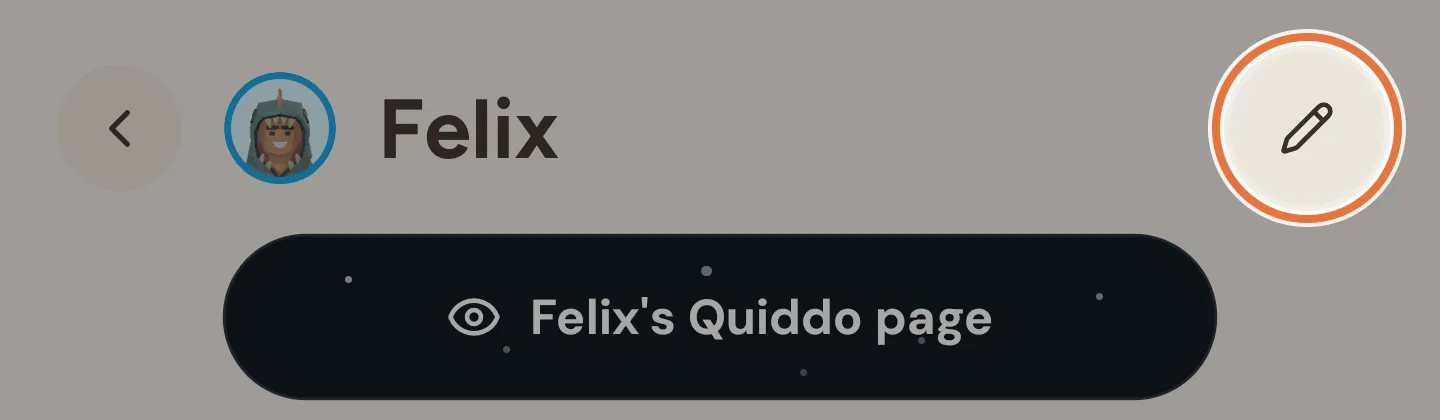
Open your kid’s page and tap the pencil at the top right.
-
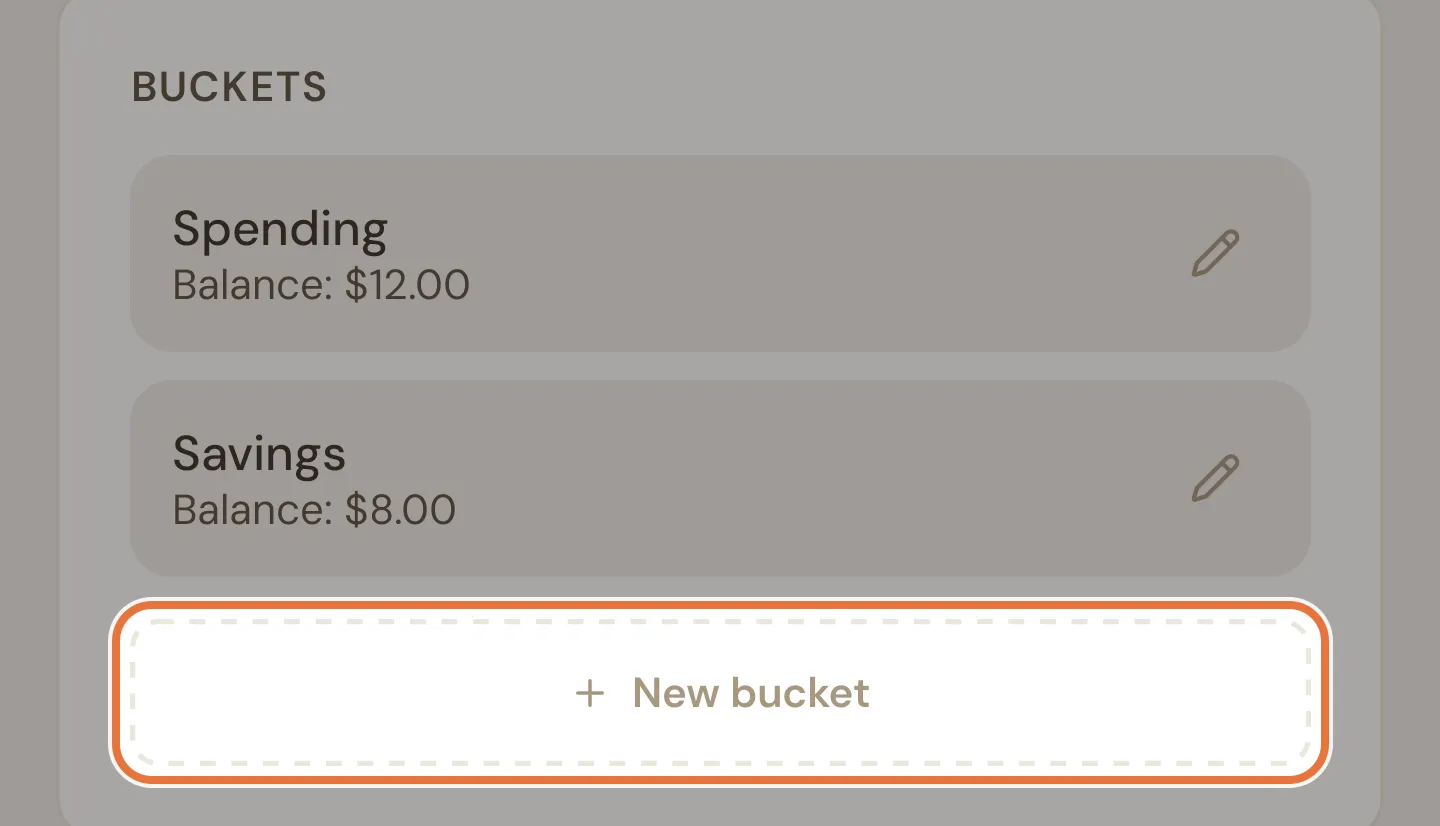
In the Buckets card, tap New bucket.
-
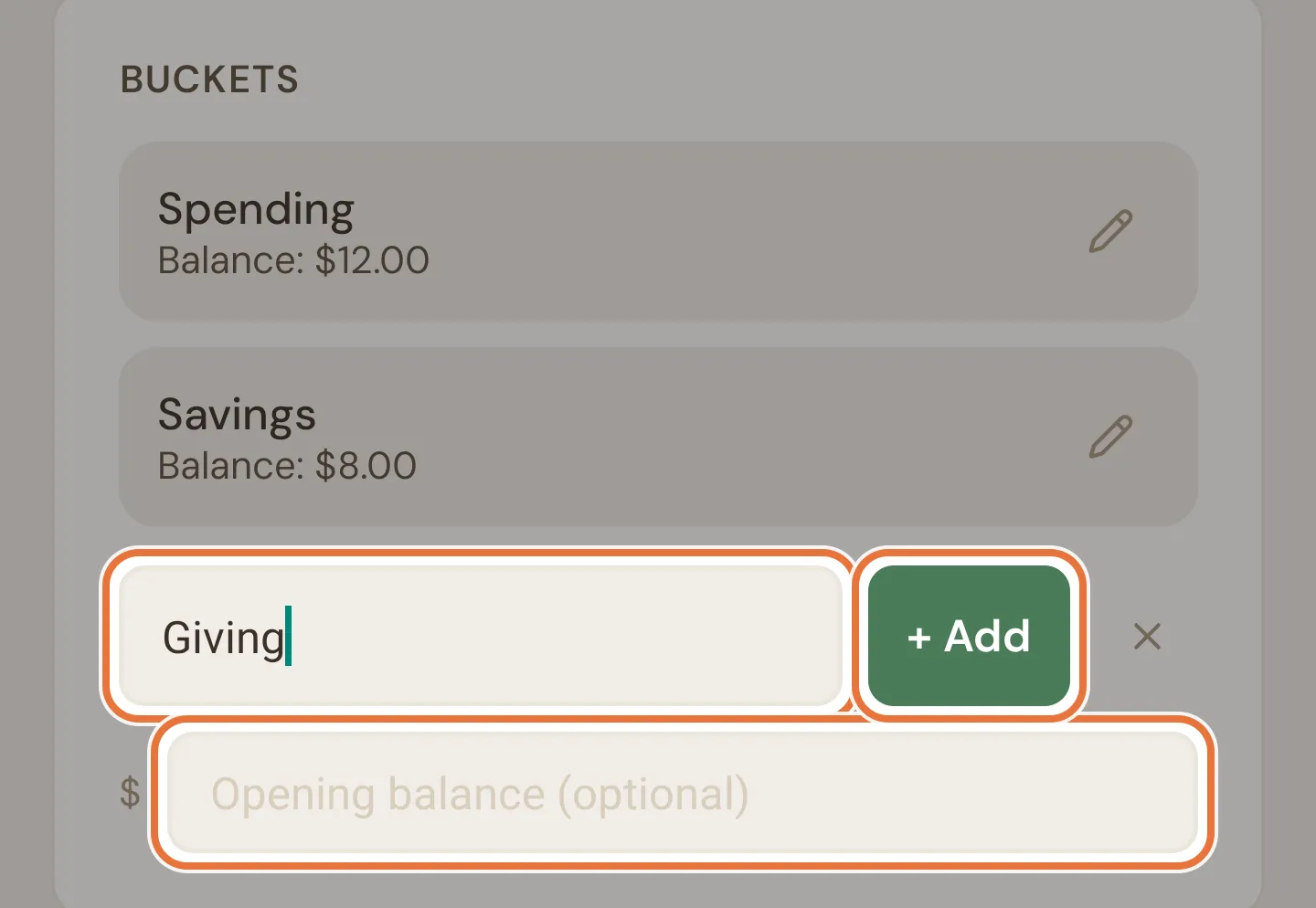
Type the name (Giving) and, if there’s already money set aside for it, an opening balance. Tap + Add.
-
Use the pencil next to any bucket to rename it. The bin appears once a bucket is empty, as long as the kid has another one.
Following the Barefoot method?
Name the three buckets Splurge, Smile and Give instead. Rename Spending and Savings with the pencil next to each, then add Give as your third bucket. Everything else in this recipe works the same.
Buckets can be anything
Spending, Savings and Giving is only one layout. Some families add a Holiday bucket before a trip, or a bucket for a specific thing like Bike. For saving toward one thing, a savings goal inside a bucket often works better: see Saving for the big thing.
Known issue: Bucket delete error gives no reason
A bucket has to be empty before you can delete it. If you try from the bucket’s own edit screen while it still has money in it, you’ll see “Could not delete bucket” without the reason. Move or spend the balance first.
3. Choose the default spending bucket
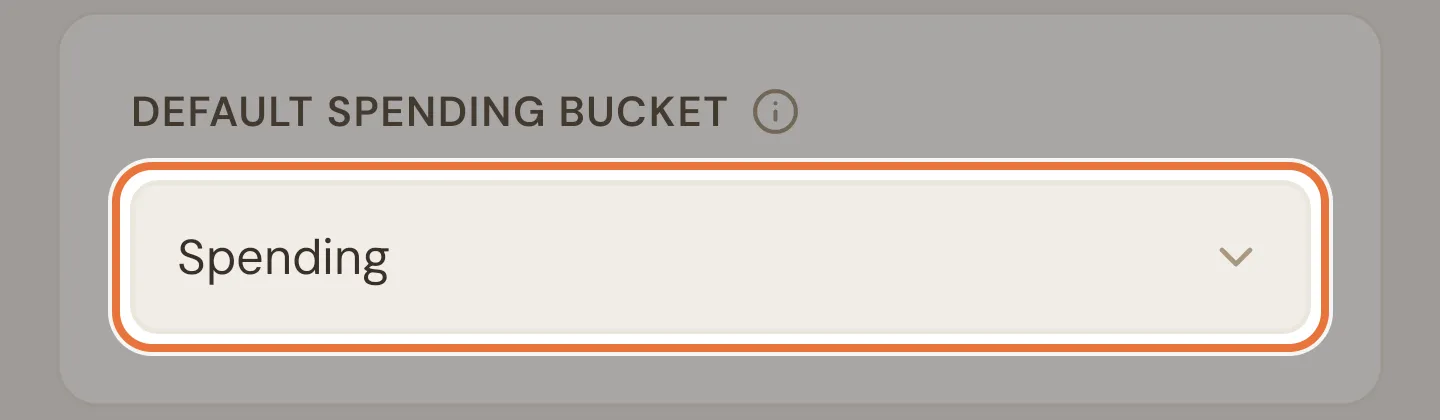
Section titled “3. Choose the default spending bucket”When you record a spend, Quiddo picks the default spending bucket for you. For most kids that’s Spending, which it is from the start. To change it, open the kid’s edit screen and pick a different bucket under Default spending bucket.
4. Split pocket money across the buckets
Section titled “4. Split pocket money across the buckets”-
Open Family › Pocket money setup and tap the pencil (or +) next to your kid.
-
Tap Distribute between buckets. Drag the sliders or type amounts until the line underneath says Balanced. Split evenly is a quick place to start, and Fill gives a bucket whatever’s left.
-
Tap Update schedule (or Set schedule for a new one).
Each payday, the pocket money arrives already split. Nobody has to remember to move $1 into Giving.
5. Let older kids choose their own split
Section titled “5. Let older kids choose their own split”Handing over the split is a good next step once your kid understands how the buckets work. They decide how each payment divides; you set the floors.
-
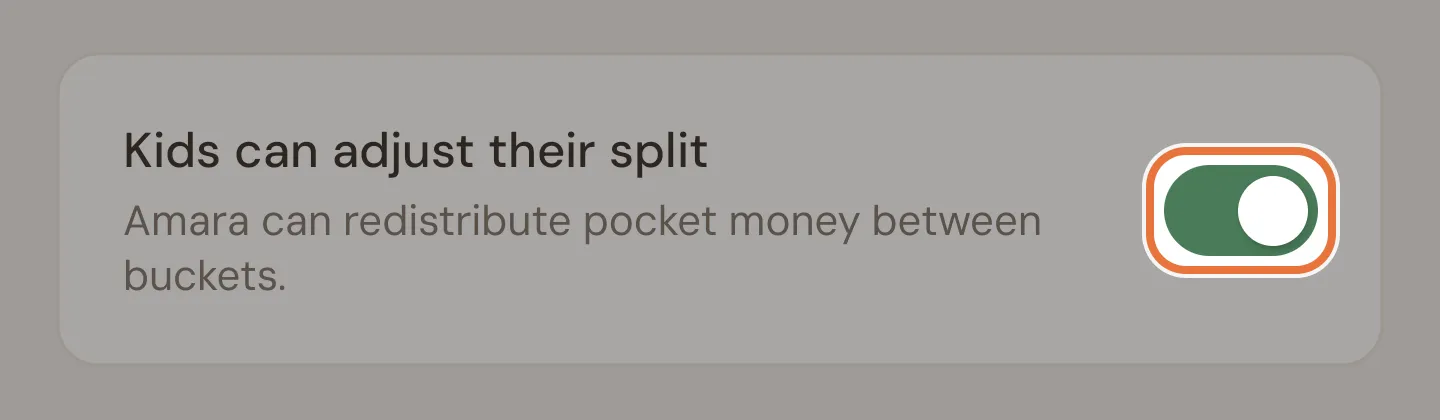
On the same pocket money screen, turn on Kids can adjust their split. It’s on by default for new schedules.
-
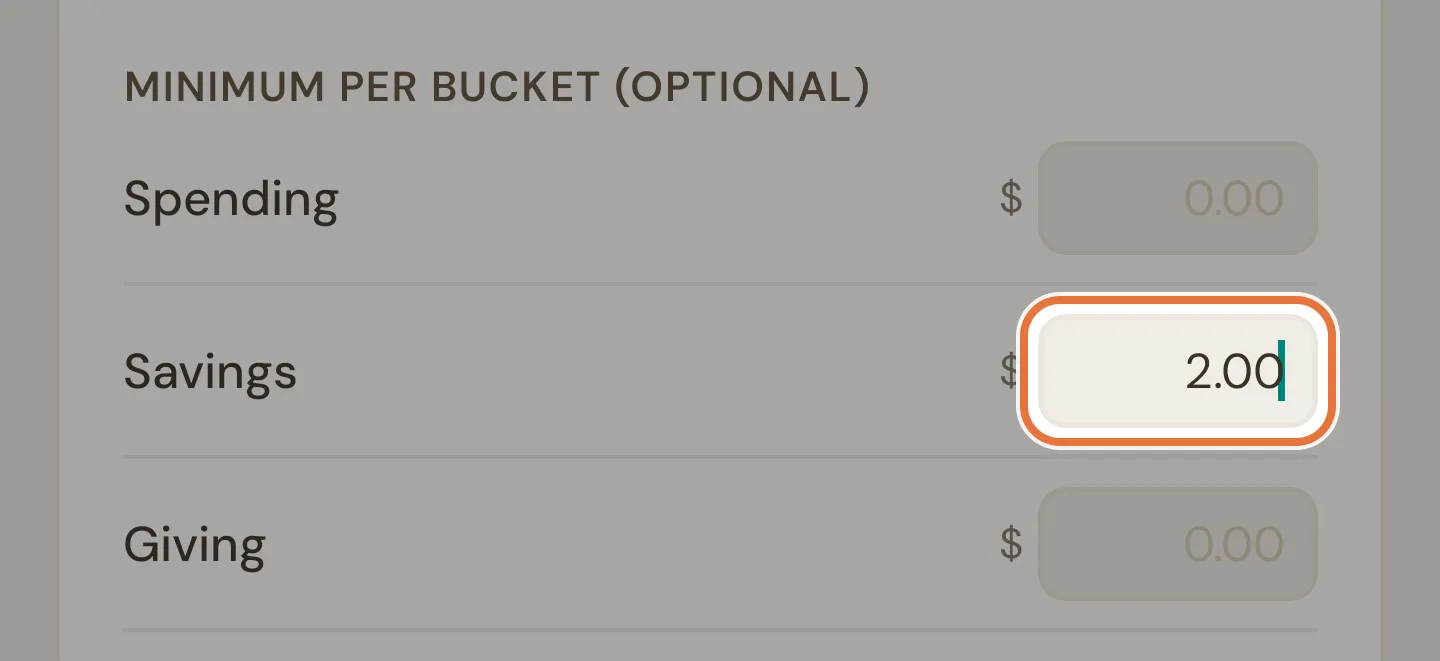
Under Minimum per bucket, enter the least each bucket must get. A $2 minimum on Savings means they can’t send everything to Spending.
-
Save the schedule.
-
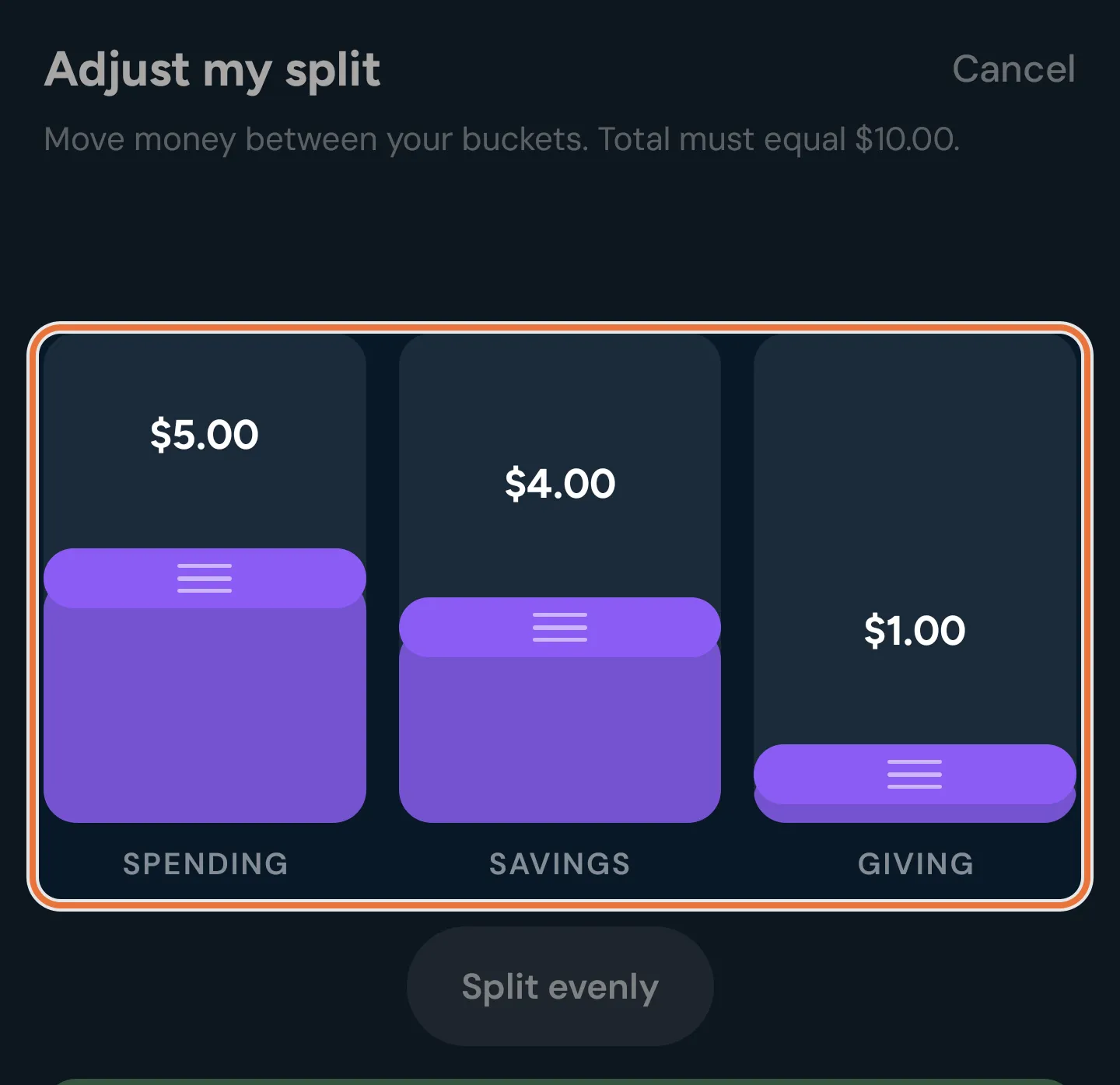
On their Quiddo page, your kid finds My pocket money split and taps Change. They drag the bars until it adds up, then tap Save.
Their choice sticks
Your kid’s split carries on for every payment until they change it again. If you later switch Kids can adjust their split off, the last split they chose stays in place (shown with a lock) until you change it.
You need at least two buckets
With only one bucket there’s nothing to split, so the option reads “add more buckets first”.
6. Send rewards and other money to the right bucket
Section titled “6. Send rewards and other money to the right bucket”Pocket money follows the split. Everything else follows Money routing on the kid’s edit screen:
- Task rewards: where money from paid jobs goes (unless the kid picks a bucket when they submit).
- Income default: where money you add yourself goes, like birthday money from Nana.
Both start on Auto, which means the default spending bucket. Tap a bucket to change it; it saves straight away.
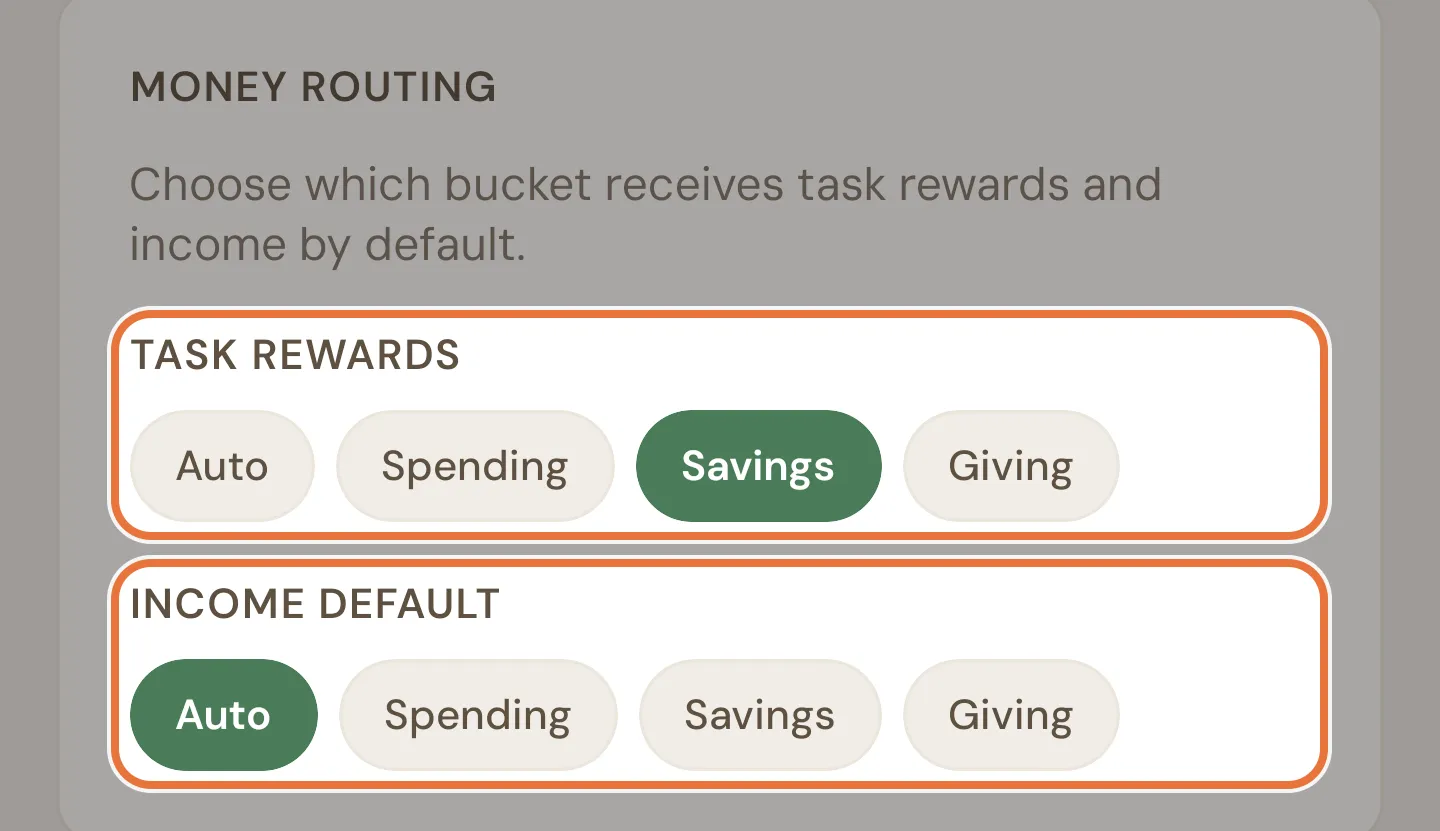
When you add money by hand you can also split it on the spot: choose Split to buckets and divide it the same way as pocket money.
Known issue: Leave unallocated still routes the money
On the Money tab’s Add money sheet, Leave unallocated doesn’t leave the money unallocated. It goes to the kid’s Income default bucket, or their default spending bucket if that’s on Auto.
Known issue: Wrong “Adds to” label
When you add money from a kid’s own page, the sheet says “Adds to” their default spending bucket even if you’ve set a different Income default. The money goes to the Income default; only the label is wrong.
7. Spend from the right bucket
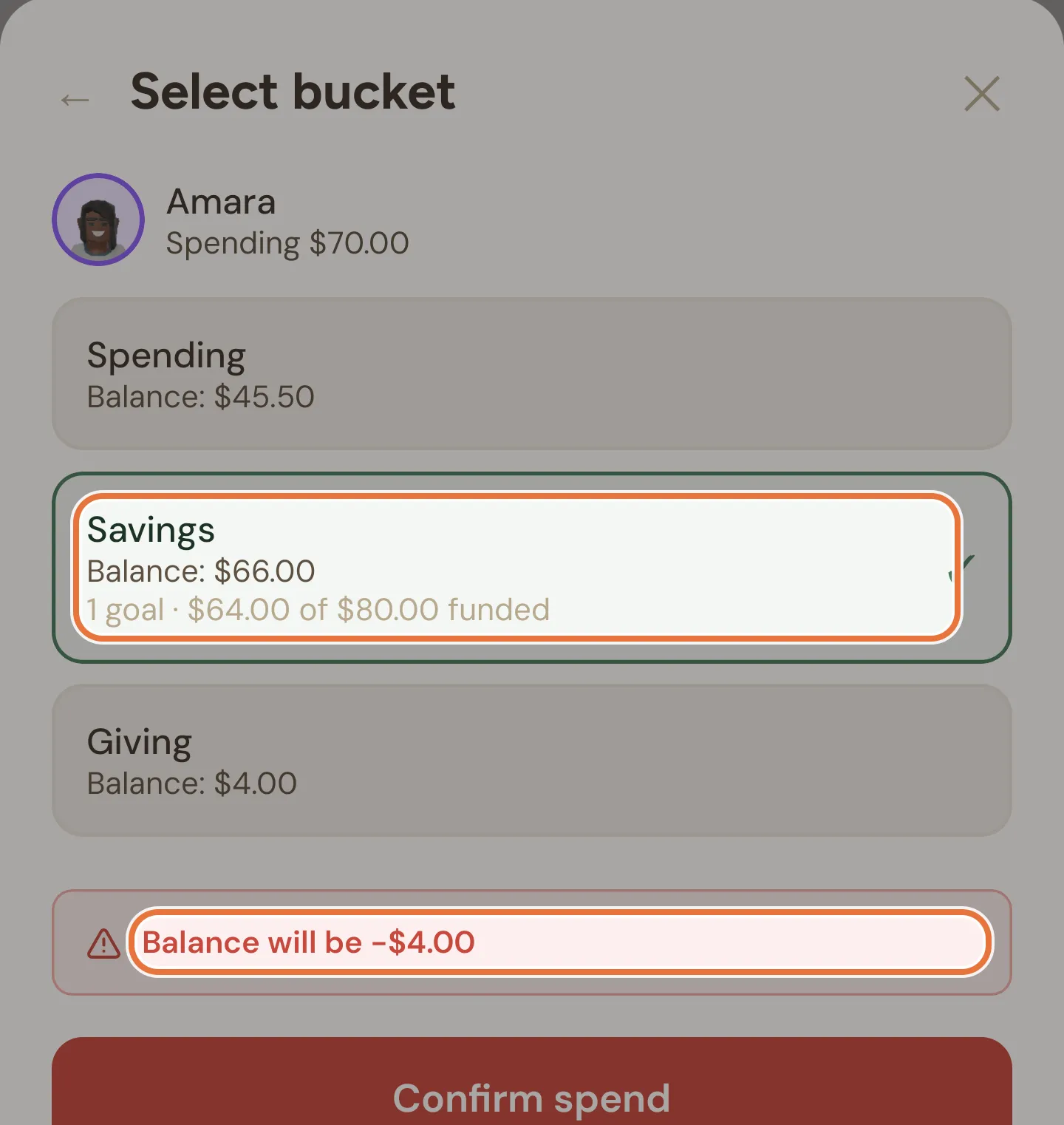
Section titled “7. Spend from the right bucket”When you log a spend, Quiddo picks the default spending bucket. Tap Select bucket to use another one, for example when the Giving bucket pays for the school fundraiser.
8. Move money between buckets
Section titled “8. Move money between buckets”Plans change. When the Giving bucket has piled up, or Savings needs a top-up for something special, move money across with a Transfer.
-
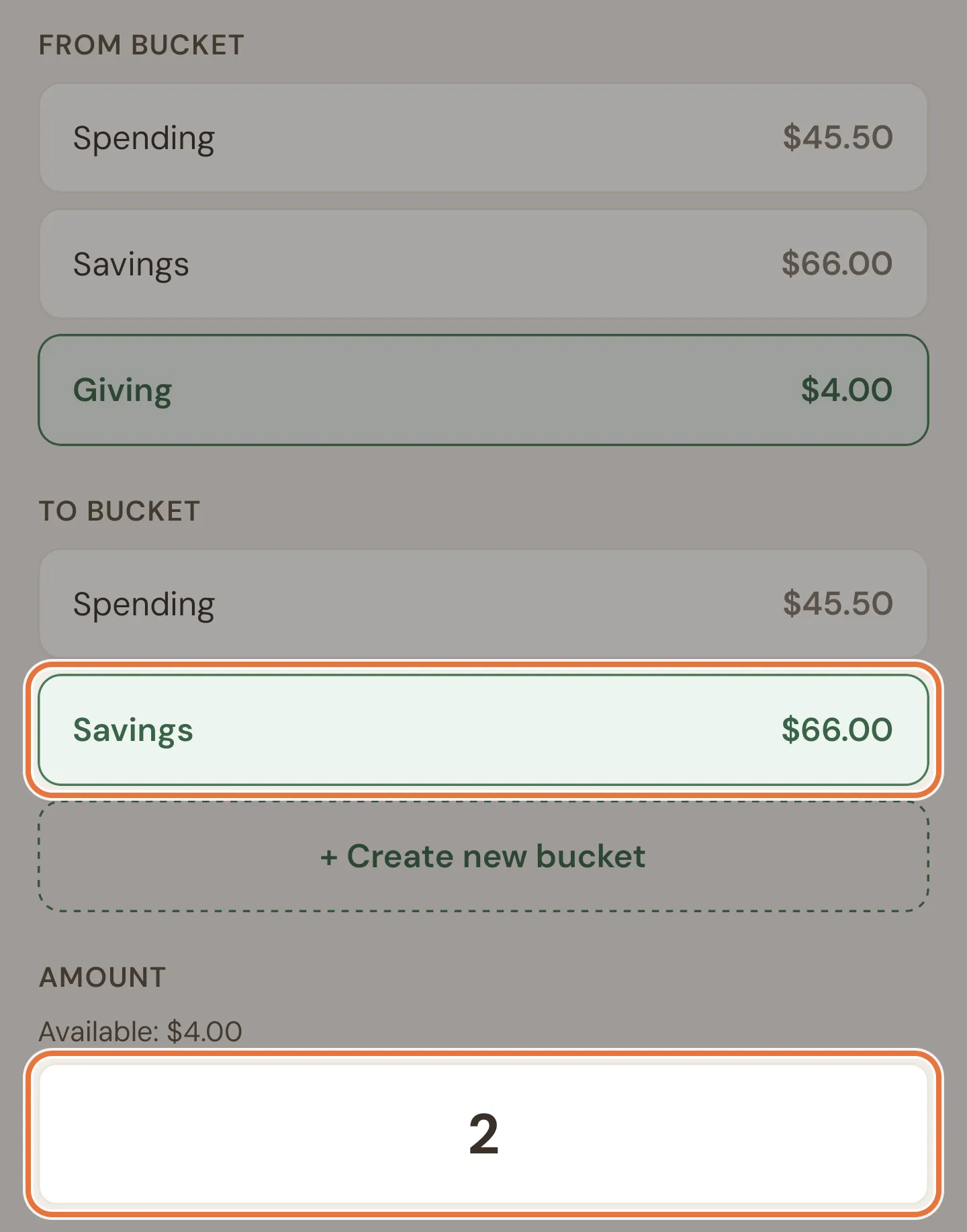
Open the bucket you’re moving money out of (tap it on the Money tab or on your kid’s page), then tap Transfer.

-
Pick the bucket it’s going to, enter the amount (the screen shows what’s available) and add a note if you like.
-
Tap Transfer. It shows up in both buckets’ history as a matching pair.
Transfers are for parents
Kids can’t move money between their own buckets. If they want to, they have to ask you, which is half the point.
Need a new bucket mid-transfer?
Tap + Create new bucket on the transfer screen to make one without leaving it.
9. What everyone sees
Section titled “9. What everyone sees”On the Money tab, each kid’s card shows their total and up to three bucket tiles. With more buckets than fit, the extras are grouped as Other.
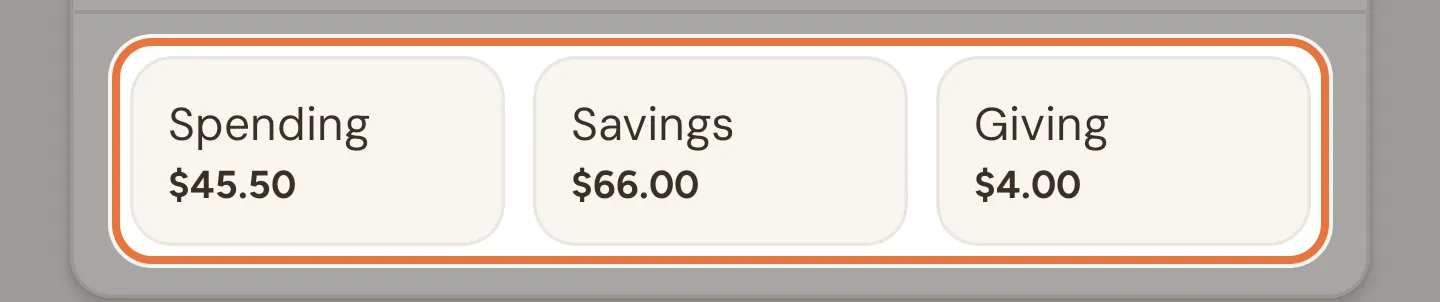
Your kid sees My buckets on their Quiddo page, each with its balance and any savings goals inside it.
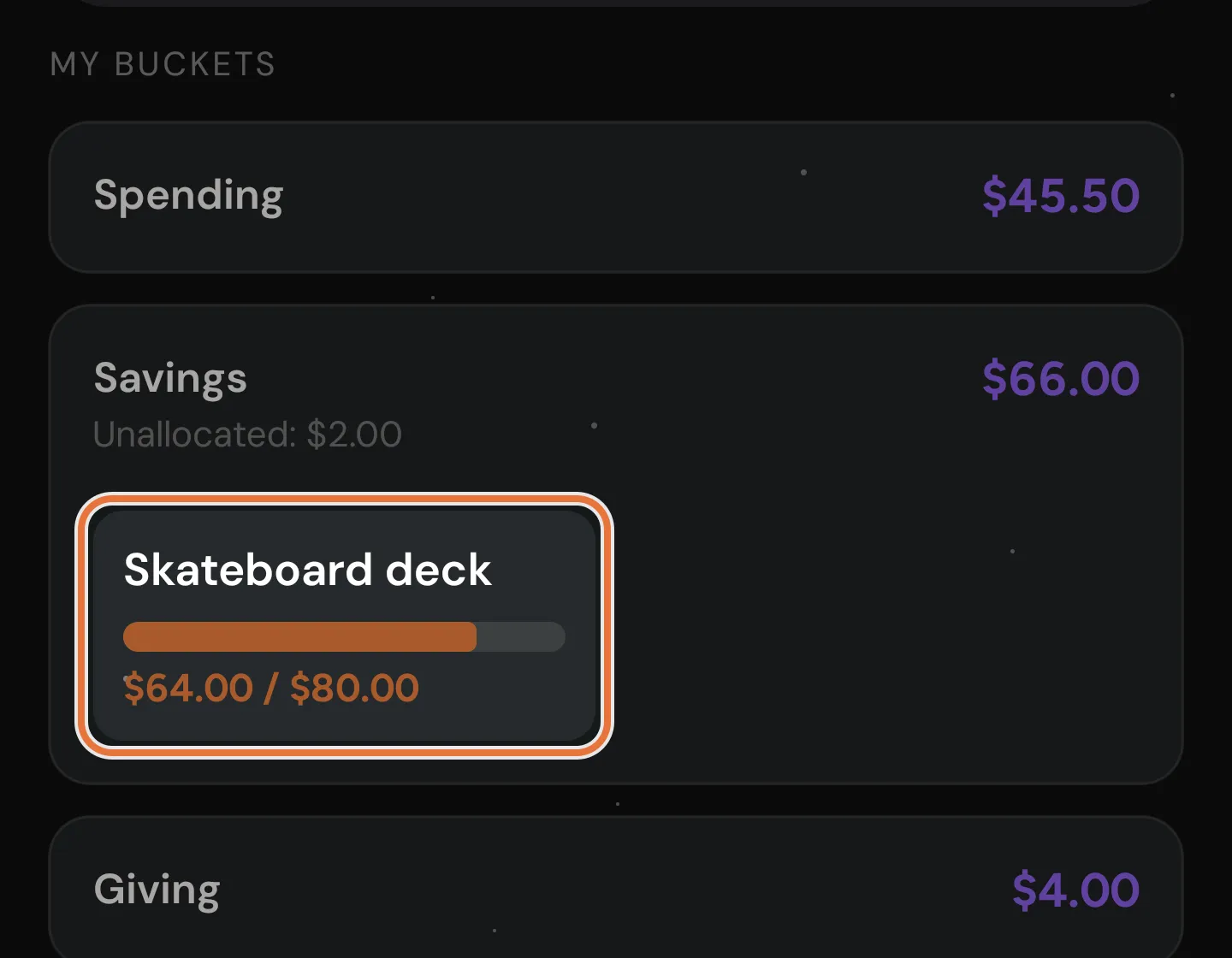
“Unallocated” on your kid’s page
Inside a bucket that has goals, your kid sees a line like “Unallocated: $2.00”. That’s the money in that bucket not set aside for any goal, which they can use to fund a goal. It isn’t the same as the Unallocated banner on your side, which means money that hasn’t been put in any bucket yet.
Known issue: Can’t choose bucket tiles on mobile
You can’t choose which buckets appear as tiles on the Money tab from the mobile app yet. That setting (pinning) is only on the web app for now.
Where to go next
Section titled “Where to go next”- Give the Savings bucket something to aim at: Saving for the big thing.
- Let them fill the buckets faster with paid jobs: Paid jobs, so they can earn a bit extra.