
Saving for the big thing
Every kid eventually wants something that costs more than a week’s pocket money. A LEGO set, a skateboard deck, concert tickets. Saying “save up for it” is easy. Keeping them saving for eleven weeks, when the canteen sells icy poles, is the hard part.
A savings goal gives the saving a picture, a number and a finish line. Your kid watches the progress bar fill, sees roughly when they’ll get there, and gets a proper celebration at the end.
You’ll need: a kid with some money coming in, ideally from weekly pocket money or paid jobs. Goals work best with a separate Savings bucket, which every kid has from the start (see Save, spend, give).
What you’re setting up
Section titled “What you’re setting up”| Piece | What it does |
|---|---|
| A goal | A named target with a photo, linked to one of your kid’s buckets. |
| Funding | Sets aside money inside that bucket for the goal. Nothing actually moves. |
| Auto-fund | Sets aside new money for the goal as soon as it lands in the bucket. |
| Buy it | Records the purchase when the day comes, and closes the goal. |
How goals work
Section titled “How goals work”A goal lives inside a bucket. When money goes toward the goal, it stays in the bucket; it’s just marked as set aside. So a Savings bucket with $50 in it might hold $30 for the skateboard and $20 that’s still free to use.
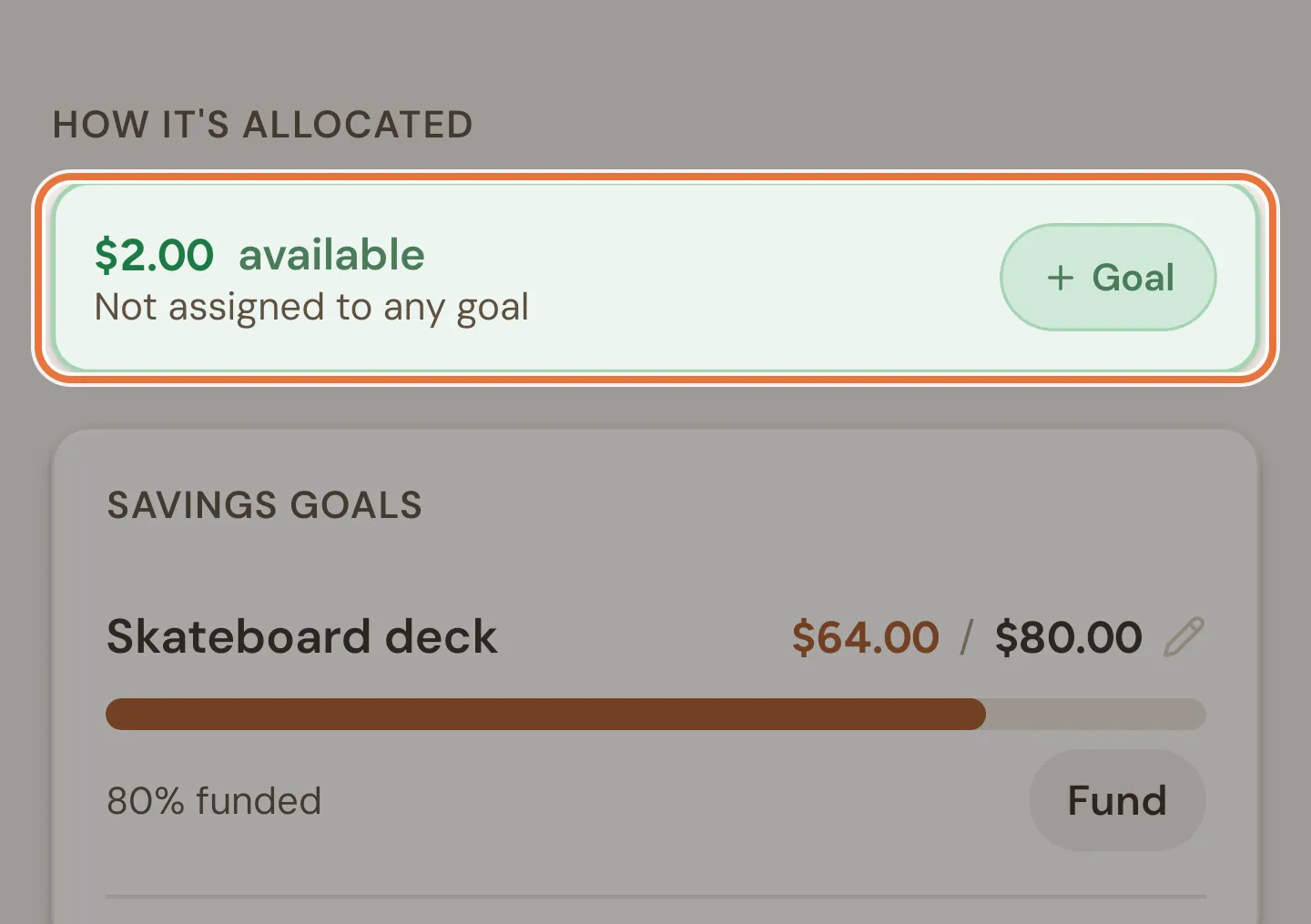
That free money is what you (or your kid) can put toward a goal. Money set aside for one goal can’t be used for another.
1. Pick the thing
Section titled “1. Pick the thing”The goal works best when it’s specific. “Save money” is a chore. “The blue skateboard deck from the surf shop, $80” is a mission.
- Get the real price. Include shipping or the fancy trucks they’ll inevitably ask for.
- Grab a photo. Your kid will look at it far more than at the number.
- Check it’s reachable. A goal that takes a year feels impossible to an eight-year-old. For big things, split it up or add some paid jobs so they can get there faster.
2. Create the goal
Section titled “2. Create the goal”-
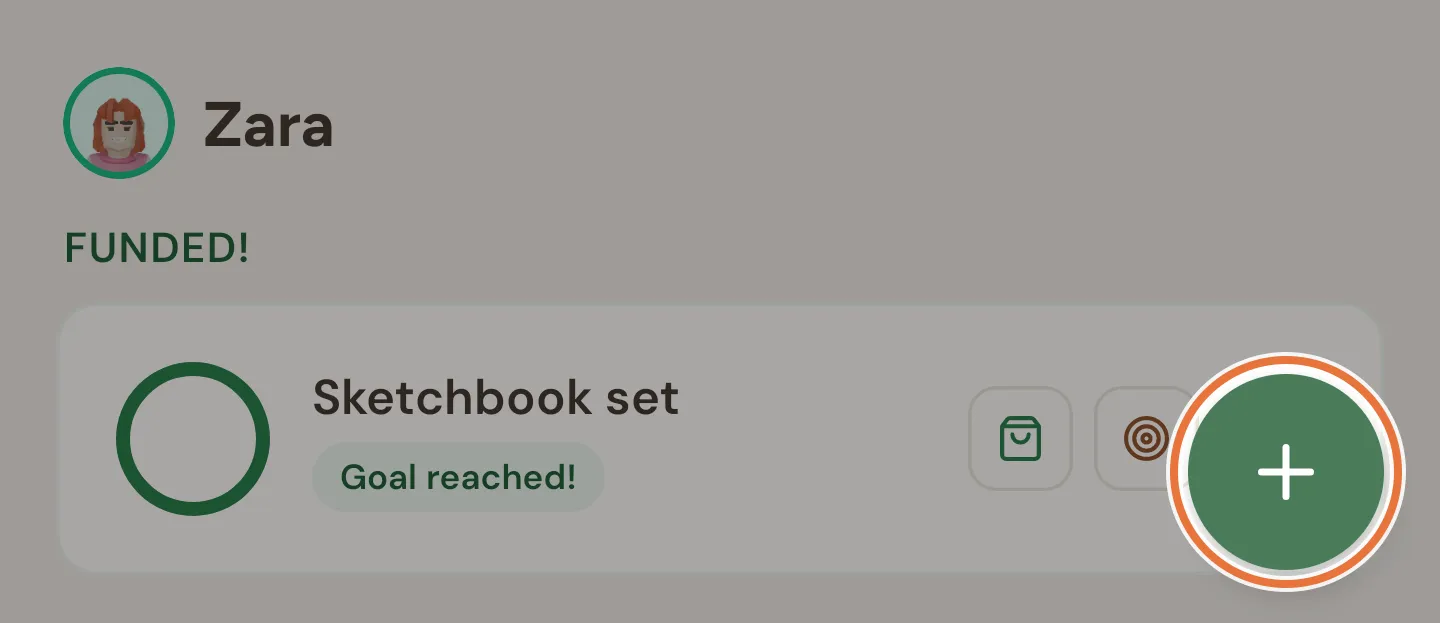
Open Family › Goals setup and tap the round + button. You can also start from a bucket: open the bucket and tap + Goal, which picks the kid and bucket for you.
-
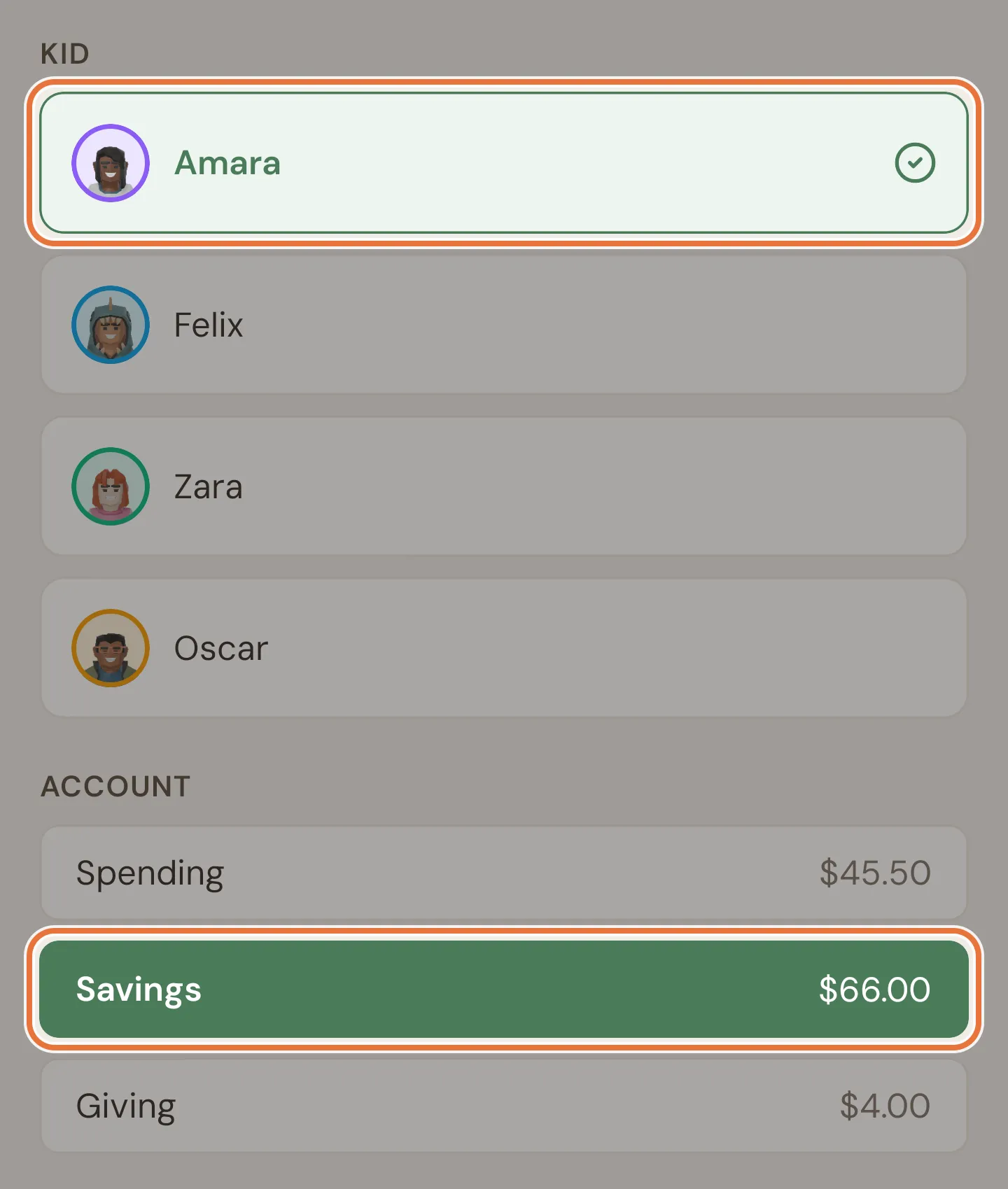
Pick the kid and the bucket the goal belongs to. Savings is the usual choice.
-
Enter a goal name and the target amount. The amount field does sums, so
75+5for the deck plus shipping works. -
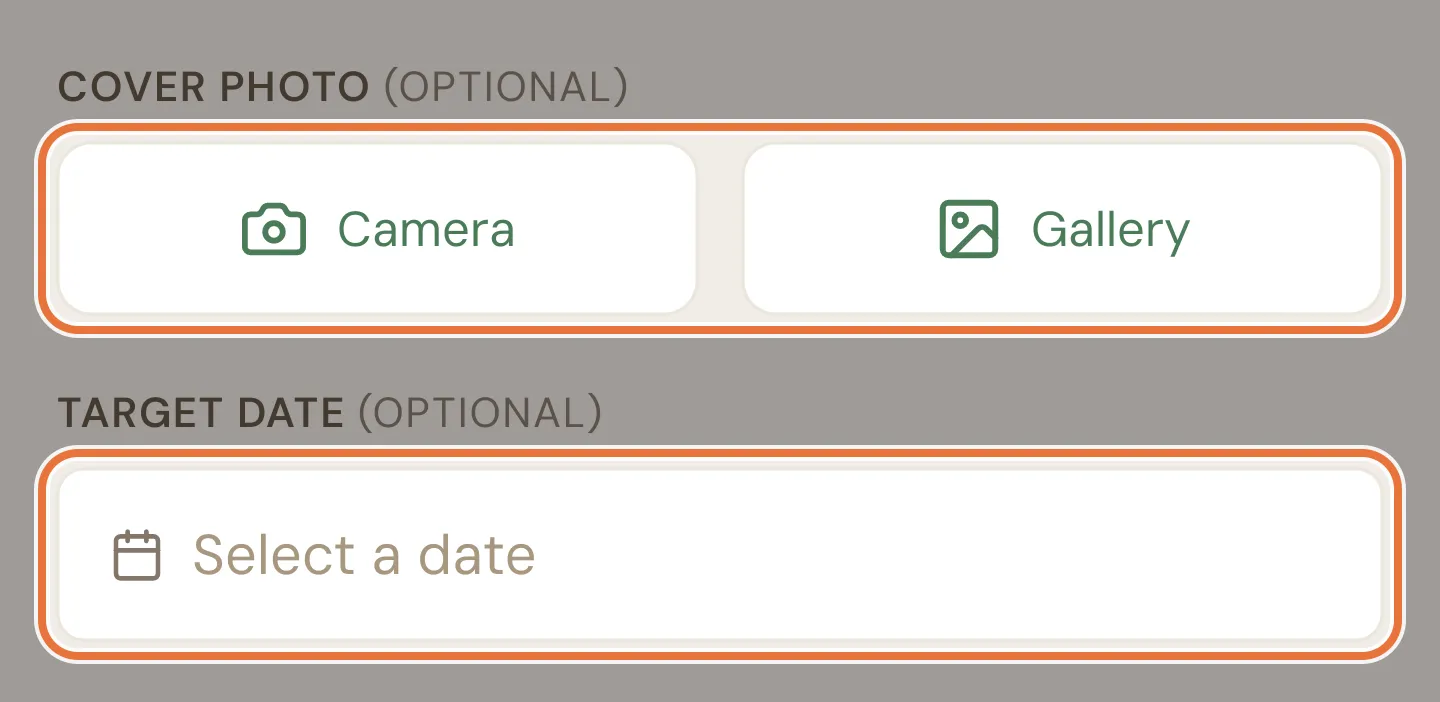
Add a cover photo from the camera or your gallery, and a target date if there’s a deadline (a birthday, a concert). Both are optional.
-
Tap Create Goal.
Goals are set by parents
Kids can put money toward their goals from their own page, but only a parent can create, change or buy a goal.
Pick the bucket carefully
A goal can only be funded from its own bucket. If the goal is in Savings, money in Spending can’t go toward it until you transfer it into Savings.
3. Put money toward it
Section titled “3. Put money toward it”You can fund a goal whenever the bucket has free money.
-
Open the goal (tap it in Goals setup, or on the bucket’s page).
-
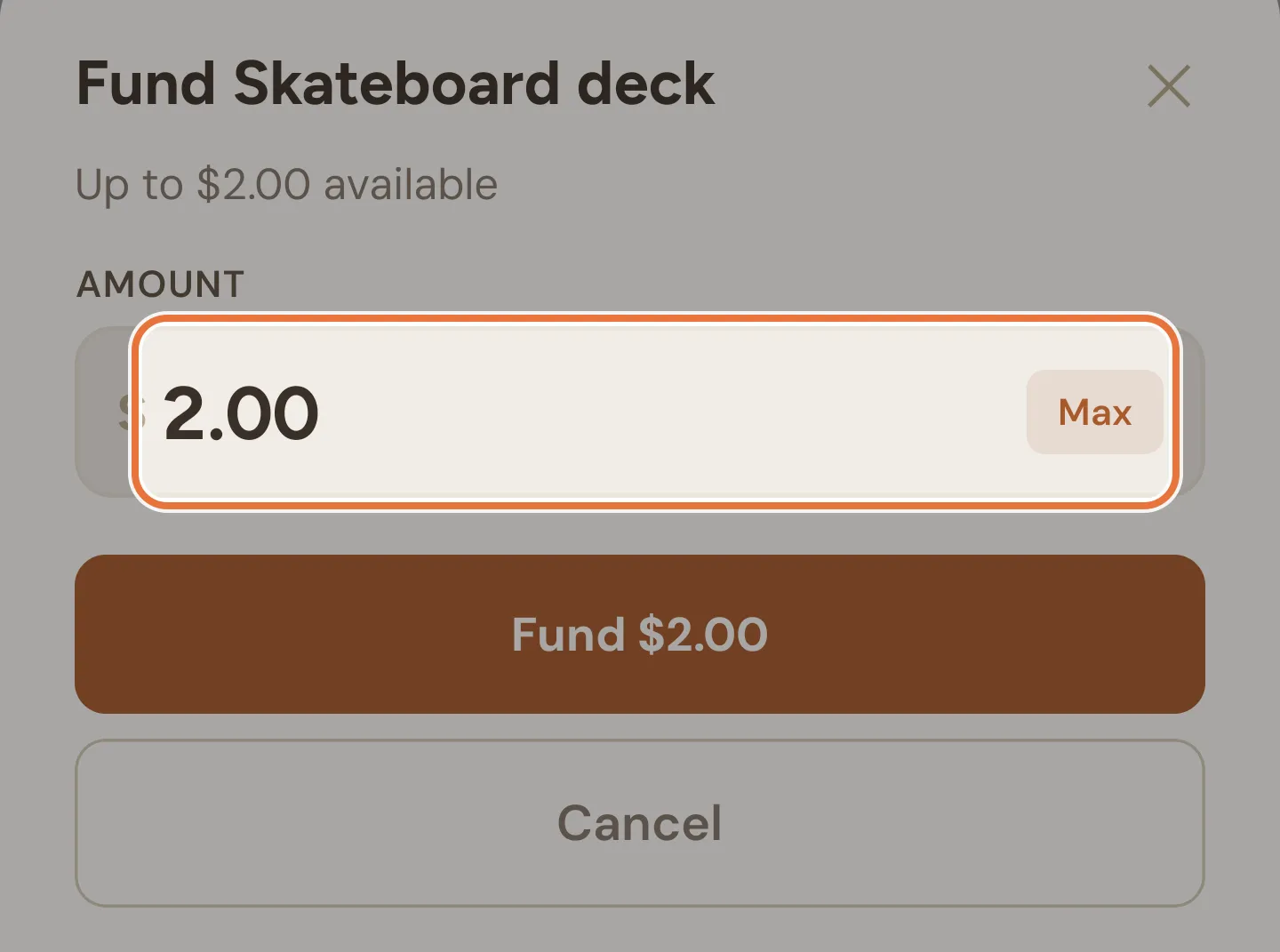
Tap Fund Goal. The amount starts at the most you can put in; tap Max to reset it, or type less.
-
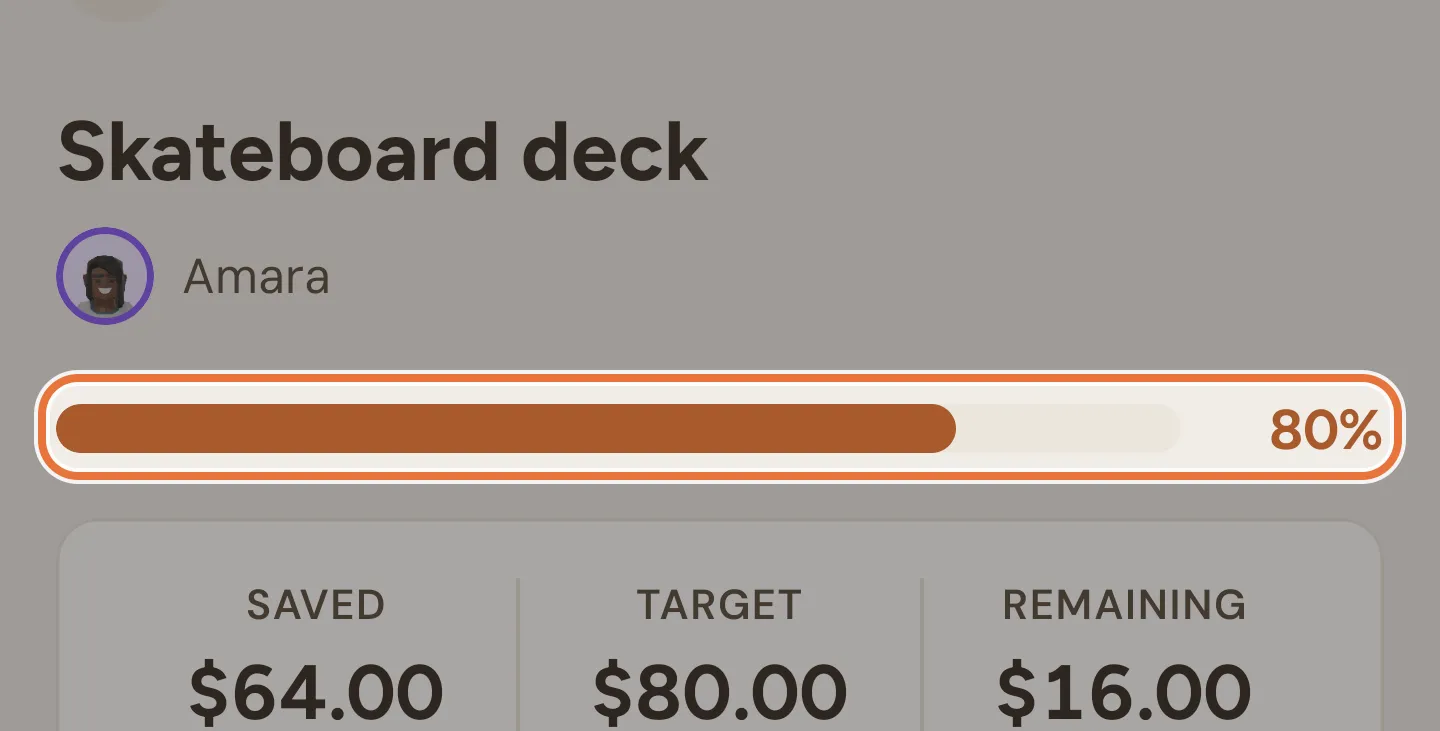
Tap Fund. The progress bar and the Remaining figure update straight away.
4. Let it fill itself with auto-fund
Section titled “4. Let it fill itself with auto-fund”Funding by hand is fine for a one-off top-up. For steady saving, switch on Auto-fund and the goal fills as money arrives.
-
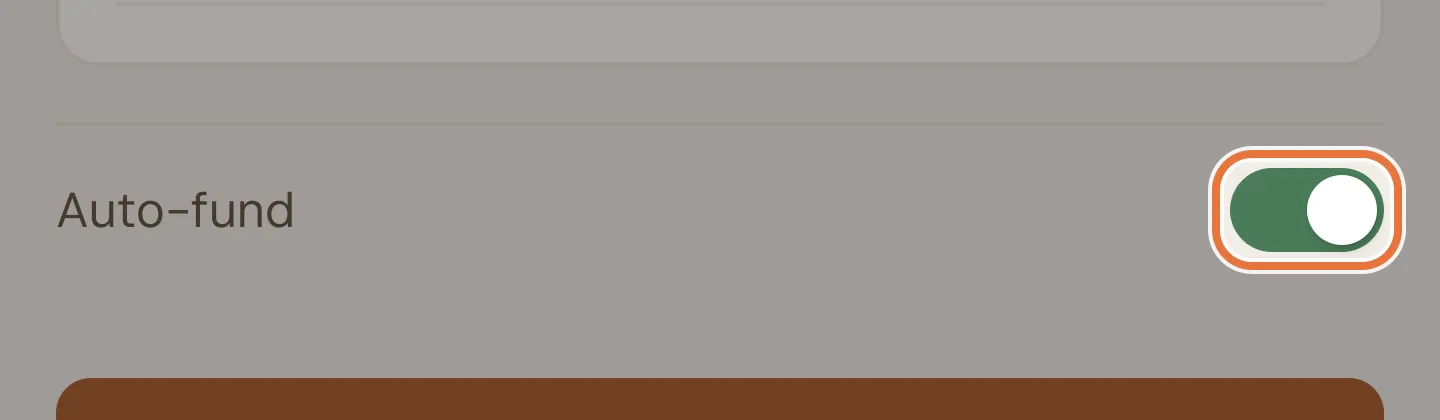
Open the goal and turn on Auto-fund.
-
That’s it. From now on, money landing in that bucket is set aside for the goal: pocket money, rewards from paid jobs, money you add, and transfers in.
Auto-fund takes everything until the goal is full
Every dollar that lands in the bucket goes toward auto-fund goals first, until they reach their targets. Put the goal in Savings rather than Spending, or your kid will find their spending money has vanished into a skateboard.
Several auto-fund goals share evenly
If a bucket has more than one auto-fund goal, new money is shared equally between them. When one fills up, the others get the rest. It doesn’t fill them one at a time.
5. Let your kid fund it
Section titled “5. Let your kid fund it”On their Quiddo page, your kid sees their goals inside each bucket. Tapping a goal opens it up with Fund and Un-fund buttons, so they decide how much of their free money goes toward it.
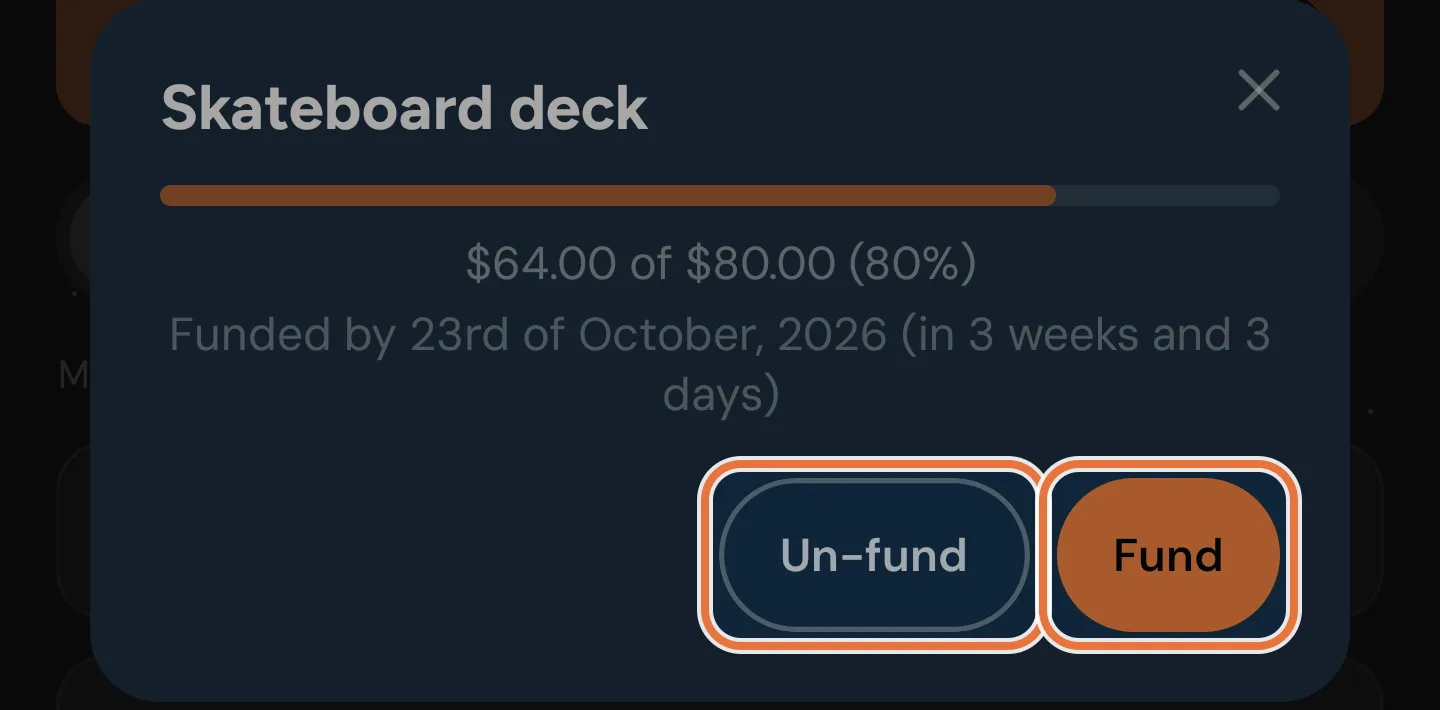
If they have a pocket money schedule, the goal also shows an estimate like “Funded by 14th of November, 2026 (in 7 weeks)”. Nothing motivates quite like a date.
Kids can take money back out
Un-fund lets your kid change their mind and free up money they’d set aside, as long as the goal hasn’t been reached yet. Once it’s reached, the buttons disappear.
Known issue: Fund amount starts too high
When your kid taps Fund, the amount starts at all the free money in the bucket, even if the goal needs less. Only what the goal needs goes in, so the button can say “Fund $50” when $10 actually moves.
6. More than one goal
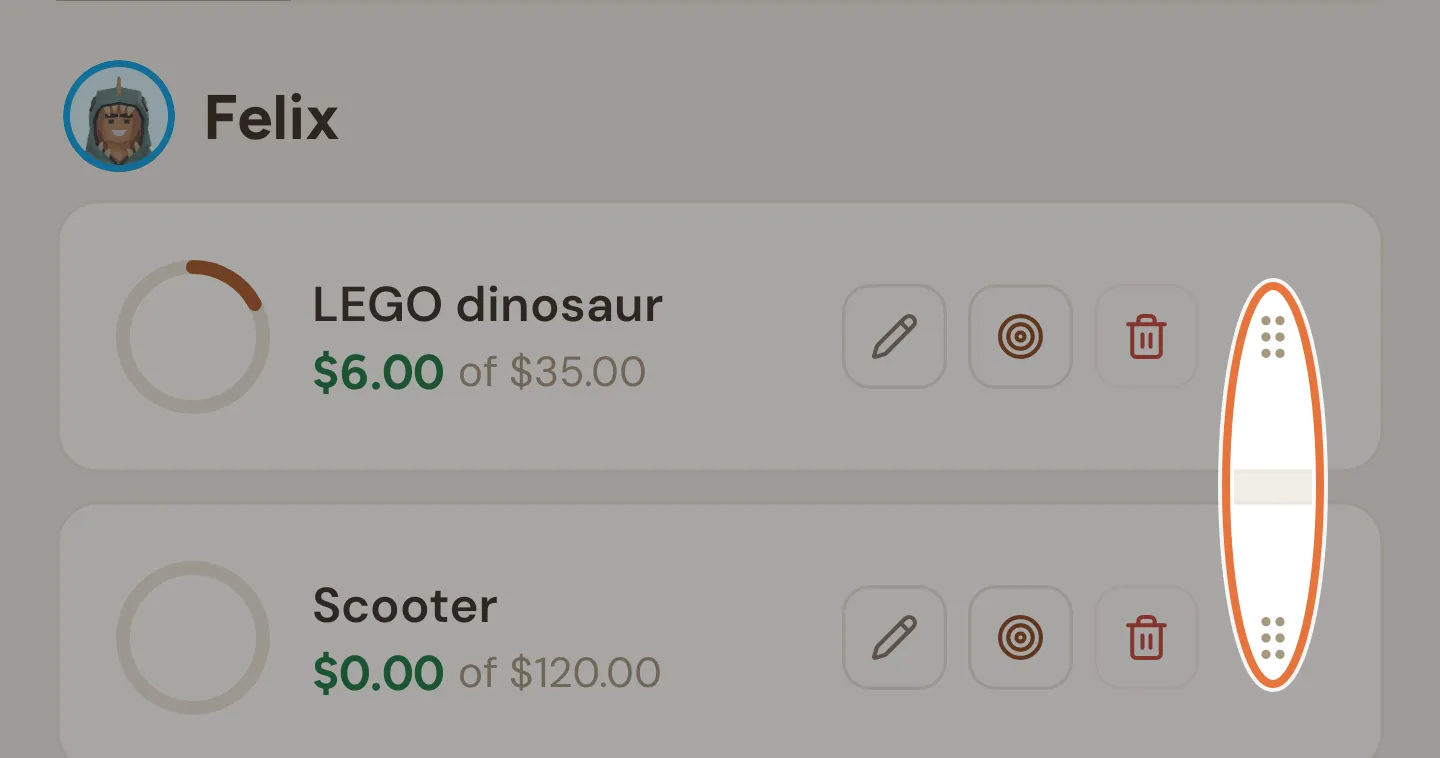
Section titled “6. More than one goal”Kids rarely want just one thing. Each goal is listed under its kid in Goals setup, with a progress ring and how much is saved.
When a kid has several goals in the same bucket, drag them into order using the handle on the right. The order matters when money goes out: if a spend takes the bucket below what’s set aside, the goal at the bottom of the list gives its money back first.
Spending can undo saving
If you record a spend that takes a bucket below the amount set aside for its goals, Quiddo trims the goals to match, starting from the bottom of the list. Check the bucket’s available amount before you record a big spend.
Known issue: Spend screen goal warning is unreliable
The spend screen doesn’t reliably warn you when a spend would trim a goal. Its goal warning only appears in rare cases, so don’t rely on it.
7. When the goal is reached
Section titled “7. When the goal is reached”The moment a goal hits its target, your kid’s own device throws a small party: confetti, “You did it!”, and a button that says I got it!. You get a notification too, if savings goal notifications are on.
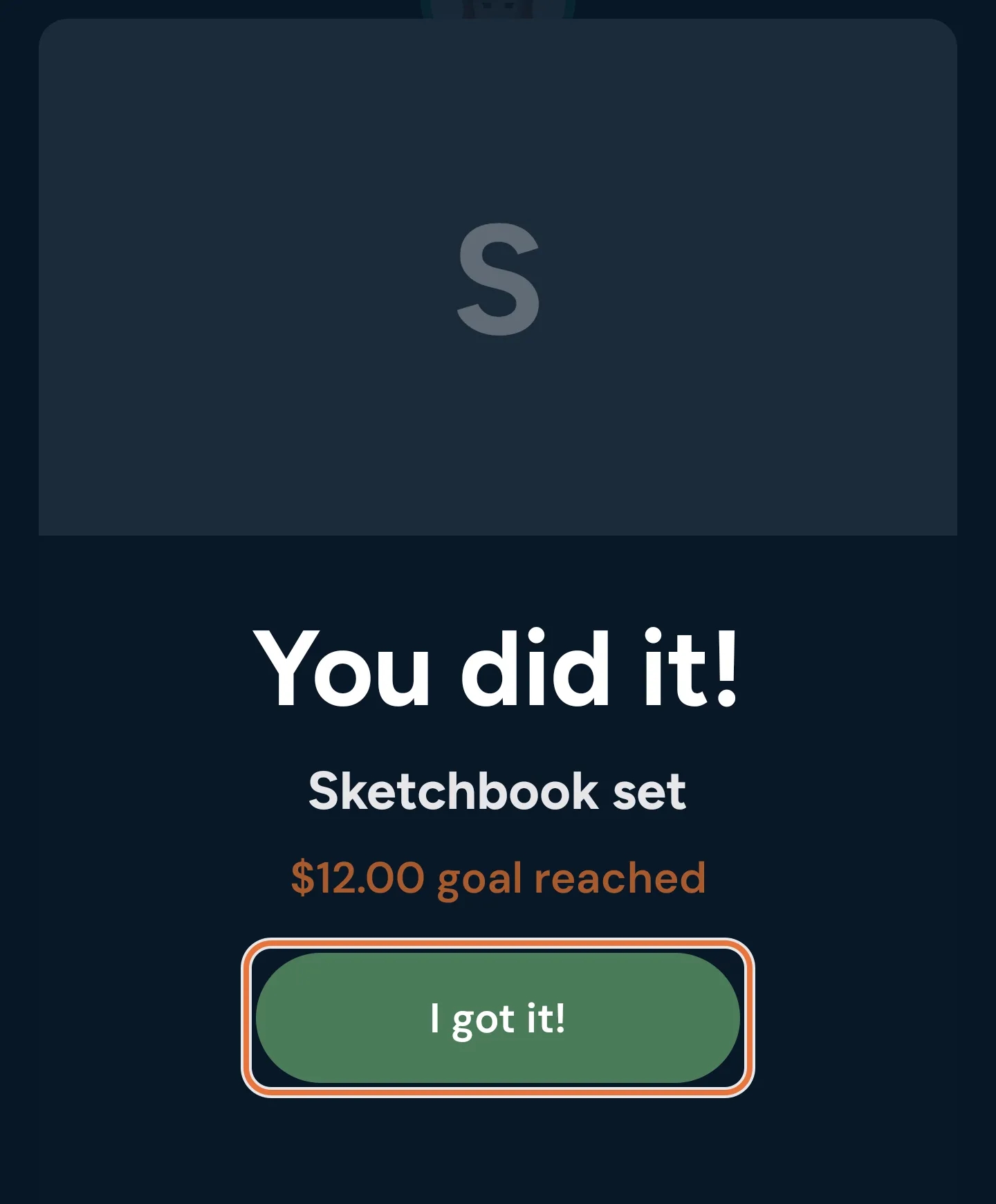
The goal moves into the Funded! group in Goals setup, ready for you to buy.
8. Buy it
Section titled “8. Buy it”Once you’ve actually bought the thing, record it so the money leaves the bucket.
-
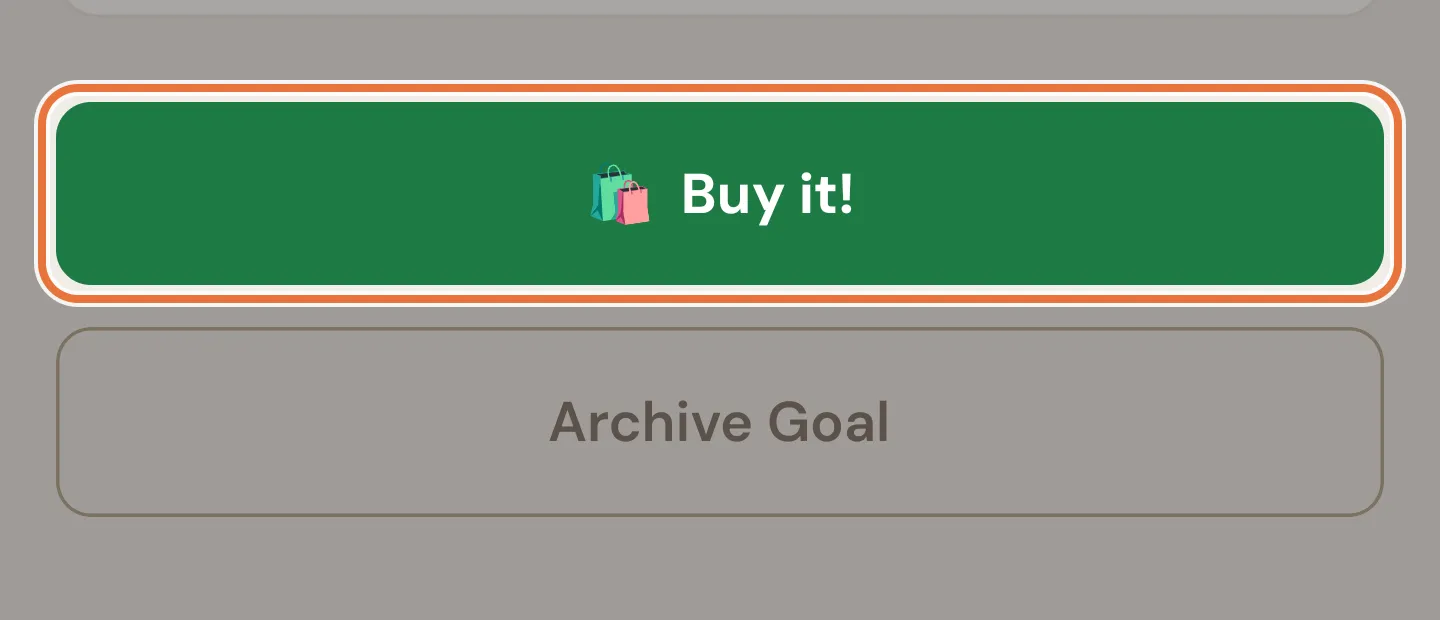
Open the goal and tap 🛍️ Buy it!
-
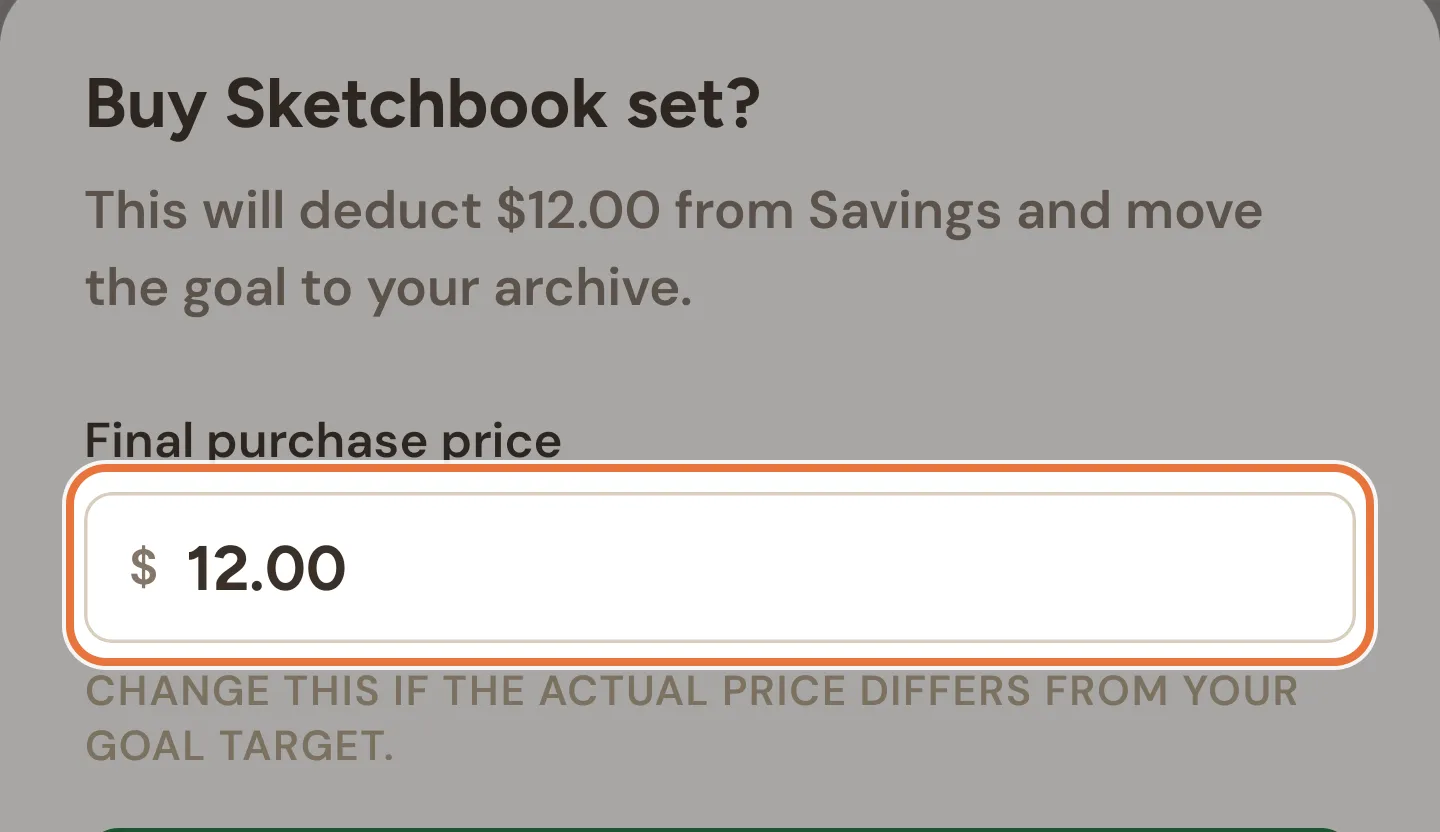
Check the final purchase price. Change it if it was on sale, or cost more than planned.
-
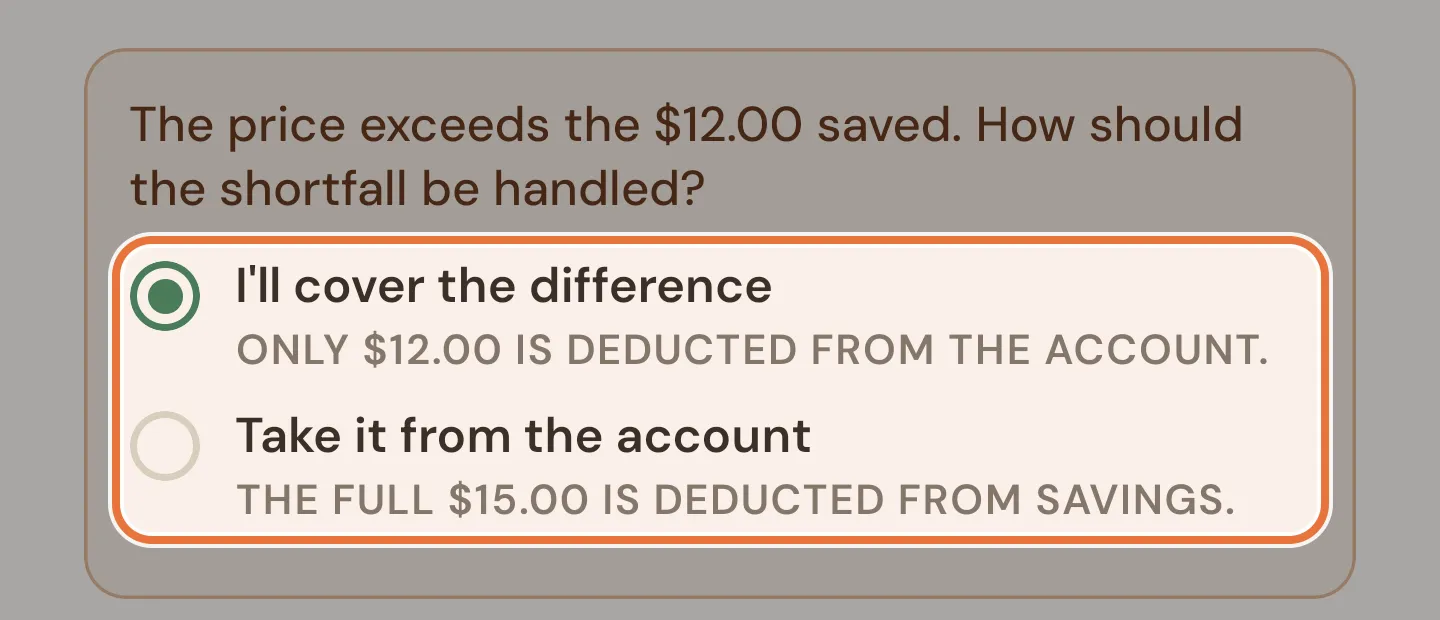
If it cost more than your kid saved, choose who pays the difference: I’ll cover the difference (only the saved amount comes out of their bucket) or Take it from the account (the full price comes out of the bucket).
-
Tap 🛍️ Buy it!. The purchase shows in your kid’s history as “Bought: Skateboard deck”, and the goal moves to the Archived tab.
On sale? The change stays with them
If the final price is lower than what they saved, only the final price comes out of the bucket. The rest becomes free money again.
Known issue: Goals setup bag can’t change the price
The shopping bag button in the Goals setup list buys at the target price, with no way to change the price or choose who covers a shortfall. Open the goal and use Buy it! there instead.
9. When plans change
Section titled “9. When plans change”The price went up. In Goals setup, tap the target icon on the goal and enter a new, higher target. This works on a goal that’s already reached: it reopens, and your kid gets to celebrate again when it fills.
They want something else. Open the goal and tap Abandon Goal (or Archive Goal if it’s already reached). Whatever was saved becomes free money in the bucket again; nothing is spent. A goal with nothing saved is deleted rather than archived.
Change the details. Tap Edit Goal to change the name, target, photo, date or bucket. You can’t move a goal to a different kid. Once a goal is reached, use the target icon instead of Edit.
Bring an old goal back. On the Archived tab, tap the restore arrow. The goal comes back with nothing saved, so fund it again from the bucket.
Lowering the target can finish a goal
If you edit a goal’s target down to what’s already saved (or less), it counts as reached straight away.
Known issue: Restored bought goal shows as reached
Restoring a goal you already bought may show it as reached even though nothing is saved. Raise the target or fund it again to get it back on track.
A typical term
Section titled “A typical term”| When | Kid | You |
|---|---|---|
| Week 1 | Picks the $80 skateboard deck and shows you the photo | Creates the goal in Savings, turns on auto-fund |
| Every Friday | $4 of pocket money lands in Savings and goes straight to the deck | Nothing |
| Week 6 | Washes the car for $5 and sends it to Savings | Approves |
| Week 19 | Gets the “You did it!” confetti | Gets a notification |
| That Saturday | Rides away | Taps Buy it! |
Where to go next
Section titled “Where to go next”- Split pocket money so Savings gets its share automatically: Save, spend, give.
- Help them get there faster: Paid jobs, so they can earn a bit extra.