
Routines
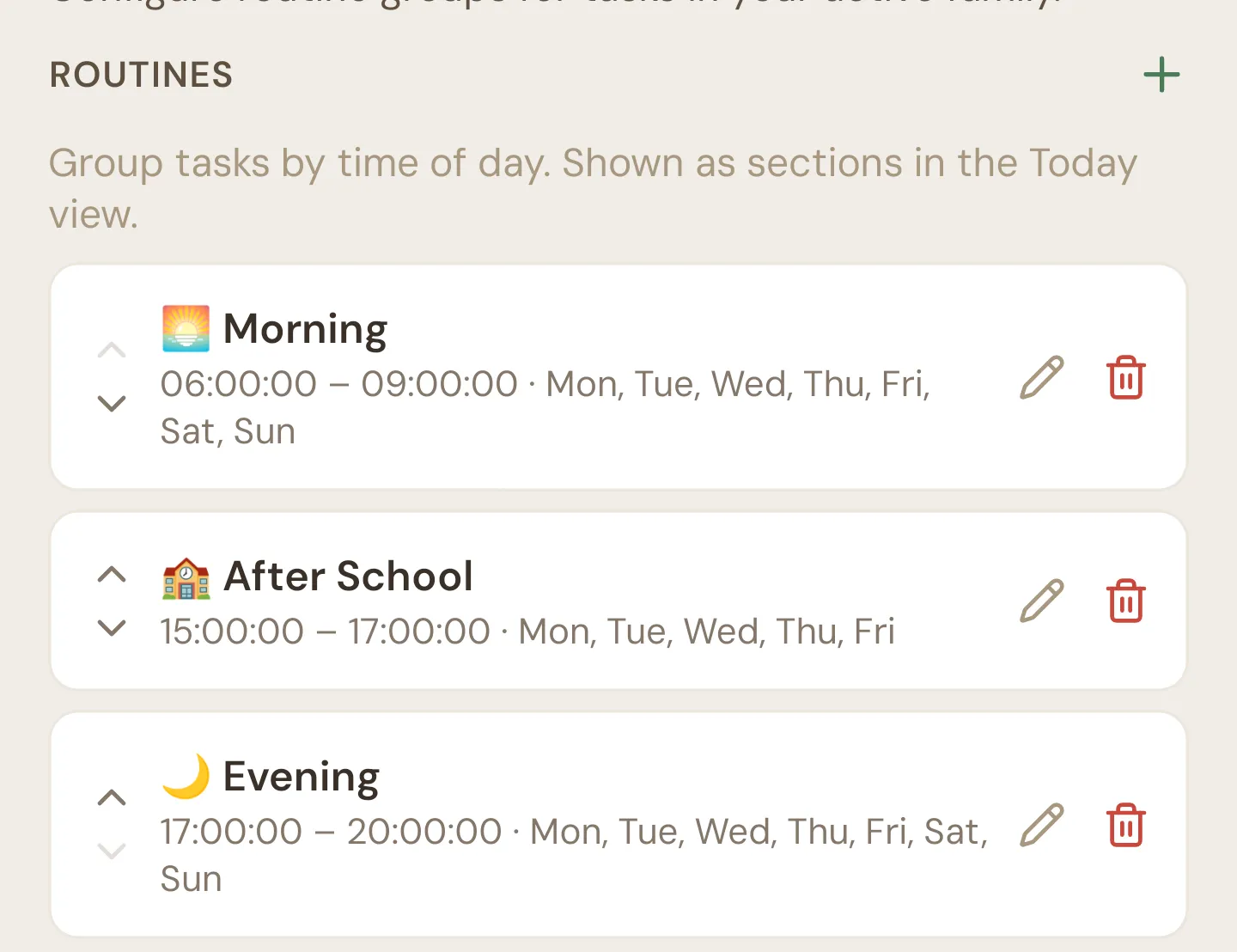
A routine is a named window of time on certain days, like Morning from 6 to 9 am. Tasks you put in a routine are grouped together wherever Quiddo lists the day’s jobs, and the routine that’s on right now is highlighted.
To get here, open the Family tab and tap Routines setup. If your family has no routines, that row has an Add routine button that opens straight to the new routine form.
Starter routines
Section titled “Starter routines”Every new family starts with three routines:
| Routine | Times | Days |
|---|---|---|
| 🌅 Morning | 06:00 to 09:00 | Every day |
| 🏫 After School | 15:00 to 17:00 | Monday to Friday |
| 🌙 Evening | 17:00 to 20:00 | Every day |
They’re ordinary routines: change them, delete them or add your own.
Routine list
Section titled “Routine list”Each card shows the routine’s emoji and name, its start and end times, and the days it runs.
| Control | Does |
|---|---|
| + (next to the Routines heading) | Opens the form for a new routine |
| Pencil | Opens the routine to edit it |
| Red bin | Deletes the routine (you’re asked first) |
| Up and down arrows | Move the routine up or down the list. Only shown when you have more than one routine. |
With no routines, the screen says “No routines yet. Tap + to add one.”
Adding or editing a routine
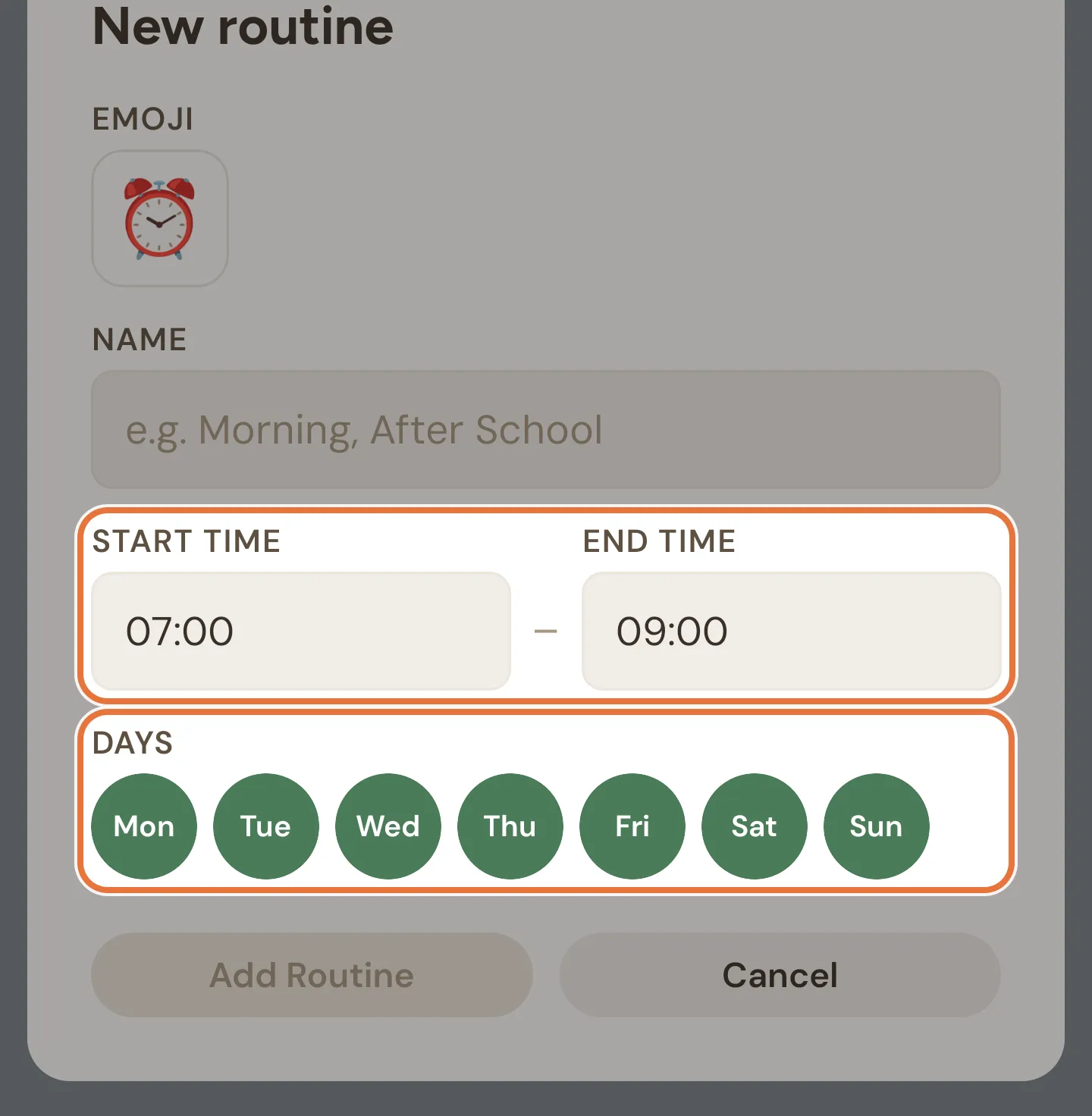
Section titled “Adding or editing a routine”The form is titled New routine or Edit routine.
| Field | Notes |
|---|---|
| Emoji | Tap to pick one. New routines start with ⏰. |
| Name | For example “Morning” or “After School”. |
| Start time and End time | 24-hour time. New routines start at 07:00 to 09:00. |
| Days | Tap Mon to Sun to choose the days it runs. New routines start with every day ticked. |
You don’t have to type the colon. When you leave a time box, Quiddo tidies what you typed:
| You type | It becomes |
|---|---|
9 | 09:00 |
18 | 18:00 |
930 | 09:30 |
1830 | 18:30 |
Tap Add Routine (for a new one) or Save (when editing). The button stays greyed out until the routine has a name, both times and at least one day. Cancel closes the form without saving.
Reordering
Section titled “Reordering”Use the up and down arrows on each card. The new order saves as soon as you tap.
The order sets how routines are listed on this screen, in the Routines section of the task form and in the routine filters on the task list. The Daily screen, the Tasks tab and your kid’s page always list routines by start time.
Deleting a routine
Section titled “Deleting a routine”Tap the red bin, then Delete to confirm. The confirmation reminds you that the tasks in it won’t be deleted.
Those tasks just lose that routine. If they’re in no other routine, the Daily screen lists them with the tasks that aren’t in a routine.
Where routines show up
Section titled “Where routines show up”Adding a task to a routine is done on the task form, under Routines (optional). A task can be in more than one routine. Once it’s in one:
- The Daily screen groups the day’s tasks by routine, in start-time order, with anything not in a routine that day under Other tasks (or Other, when you’re viewing by kid). A task in more than one routine appears once, under the earliest. See The Daily screen.
- The Tasks tab shows the routine that’s on right now, marked Active now, with how many of its tasks are done. See Tasks tab.
- Your kid’s Quiddo page groups their jobs by routine, with the one that’s on now listed first and marked Now. See Your kid’s Quiddo page.
- The task list puts tasks in routines first, ordered by the routine’s start time.
A routine only appears on its own days. Its days don’t change when a task is due, though: a daily task in After School still turns up on Saturday, just not grouped under After School. The task’s Frequency decides which days it’s due.
A routine is “on” between its start and end times on its days, in your family’s time zone.
Routines decide when you can excuse a job
You can only excuse a responsibility on the same day once its routine has ended. A responsibility in no routine that day can’t be excused until the next day. More in When a day goes sideways.
Routines decide which week a pay-day job counts for
A responsibility that’s due on pay day counts toward this payment if one of its routines that day ends at or before the release time. If its routines end later, it counts toward the next payment instead. With no routine on pay day, it counts toward this payment when pocket money is released at noon or later, and the next one when it’s released in the morning.