
The Daily screen
The Daily screen (titled Daily in the app) lists every job for one day and who it belongs to. It’s where you approve what your kids have submitted, send back what isn’t done properly, and tick off or excuse anything else.
To get there:
- Tap Today on the Tasks tab.
- Tap the approvals bar on the Money tab, or Review on the Tasks tab banner.
- Tap a routine or a heatmap day on the Tasks tab to jump straight to that routine or date.
Choosing a day
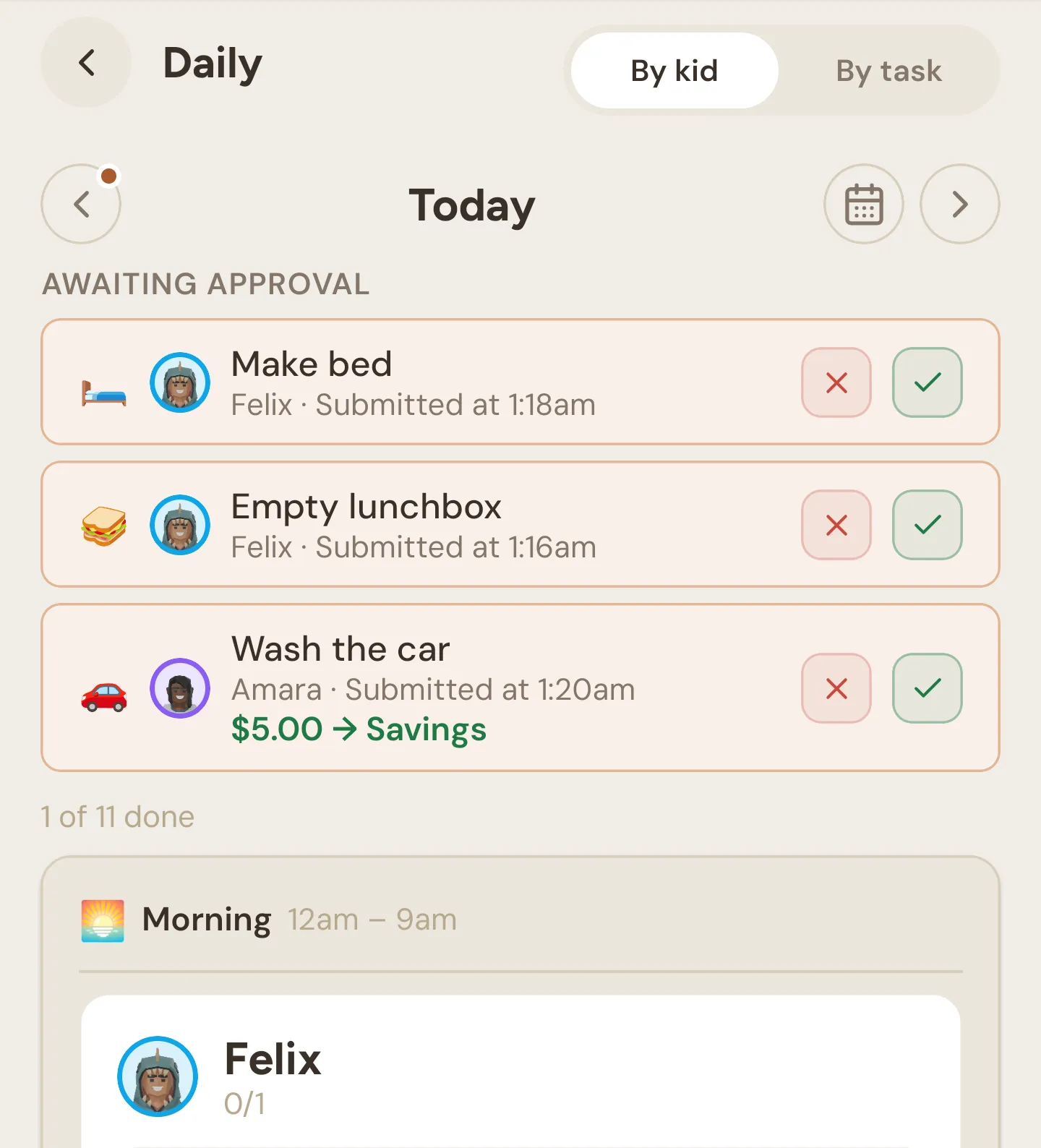
Section titled “Choosing a day”The bar at the top shows which day you’re looking at: “Today”, or a date like “Tuesday 16 September”.
| Control | What it does |
|---|---|
| ‹ and › | Go back or forward a day. A small dot on an arrow means that day has jobs waiting for approval. |
| Calendar button | Pick any day from a month view. |
You can go back as far as the day your family started using Quiddo, and forward as far as you like. Future days show a future badge. You can see what’s coming up, but you can’t approve, mark done or excuse anything yet.
Just above the list, “4 of 9 done” counts the day’s jobs that are approved or excused, across all kids. Pull down to refresh.
By kid and by task
Section titled “By kid and by task”The switch at the top right sets how jobs are laid out. Your choice is remembered on this phone.
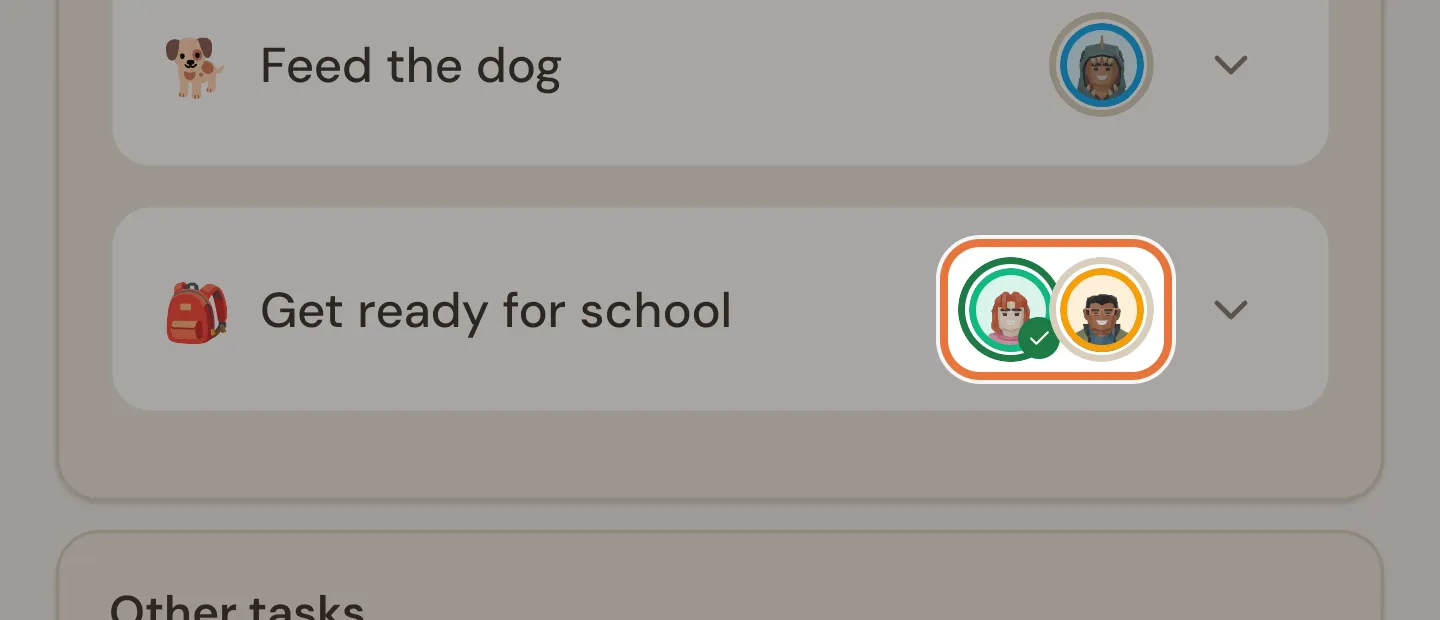
By task lists each job once, grouped under the day’s routines in time order, with anything outside a routine under Other tasks. Each job shows the kids it’s assigned to as small pictures with a coloured ring: green with a tick when it’s approved, red when it was sent back, and grey otherwise. Tap the pictures to open a sheet with every kid’s actions for that job.
By kid lists the day’s routines in time order. Inside each routine, every kid gets their own card with a count like “2/4” and their jobs underneath. Jobs outside the day’s routines come last, under Other.
Awaiting approval
Section titled “Awaiting approval”Jobs your kids have submitted for the day you’re viewing appear first, under Awaiting approval. Each card shows the job, the kid, and when they submitted it (“Submitted at 4:12pm”). For a paid job it also shows the reward, and which bucket it’s going to if your kid chose one.
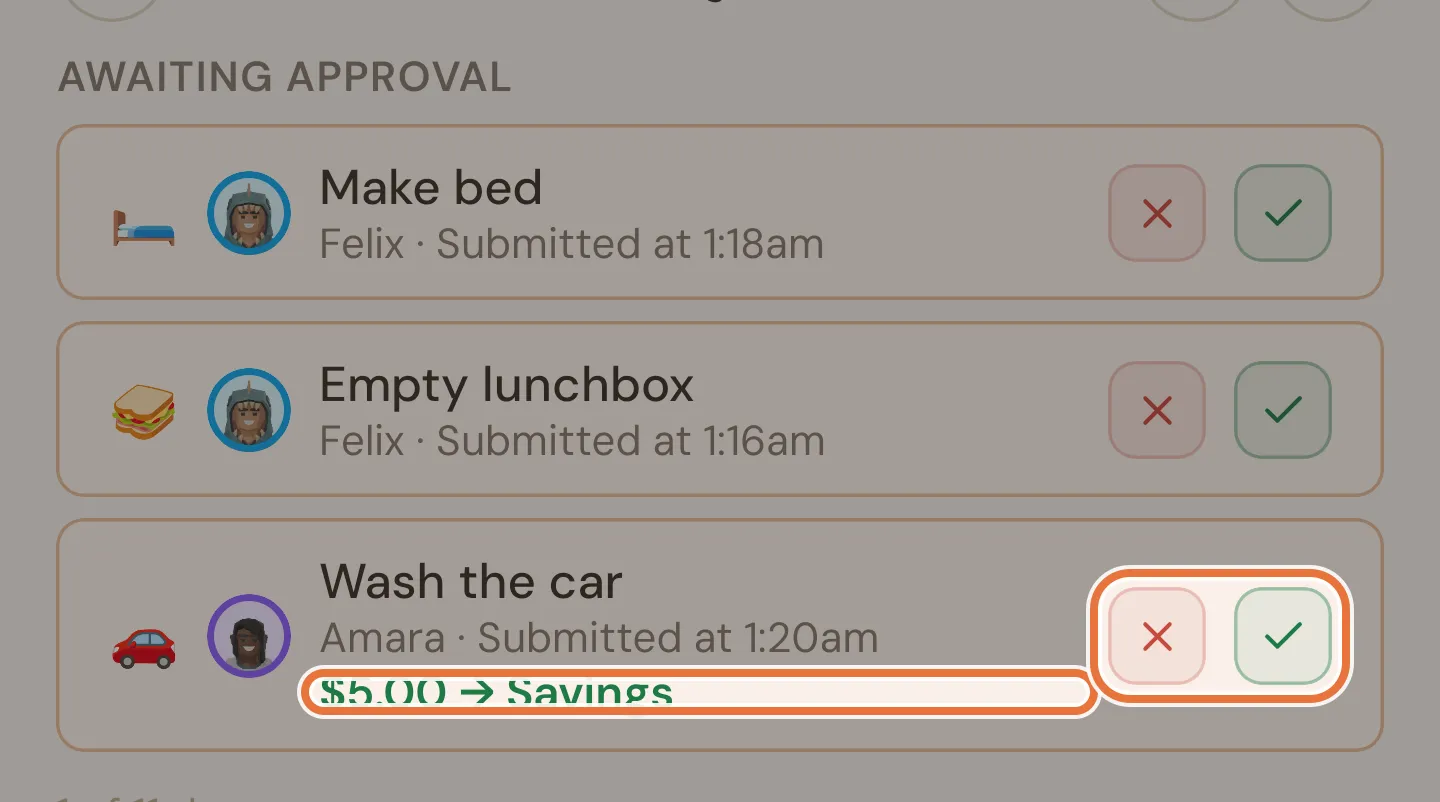
- ✓ approves it. A paid job’s reward goes into the kid’s bucket straight away, and a responsibility now counts toward their pocket money.
- × sends it back. Your kid sees “Your parent sent this back” on their Quiddo page and can do it again.
- If the job has steps, tap the arrow to see which steps they ticked and how long each took.
This section only shows the day on the screen. Use the dots on ‹ and › to find other days with jobs waiting, or open Task completions and filter by Pending to see them all at once.
Job actions
Section titled “Job actions”Every job also has its own row (By kid) or a line for each kid (By task), with buttons that change with the job’s state. When there’s only one thing you can do, its icon shows on the row. When there’s more than one, tap … to open a sheet with the choices.
| The job is | What you can do |
|---|---|
| Not started | ✓ to mark it done, and Excuse for a responsibility |
| Started but not submitted (steps or a timer under way) | Approve, Decline, and Excuse for a responsibility |
| Submitted (“Submitted at …” under the name) | Approve, Decline, and Excuse for a responsibility |
| Sent back (red warning icon) | ✓ to approve it anyway |
| Approved | Undo |
| Excused | Unexcuse |
Approving from here works the same as the ✓ in Awaiting approval. Declining from the Daily screen doesn’t take a note. To tell your kid why, decline it from Task completions instead.
If your trial or subscription has ended, these buttons open a Subscription required sheet instead. Continue read-only closes it, and Go to Billing takes you to Billing.
Marking a job done
Section titled “Marking a job done”Kids don’t always tap the button. If a job got done anyway, tap ✓ on it. For a responsibility, the ✓ is inside the … sheet, next to Excuse, where it’s called Mark done (Approve in By task view). It marks the job done and approves it in one go, so a paid job pays straight away and a responsibility counts toward pocket money.
The reward goes to the kid’s usual reward bucket, because they didn’t get to choose one. See Which bucket wins.
Mark done is for today’s jobs. To record a job for an earlier day, open Task completions, find the day’s Scheduled row for that job and tap Approve.
Undoing an approval
Section titled “Undoing an approval”Tap Undo on an approved job to reverse it. Any reward is taken back out of the bucket, and if some of it had gone into a savings goal, the goal’s funding drops to match.
If the job has steps and some were ticked, undoing it from a job card with kid pictures (By task view, or the running routine in By kid view) asks what to do:
| Choice | Result |
|---|---|
| Keep progress | The job goes back to waiting for approval, with the ticked steps kept. |
| Reset task | The job is cleared completely so your kid can start again. |
Undo on a kid’s own card in By kid view clears the job completely, steps included. To send an approved job back to waiting for approval instead, use Unapprove in Task completions.
Job details and steps
Section titled “Job details and steps”Tap a job’s name, or the arrow at the end of its row, to open it. Jobs with steps open automatically while their routine is running.
An open job shows where it’s up to:
| Line | Meaning |
|---|---|
| ”Not started” | Nothing has happened yet. |
| ”Started at 7:05am” | Your kid has started working through the steps or the timer. |
| ”Submitted at 7:30am” | Done and waiting for you. |
| ”Submitted at 7:30am, approved at 7:45am by Mum” | Approved, and who approved it. |
| ”Excused at 8:00pm by Dad” | Excused, and by whom. |
The name shown is what your kids call you, if you’ve set that in Profile and settings, or your own name.
For a job with steps, each step is listed with a tick box, plus how long it took once it’s ticked. You can tick steps on your kid’s behalf for today’s jobs:
- If nobody has started the job yet, your first tap starts it. Tap the step again to tick it.
- When every step is ticked, the job is submitted. It still needs approving, just as if your kid had finished it (unless the job doesn’t require approval, in which case it’s approved straight away).
- Steps can’t be changed once the job is approved.
Building a job with steps is covered in A morning routine that runs itself.
Excusing a job
Section titled “Excusing a job”Excuse a responsibility when it couldn’t reasonably be done, like a sick day. An excused job counts as done for pocket money, and its row turns grey.
You can only excuse:
- Responsibilities. Paid jobs and reminders can’t be excused.
- Today or earlier. Future days can’t be excused.
- Today’s jobs once their routine has finished. If a job is in more than one of today’s routines, that means the last one to finish. A job that isn’t in any of today’s routines can be excused from tomorrow. Until then, the Excuse tasks? check skips it as “Too early to excuse”.
Excusing a job your kid has already started or submitted happens straight away. Excusing a job nobody has started first shows an Excuse tasks? check with how many can be excused, and why any were skipped. Tap Excuse to go ahead.
To reverse it, tap Unexcuse. The job goes back to how it was before you excused it.
For when excusing makes sense, see When a day goes sideways in the weekly pocket money recipe.
Excusing several at once
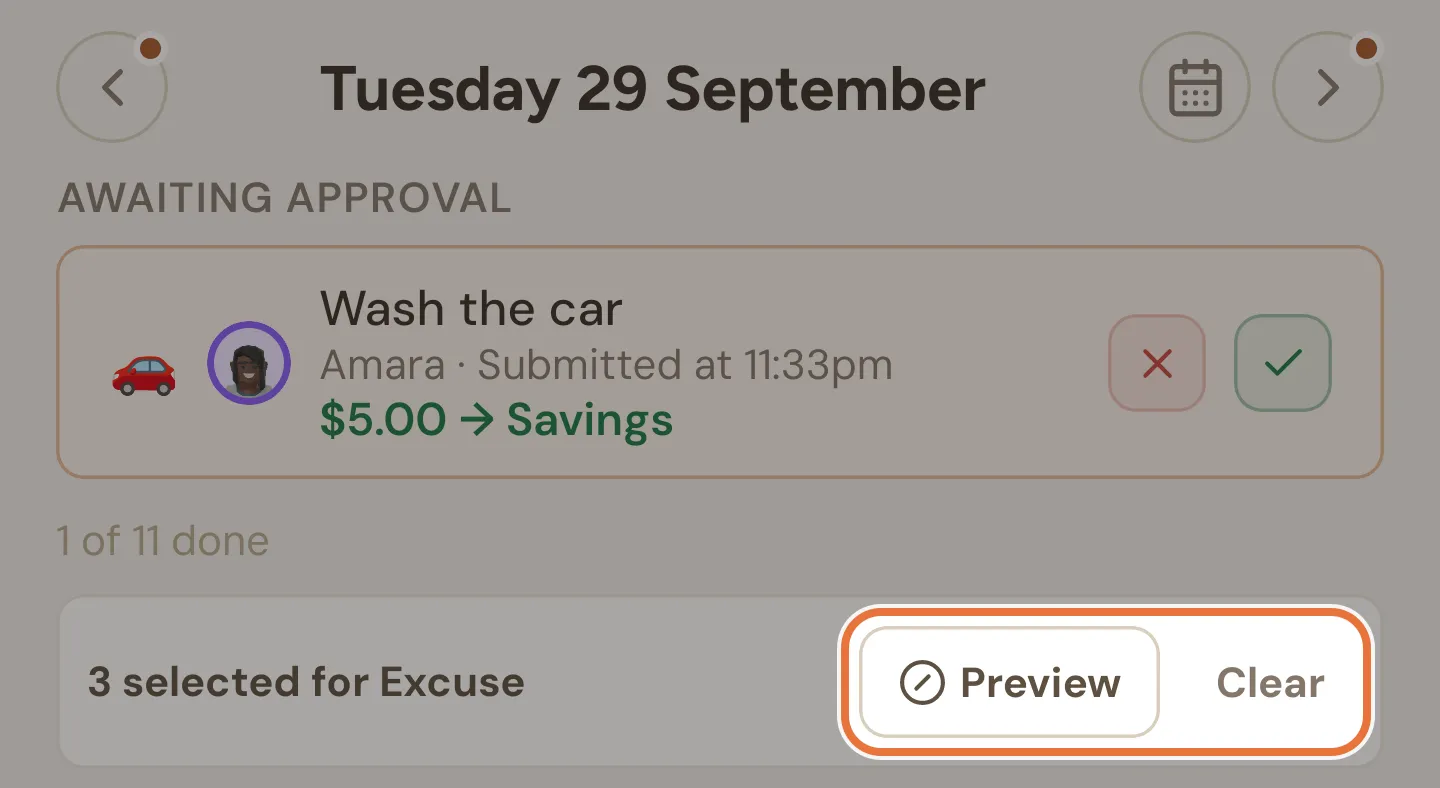
Section titled “Excusing several at once”Responsibilities you can excuse have a small tick box at the start of their row. In By task view, the tick boxes sit beside each kid when you open a job or tap its kid pictures. Tick as many as you like, up to 100. A bar appears reading “3 selected for Excuse”, with two buttons:
- Preview opens the Excuse tasks? check for everything you ticked.
- Clear unticks them all.
For excusing across many days or a date range, use Excuse filtered in Task completions.