
Little kids: stars, not dollars
A four-year-old doesn’t know what $2.50 is. They do know what a star is, and that ten of them means a trip to the pool. Stars (or coins, or points) give little kids the same idea as pocket money without the maths.
Quiddo can count in stars instead of dollars, for the whole family or just the youngest. Everything else works the same: jobs earn stars, goals save stars, and you decide what stars can be swapped for.
You’ll need: a family with your little one added, or about to be. The other recipes all work in stars too; wherever they say dollars, read stars.
What you’re setting up
Section titled “What you’re setting up”| Piece | What it does |
|---|---|
| A custom currency | Stars, coins, points or your own emoji, for the family or for one kid. |
| Whole numbers | No half-stars. Amounts are always whole. |
| A star menu | What stars can be swapped for. This one lives on your fridge, not in the app. |
| A star goal | Something bigger to save stars toward. |
1. Write the star menu
Section titled “1. Write the star menu”Stars only mean something if they can be swapped for things. Before you set anything up, agree a short menu with your kid. Ours looked something like this:
| Stars | Swap for |
|---|---|
| 3 | Pick what’s for dinner |
| 5 | An extra bedtime story |
| 10 | A trip to the pool |
| 25 | A small toy from the shops |
Pick rewards you’re actually happy to give. “A pony” is not on the menu, however many stars are involved.
2. Switch to stars
Section titled “2. Switch to stars”There are two ways, depending on whether all your kids are little.
Everyone uses stars
Section titled “Everyone uses stars”If every kid in the family is young enough for stars, change the whole family’s currency. You’ll need to be the family admin.
-
Open the Family tab, scroll down to Family details and tap the pencil.
-
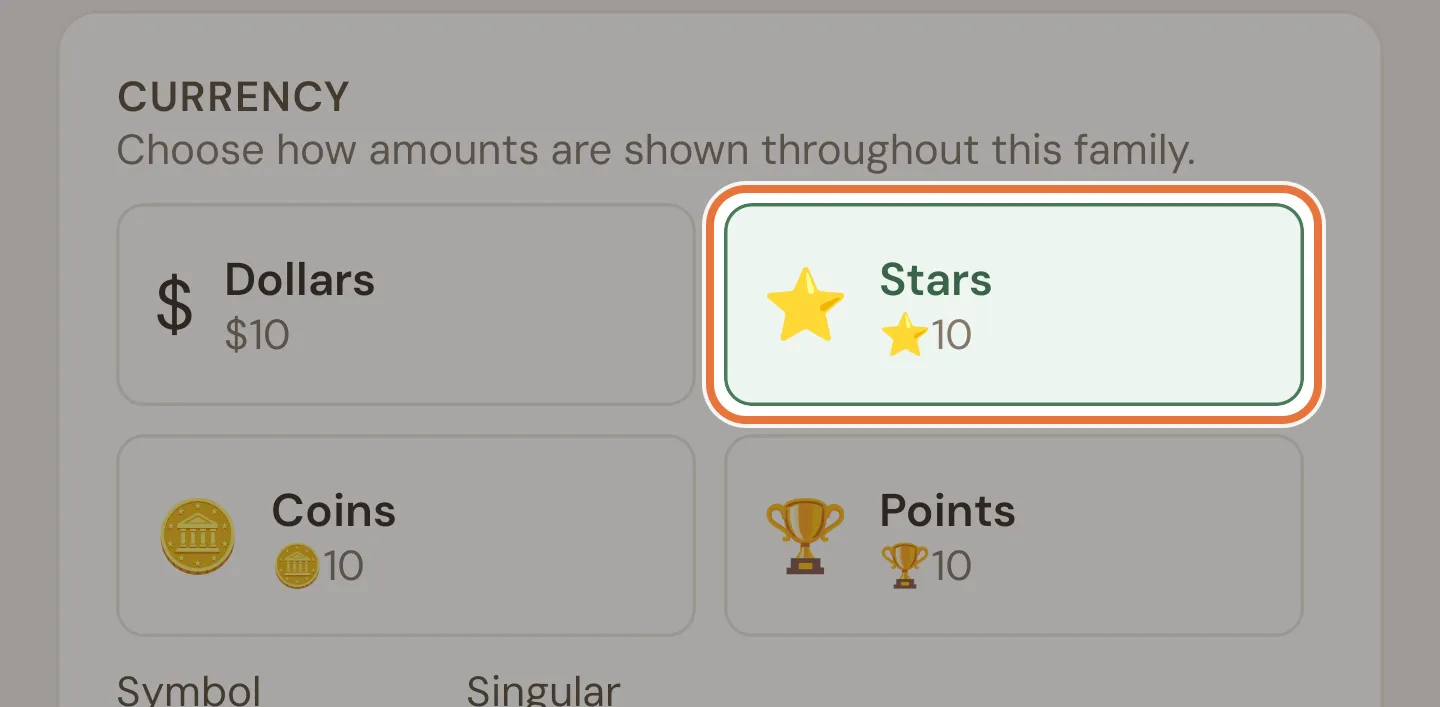
Under Currency, tap Stars. (Coins and Points work the same way; for anything else, type your own symbol and names.)
-
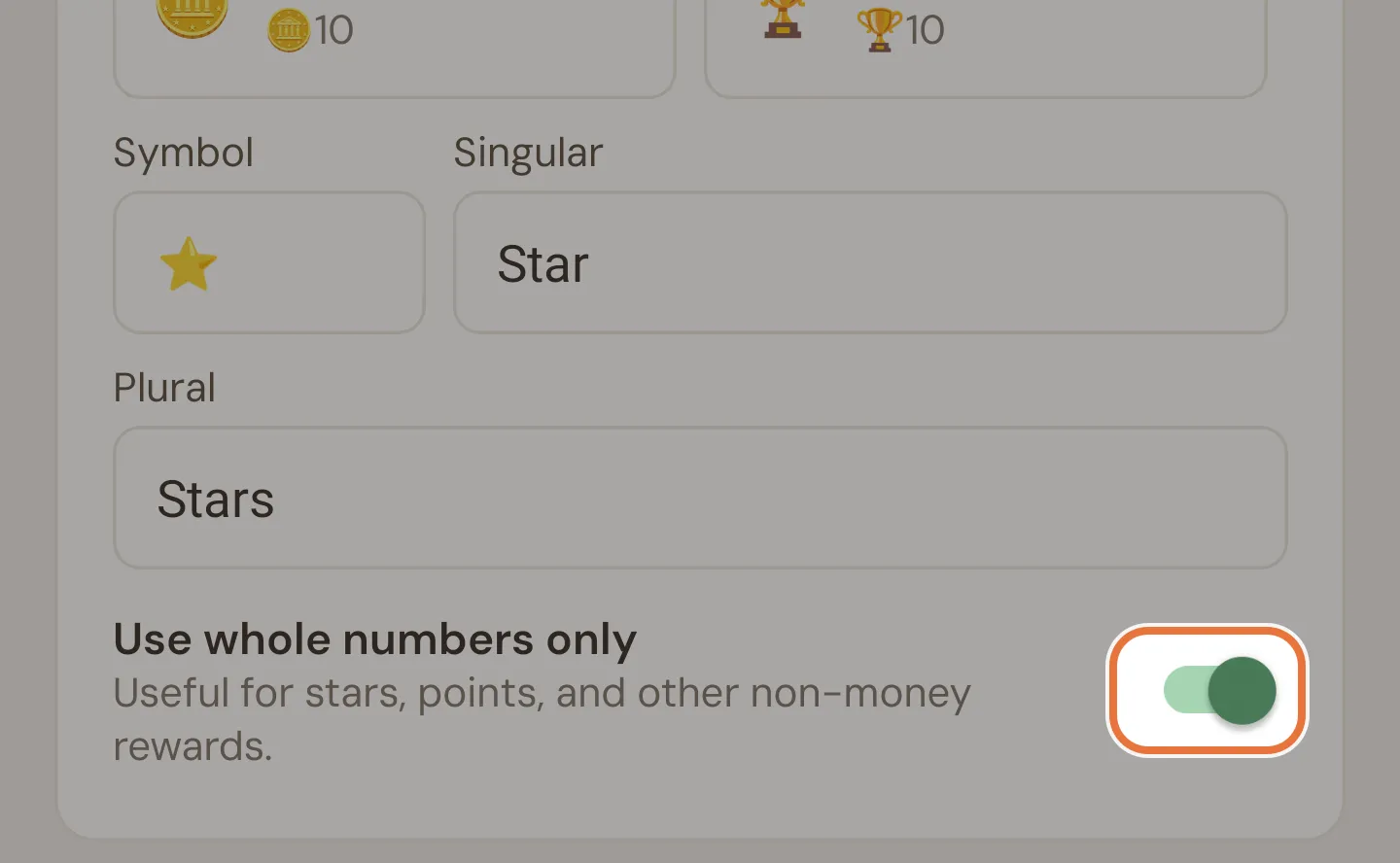
Check Use whole numbers only is on (the Stars preset turns it on for you), then tap Save.
Setting up a new family? The setup wizard asks about this at the start: choose Custom currency instead of real money.
Just the little one
Section titled “Just the little one”If older kids use dollars and only the youngest uses stars, keep the family on dollars and give the little one their own currency when you add them.
-
On the Family tab, tap Add kid and fill in the name, colour and avatar as usual.
-
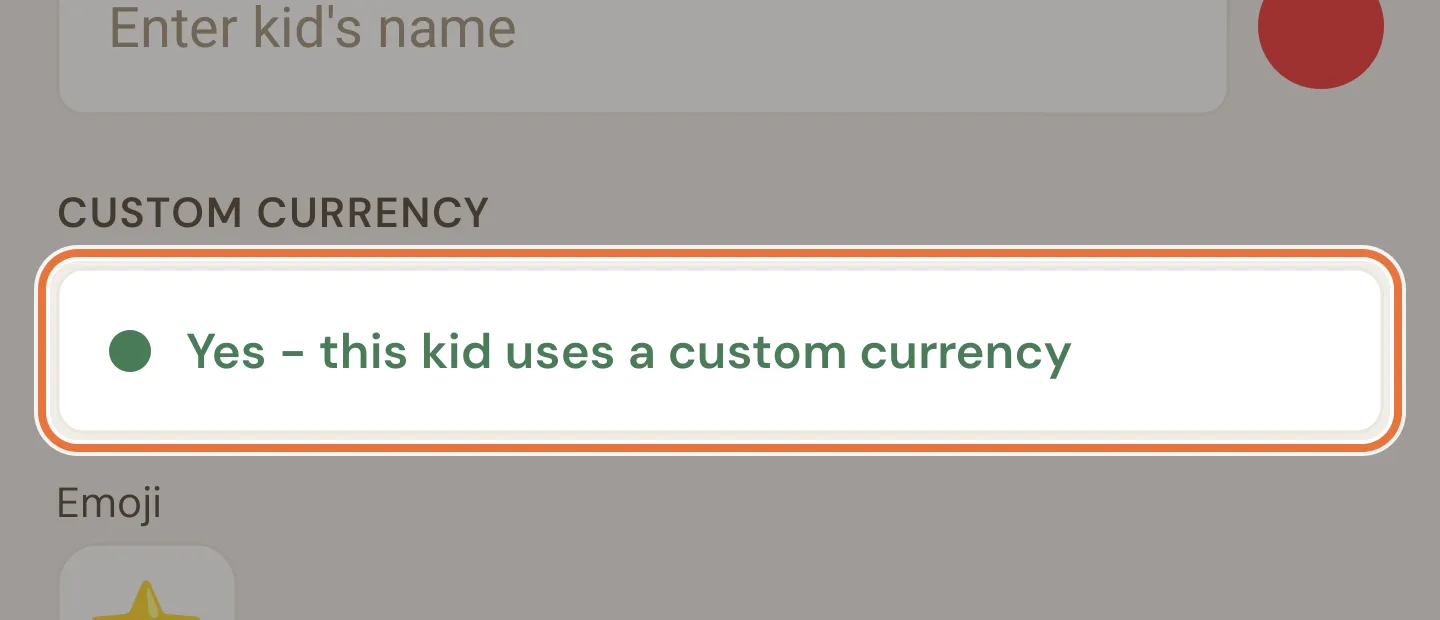
Under Custom Currency, switch to Yes - this kid uses a custom currency.
-
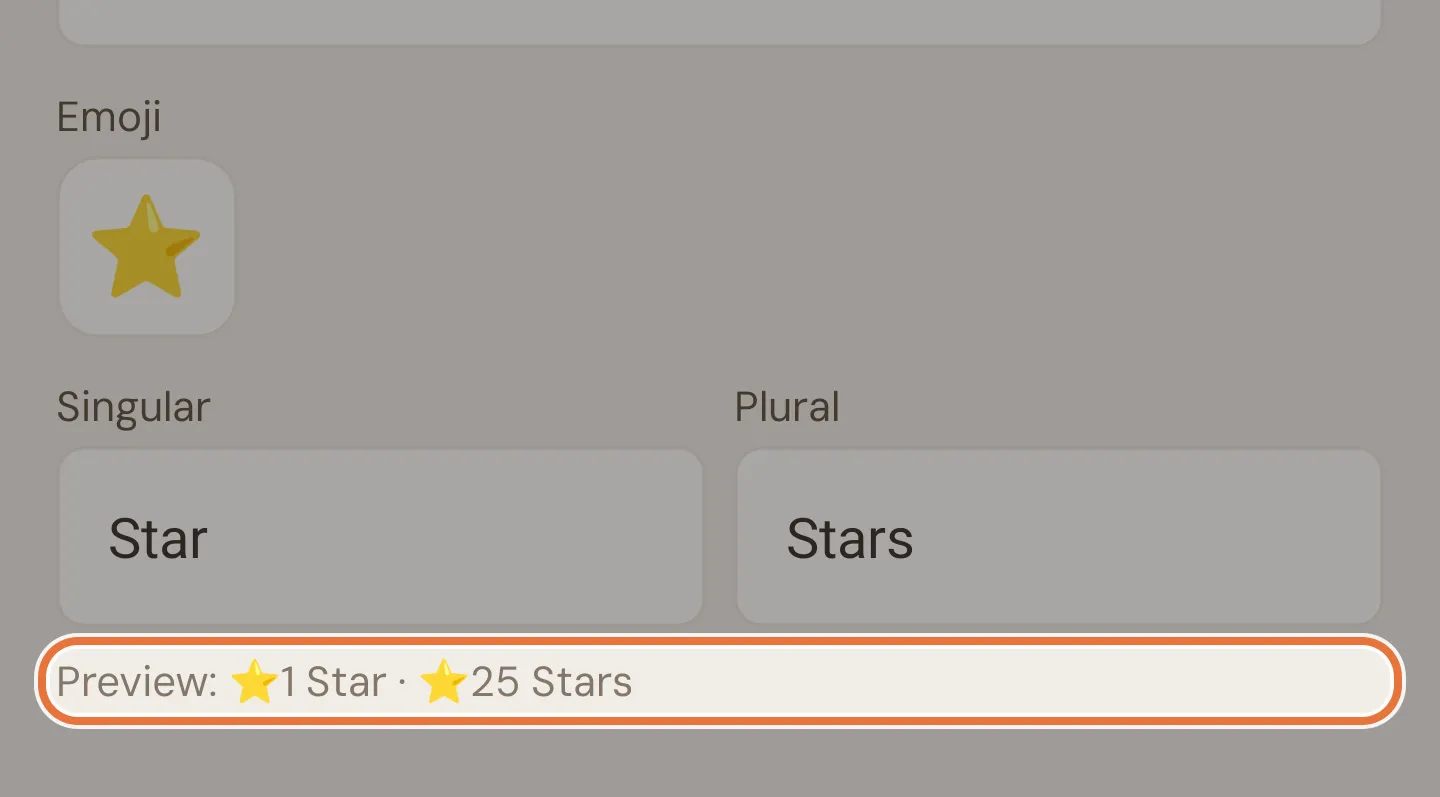
Quiddo starts you off with the ⭐ emoji, fills in Star and Stars and shows a preview like “⭐1 Star · ⭐25 Stars”. Pick a different emoji for coins or points, and edit the names if you like.
-
Tap Add Kid.
Known issue: Kid currency can’t be changed later
A kid’s own currency can only be chosen when you add them. There’s no way to change it afterwards in the app, so decide before you tap Add Kid.
Whole numbers follow the family
Use whole numbers only is a family setting. A kid with their own star currency in a family that uses dollars and cents can still be given 2.5 stars. Stick to whole amounts when you set up their jobs and pocket money.
Changing currency doesn’t convert anything
Switching the family from dollars to stars relabels the numbers; it doesn’t convert them. A kid with $12 becomes a kid with 12 stars. Change currency before there’s much in the buckets, or be ready to explain the sudden windfall.
3. Hand out stars
Section titled “3. Hand out stars”Stars come in the same ways as money:
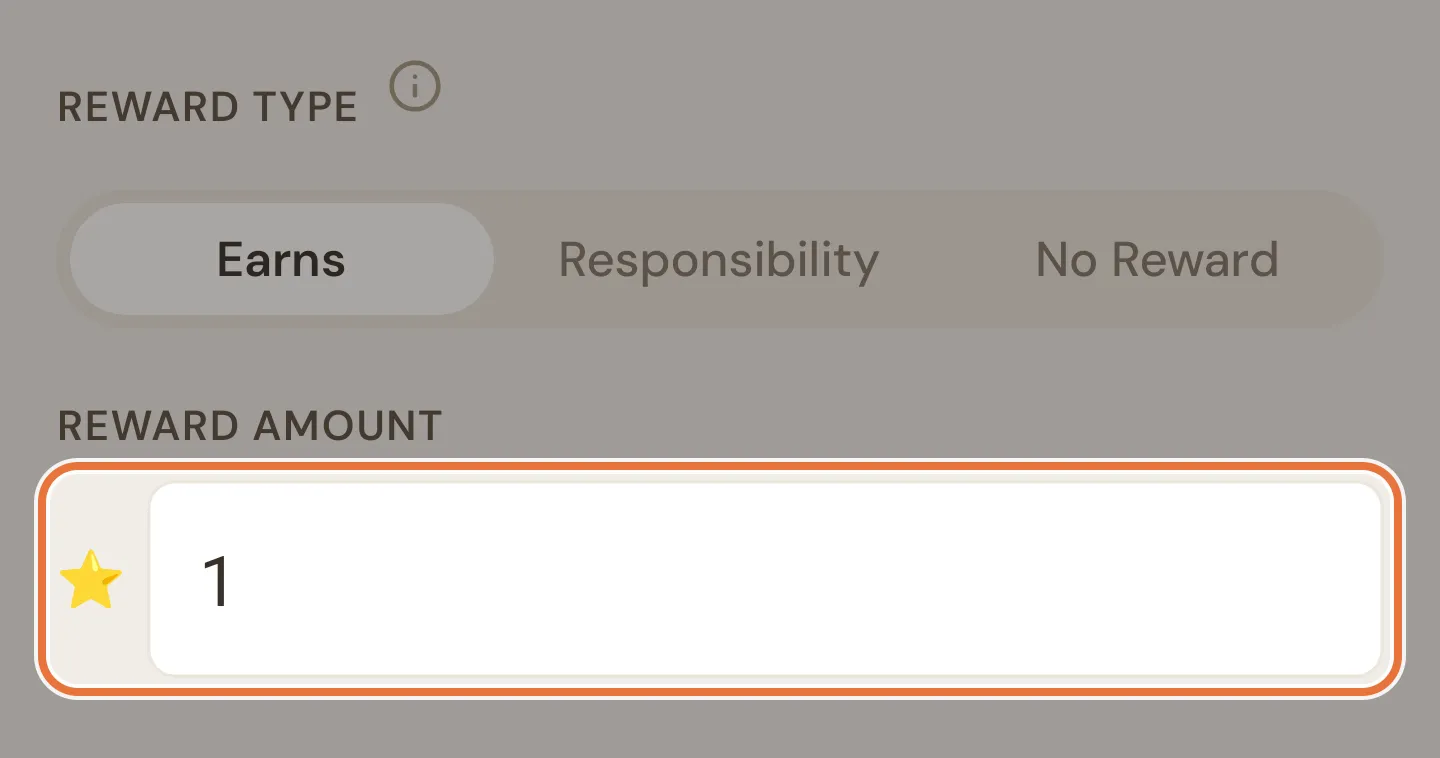
- Paid jobs earn a set number of stars. “Feed the fish: 1 star.” See Paid jobs.
- Pocket money can be a weekly handful of stars, released automatically. See Weekly pocket money.
- Bonus stars for a great day: use Add money on the Money tab and pick the kid.
For little kids, we’d keep approval switched on. Watching you tap approve is half the fun.
4. Swap stars for rewards
Section titled “4. Swap stars for rewards”When your kid cashes in, record it as a spend: tap Spend on the Money tab, pick the kid, enter the number of stars and write what it was for (“Pool trip”).
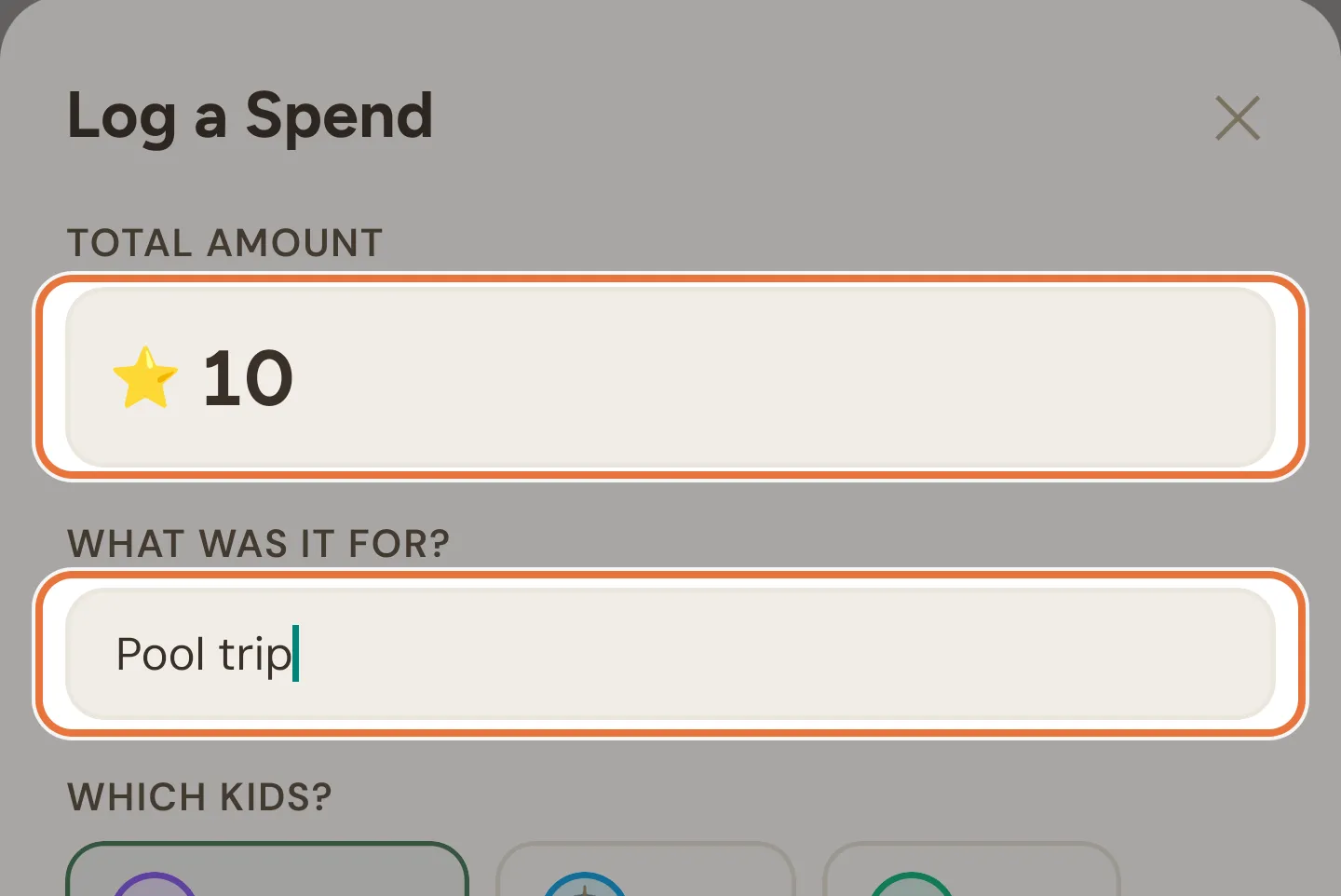
It shows up in their history, so there’s a record of every pool trip they’ve earned.
5. Save up for something big
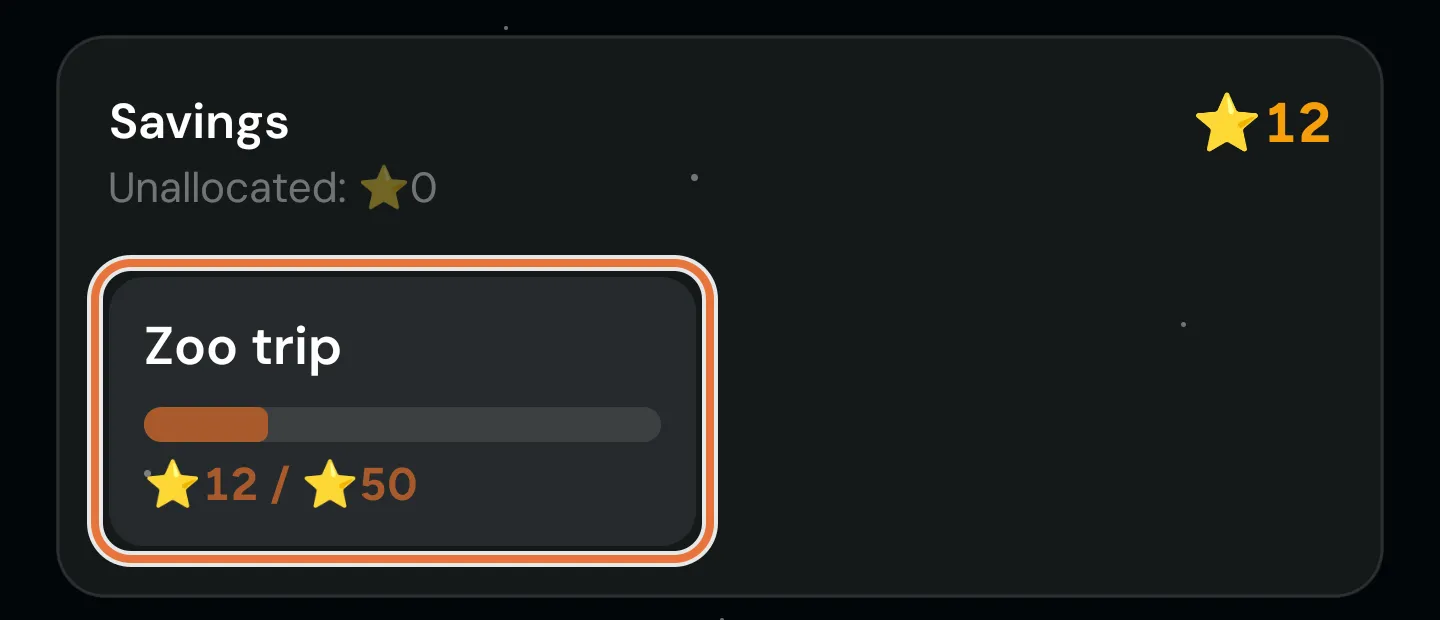
Section titled “5. Save up for something big”For the rewards at the top of the menu, set up a savings goal in stars with a photo of the prize. The progress bar fills as they earn. If they have their own tablet, it throws a party when they get there. See Saving for the big thing.
6. Let them see their stars
Section titled “6. Let them see their stars”Little kids don’t usually have their own phone. Some ways to show them:
- Hand them yours. On their page, tap the starry Quiddo page button. They see exactly what they’d see on their own device, and can tick off jobs themselves.
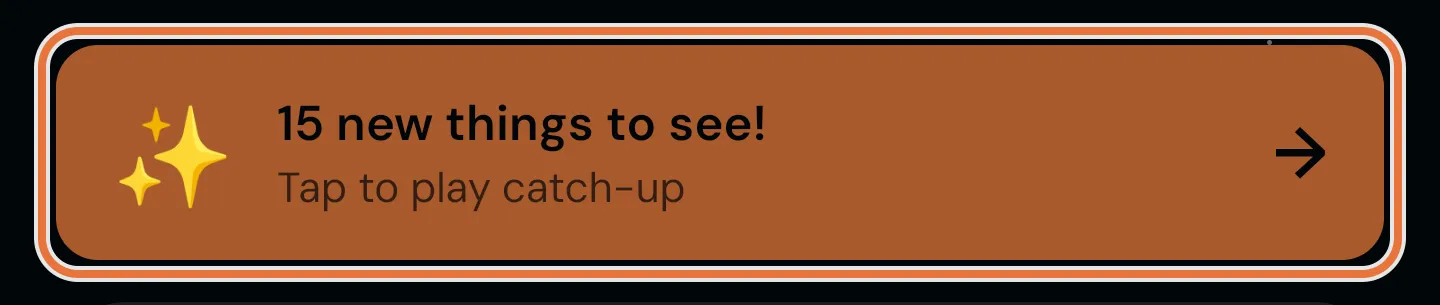
- Play the catch-up. When you open their Quiddo page there’s often a “new things to see” card. Tap it for an animated replay of stars arriving since last time. It’s a hit with the under-sixes.
- A tablet at their height. A family screen on the kitchen bench shows each kid’s jobs, goals and balance, and they can tick jobs off there.
7. Moving up to real money
Section titled “7. Moving up to real money”At some point stars stop cutting it and they want actual money. When that day comes:
- If the whole family uses stars, change the family’s currency back to Dollars and switch off Use whole numbers only. Remember it relabels rather than converts: agree an exchange rate first, swap their remaining stars for rewards (or record a spend to zero them out), then start fresh in dollars.
- If only one kid uses stars, their currency can’t be changed in the app yet (see the Known issue above).
A week of stars
Section titled “A week of stars”| Day | Four-year-old | You |
|---|---|---|
| Monday | Feeds the fish. 1 star. | Approves, receives a hug |
| Wednesday | Asks how many stars a pony is | Points at the menu |
| Friday | Weekly pocket money: 3 stars | Nothing |
| Saturday | Swaps 10 stars for the pool | Logs the spend, packs the towels |
| Sunday | Starts saving for the zoo | Sets up a goal with a photo of a giraffe |
Where to go next
Section titled “Where to go next”- Jobs that earn stars: Paid jobs, so they can earn a bit extra.
- A bigger prize to save toward: Saving for the big thing.