
Task list
The task list shows every task in your family, what it pays and who it’s assigned to. It’s where you add new tasks and hand them out.
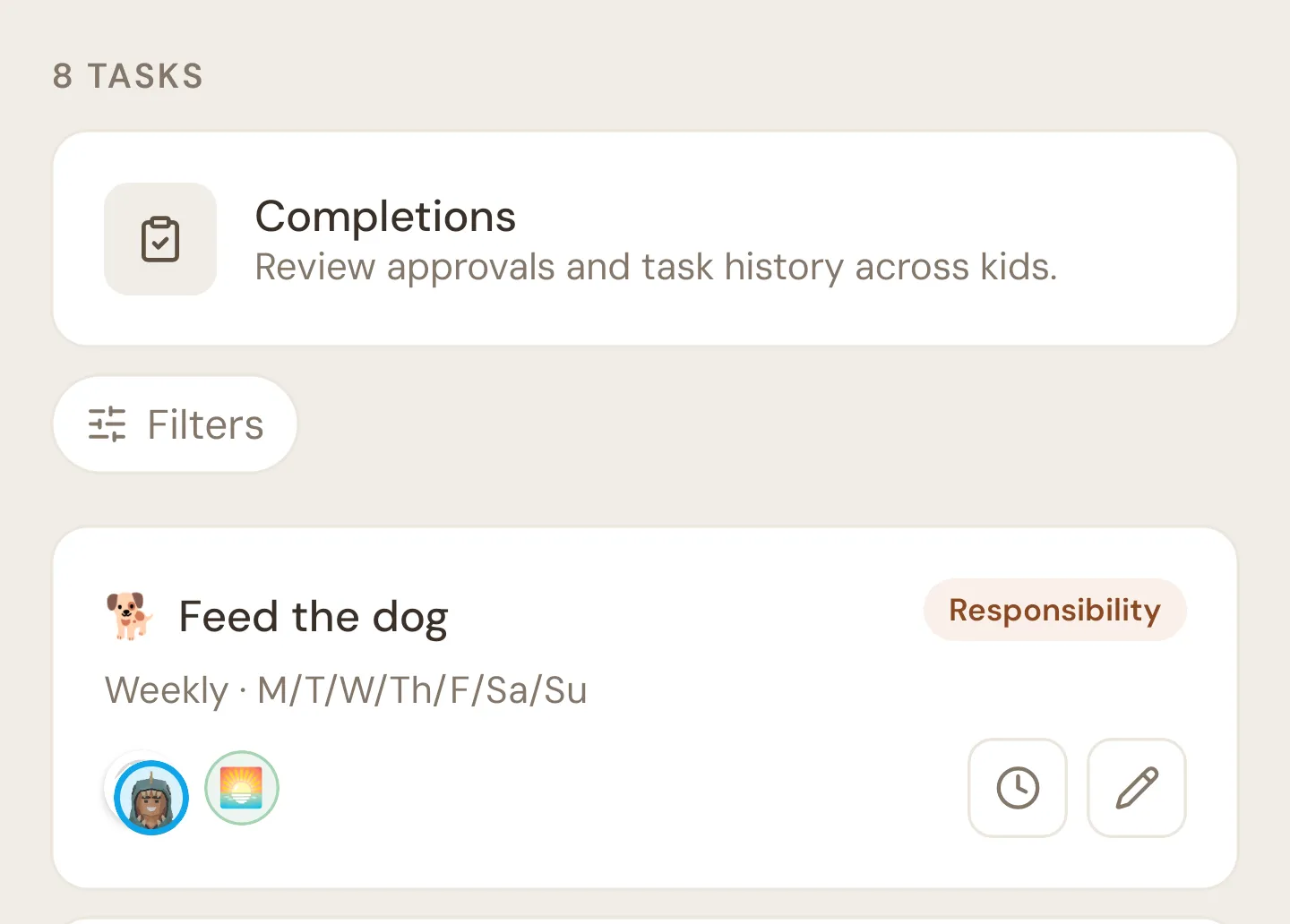
To get here, open the Tasks tab and tap Assign tasks, or open the Family tab and tap Tasks setup. Both open the same screen, titled Tasks. The number at the top is how many tasks your family has.
Completions
Section titled “Completions”The Completions card at the top opens Task completions, the record of every job your kids have done, with approvals and history across all kids.
Filters
Section titled “Filters”Tap Filters to open the filter panel.
- Search tasks… narrows the list to tasks whose name contains what you type.
- Kid chips show only the tasks assigned to that kid. Tasks nobody is assigned to (including On Demand tasks) drop out while a kid is picked.
- Routine chips show only the tasks in that routine.
You can combine a search, one kid and one routine. Tap a chip again to turn it off. While any filter is on, a dot appears on Filters and a Clear button turns them all off. If nothing matches, the list says “No tasks match filters.”
Task cards
Section titled “Task cards”Tasks that belong to a routine come first, ordered by the routine’s start time. Tasks with no routine follow, in alphabetical order.
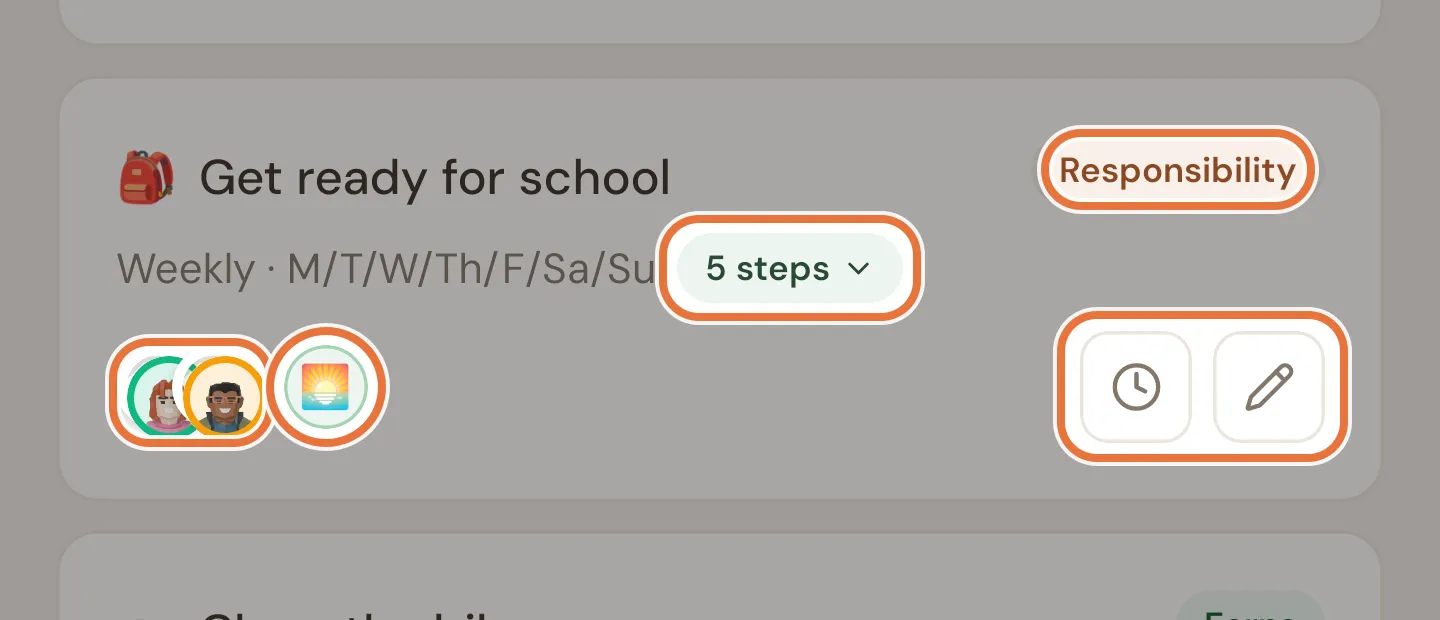
A card shows:
- Emoji and name.
- Reward badge: Earns (green), Responsibility (orange) or No Reward (grey). Earns tasks also show the amount, like +$2.00, at the bottom of the card.
- Schedule: the frequency, plus the days for weekly tasks (“Weekly · M/W/F”) or the day for monthly ones (“Monthly · 15th of month”). A daily task shows as weekly with all seven days.
- Steps badge: “4 steps”, if the task has sub-steps.
- Kid avatars: up to five of the kids it’s assigned to. If nobody is, you’ll see Assign instead.
- Routine emoji: one circle for each routine the task is in.
What happens when you tap:
| Tap | Does |
|---|---|
| The emoji, name or badge | Opens the task to edit it |
| The steps badge | Expands a numbered list of the steps. Tap again to close it. |
| The kid avatars, or Assign | Opens the kid picker (see below) |
| The routine emoji | Shows the names of the routines the task is in |
| The clock icon | Opens the task’s history (see Task completions and history) |
| The pencil icon | Opens the task to edit it |
Pull down on the list to refresh it.
Assigning kids
Section titled “Assigning kids”Tap a card’s kid avatars (or Assign) to open the ASSIGN KIDS picker. It lists every kid in the family, with a tick next to the ones already assigned.
- Tap a kid to assign or unassign them. It saves straight away and a message confirms it (“Task assigned to Mia”).
- Tap anywhere outside the picker to close it.
This works for Daily, Weekly, Monthly and One-off tasks. On Demand tasks work differently (see the next section).
If your family’s subscription has lapsed, Quiddo shows a sheet with Go to Billing and Continue read-only instead of making the change.
Assign today
Section titled “Assign today”On Demand tasks don’t belong to any kid: every kid can claim them from their own Quiddo page. You can also push one to a particular kid for today. Tapping the avatars area on an On Demand task opens the same picker, but tapping a kid opens the Assign today sheet instead of assigning them permanently.
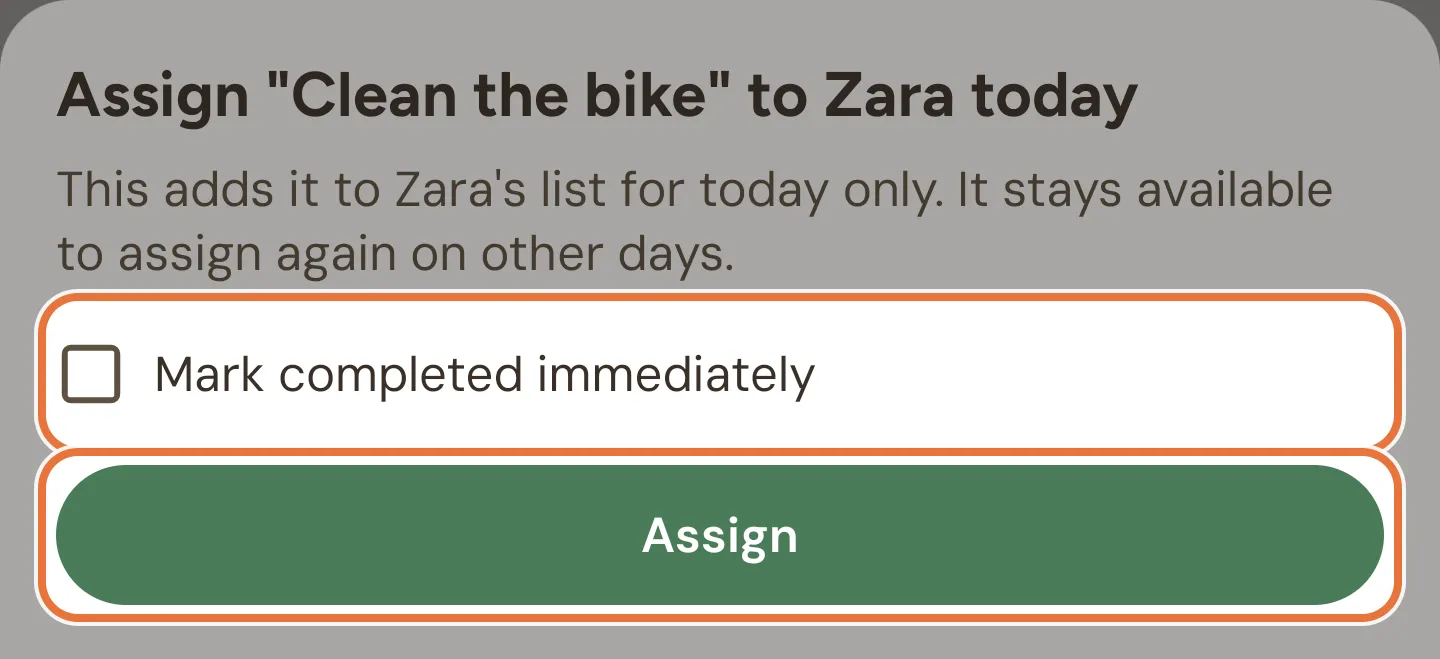
The sheet explains that the task goes on that kid’s list for today only, and stays available to assign again on other days.
- Assign puts it on their list for today. On their Quiddo page it shows a Do today badge.
- Tick Mark completed immediately and the button changes to Assign and approve. That records the job as done and approved for today, for when they’ve already done it.
Only one kid can have an On Demand task on a given day. In the picker, a kid who can’t take it because a sibling has it today shows Taken. The sheet also tells you when the task is “Already done today”, or is “Waiting on your approval.” (approve it from Completions or the Daily screen).
Assign mode
Section titled “Assign mode”Assign mode is a quicker way to set up one kid’s tasks. Open a kid’s page, go to their Tasks tab and tap Assign at the bottom. The task list opens titled Assign Tasks, with a ✕ in the corner.
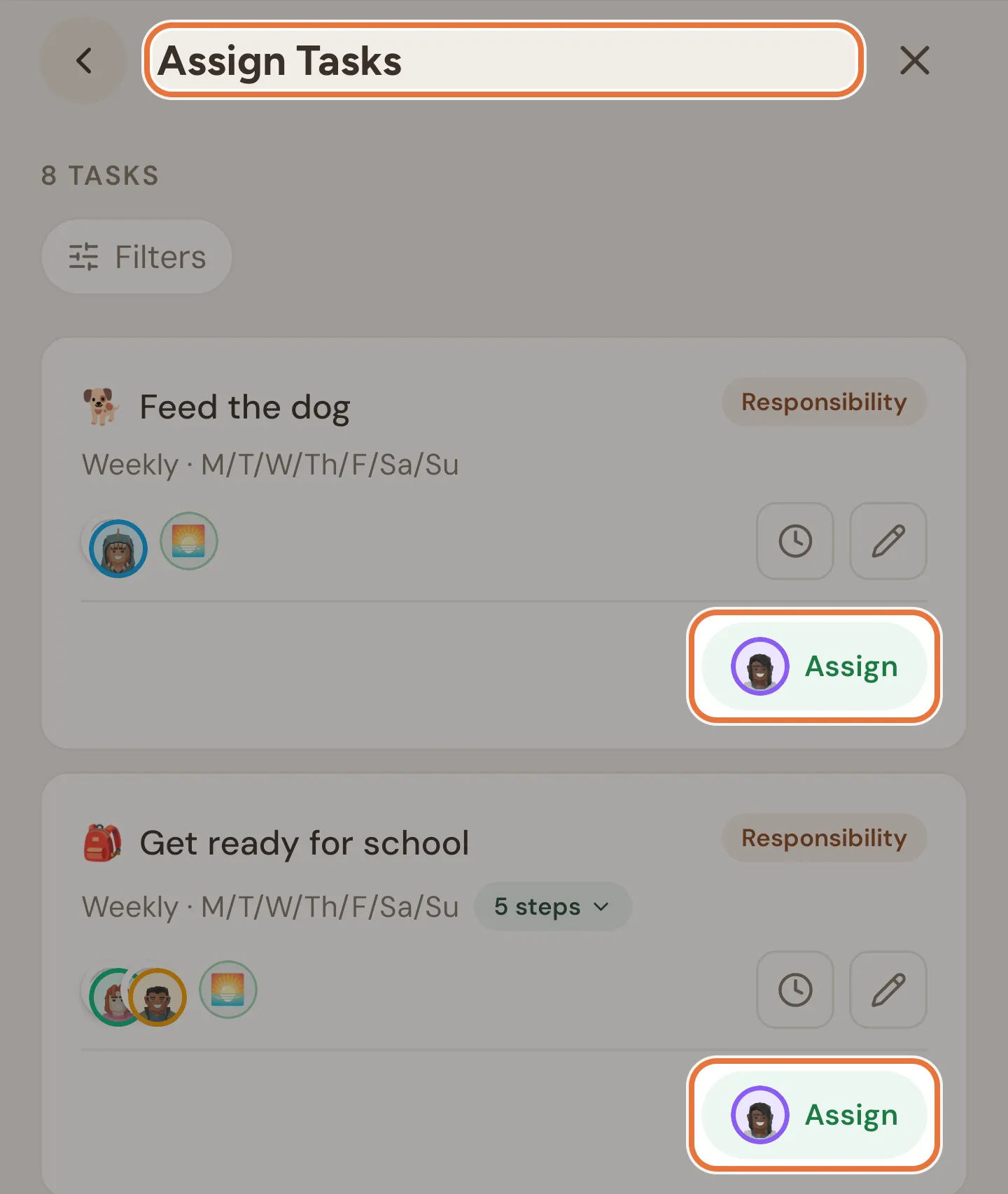
Each card gets a pill with that kid’s picture on it:
| Pill | Means |
|---|---|
| Assign | Not assigned to this kid. Tap to assign. |
| Unassign | Assigned to this kid. Tap to take it off them. |
| Assign Today | An On Demand task this kid doesn’t have today. Tap to open the Assign today sheet. |
| Assigned today | You’ve already put this On Demand task on their list today. |
| Awaiting approval | They’ve done this On Demand task today and it’s waiting for you. |
| Done today | They’ve done this On Demand task today and it’s approved. |
| Taken today | Another kid has this On Demand task today. |
Only Assign, Unassign and Assign Today can be tapped.
- The back arrow returns to the kid’s page.
- The ✕ leaves assign mode and shows the normal task list.
In assign mode the Completions card, the kid filter chips, swiping to delete and the + button are hidden.
Deleting a task
Section titled “Deleting a task”Swipe a card to the left and tap the red bin. The task is deleted straight away.
If the task has any history, that history is kept. The task shows as “(deleted)” in Task completions. A task that was never done is removed completely.
Adding a task
Section titled “Adding a task”Tap the round + button in the bottom-right corner to create a new task. The form is covered in Creating and editing a task.
No tasks yet
Section titled “No tasks yet”A family with no tasks sees “No tasks yet” with a nudge to add one. Tap + to start.