
Task completions and history
Two screens keep the record of every job. Task Completions lists each time a job was due or done, for every kid, and lets you approve, decline or excuse in bulk. Task History is a timeline of everything that’s happened to one job.
For today’s jobs, the Daily screen is quicker. Come here for anything older, anything in bulk, or to leave a note when you send a job back.
Opening task completions
Section titled “Opening task completions”- On the Family tab, tap Task completions.
- On the Task list, tap Completions at the top.
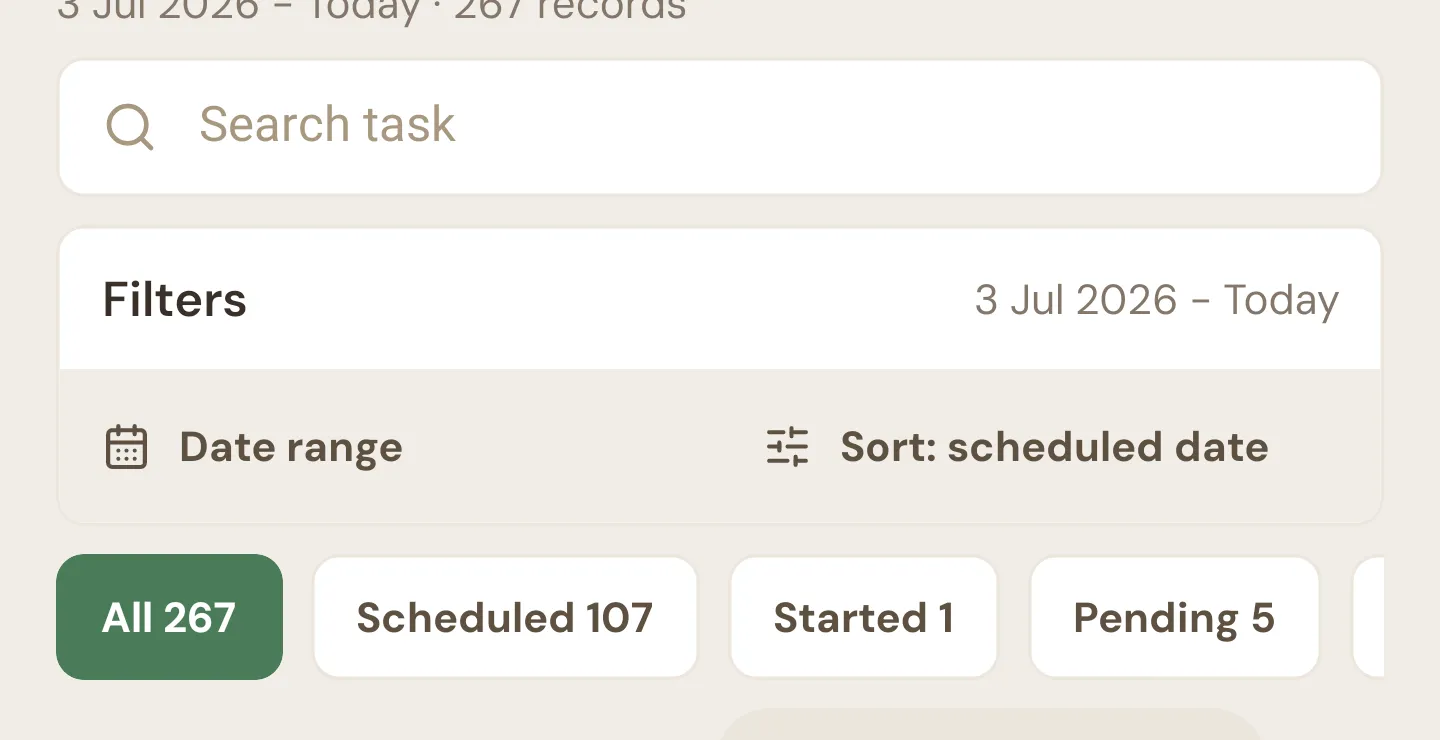
It opens on the last 90 days, newest first. The line at the top shows the date range and how many records match. Scroll down and older records keep loading.
Every scheduled job gets a record for each kid it’s assigned to, for every day it was due up to today, whether it was done or not. Anytime jobs only get a record once a kid claims one.
Search and filters
Section titled “Search and filters”- Search task narrows the list to jobs whose name contains what you type.
- Tap Filters to open the rest:
- Date range: a From and a To date, each picked from a calendar. Date range under the filters opens the same dates in a sheet with quick ranges: 7 days, 30 days, 90 days, This month and Last month. Tap Done to apply them, or Clear dates to start again.
- All kids: pick one kid. Archived kids are listed too.
- All tasks: pick one job. Deleted jobs are listed too.
- Clear filters clears the search and filters, and the dates go back to the last 90 days.
- The list is always sorted by the day each job was due, newest first (Sort: scheduled date).
Changing a filter clears anything you’ve ticked.
Status chips
Section titled “Status chips”The chips under the filters show how many records have each status, and tap to show only that status.
| Chip | Meaning |
|---|---|
| All | Everything in the range. |
| Scheduled | The job was due but nobody has done it. |
| Started | Your kid started working through the steps or a timer, but hasn’t submitted it. |
| Pending | Submitted and waiting for you to approve it. |
| Approved | Done and approved. Paid jobs have been paid. |
| Declined | You sent it back. |
| Excused | You excused it. |
Completion cards
Section titled “Completion cards”Each card shows:
- The job’s emoji and name, with “(deleted)” if the job has since been deleted.
- What it’s worth: “$5.00 reward” for a paid job, or “Responsibility” or “No reward”.
- A status badge, matching the chips above.
- The kid, with “(archived)” if they’ve been archived, and the day it was due (“Today”, “Yesterday” or a date).
- A line saying where it’s at: “Not completed yet”, “Started”, “Submitted for review”, “Reviewed by Mum”, “Declined by Dad” or “Excused by parent”.
Cards for deleted jobs and archived kids are Read-only. So is any card with nothing left to do, like a declined paid job.
Actions on a completion
Section titled “Actions on a completion”The buttons on each card depend on its status:
| Status | Buttons |
|---|---|
| Scheduled | Approve, and Excuse for a responsibility |
| Started | Excuse for a responsibility |
| Pending | Approve, Decline, and Excuse for a responsibility |
| Approved | Unapprove |
| Declined | Excuse for a responsibility |
| Excused | Unexcuse |
What they do:
- Approve marks it done and approved. A paid job’s reward goes into the kid’s bucket straight away. Approving a Scheduled record is how you record a job for an earlier day that nobody ticked off.
- Decline sends it back, with an optional note (see below).
- Unapprove asks “Send back to pending?”. It takes back any reward and puts the job back in Pending, with any ticked steps kept.
- Excuse excuses a responsibility straight away. The same rules apply as on the Daily screen: responsibilities only, not future days, and today’s jobs only once their routine has finished. See Excusing a job.
- Unexcuse asks “Remove Excused?” and puts the job back how it was before.
After each action the card briefly shows where it went (“Moved to Approved”, “Moved to Pending”) before the list refreshes.
Declining with a note
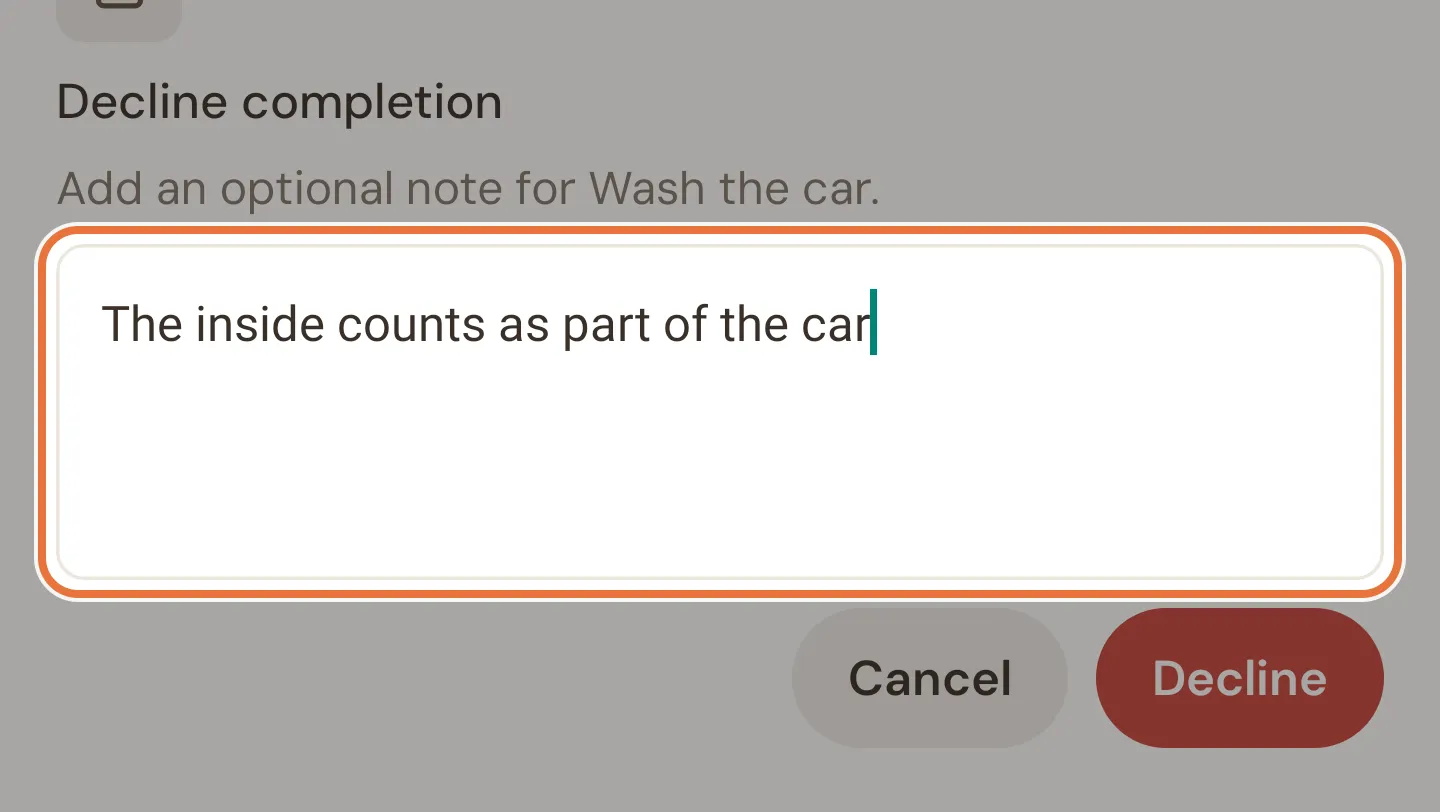
Section titled “Declining with a note”Decline opens a sheet where you can add an optional note (up to 255 characters), like “the inside counts as part of the car”. Tap Decline to send it back, or Cancel.
The note is saved with the job and shows in its task history. Your kid gets a notification that the job wasn’t approved.
Bulk approve and excuse
Section titled “Bulk approve and excuse”Tick the box on the left of a card to select it. Only cards you can approve or excuse have a working tick box. You can select up to 100 at a time.
| Button | What it does |
|---|---|
| Select visible | Ticks every card loaded so far (up to 100). Tap Clear selected to untick them. |
| Approve selected | Approves the ticked Scheduled and Pending records, after an “Approve selected?” check. Once you’ve ticked some, the button shows how many, like Approve 6. |
| Excuse selected | Checks the ticked records that can be excused, then asks before excusing them. Once you’ve ticked some, it shows how many, like Excuse 4. |
| Excuse filtered | Checks every record that matches your current filters and date range, not only the ones you’ve ticked. The range can be up to 120 days. |
Both excuse buttons open a check before anything changes. It shows how many records are Eligible, Skipped and Checked, and groups the skipped ones by reason (“Not a responsibility”, “Already approved”, “Too early to excuse” and so on) with a few examples. Tap Excuse tasks to go ahead, or Cancel.
If excusing means a kid’s pending pocket money is now fully earned, the result says so and offers Release pocket money. Tap it to pay, or Done to leave it pending.
Task history
Section titled “Task history”For the story of one job, open the Task list and tap the clock icon on its card. Task History shows the job’s events, newest first, with the date and time of each:
| Event | Shows |
|---|---|
| Submitted | The kid who submitted it. |
| Approved | The kid, and who approved it. |
| Declined | The kid, who declined it, and the note if there was one. |
| Unapproved | The kid, and who undid the approval. |
| Excused / Unexcused | The kid, and who did it. |
Changes to the job itself also appear, like “Created task: Feed the dog” or “Updated task: Feed the dog”, along with a kid undoing their own submission (“Undid submission for Feed the dog”). The history shows the 50 most recent events. If nothing has happened yet, it says “No history yet”.