
A morning routine that runs itself
Most school mornings in our house used to sound the same. “Have you brushed your teeth?” “Where are your shoes?” “Why is the lunchbox still in the bag from yesterday?” Repeat until someone cries, sometimes a parent.
The fix that worked for us was a checklist the kids run themselves, with a timer on each step so “getting dressed” doesn’t take forty minutes. Quiddo does this with routines (a time of day), steps (the checklist inside a task) and timers (how long each step should take). Put it on a tablet in the kitchen and you can mostly stop asking.
You’ll need: a family with at least one kid added. If the morning jobs should count toward pocket money, set that up with Weekly pocket money, with jobs that have to get done.
What you’re setting up
Section titled “What you’re setting up”| Piece | What it does |
|---|---|
| A routine | A time window, like Morning from 6 to 9 am. Tasks in it show up together at that time. |
| A checklist task | One task broken into steps, in order. |
| Step timers | A time goal for each step, with a countdown your kid can see. |
| A family screen | A shared tablet that shows everyone’s routine, for kids without their own device. |
1. Write the checklist
Section titled “1. Write the checklist”Walk through a real morning and write down every step, in order. Then put an honest time next to each one.
| Step | Time |
|---|---|
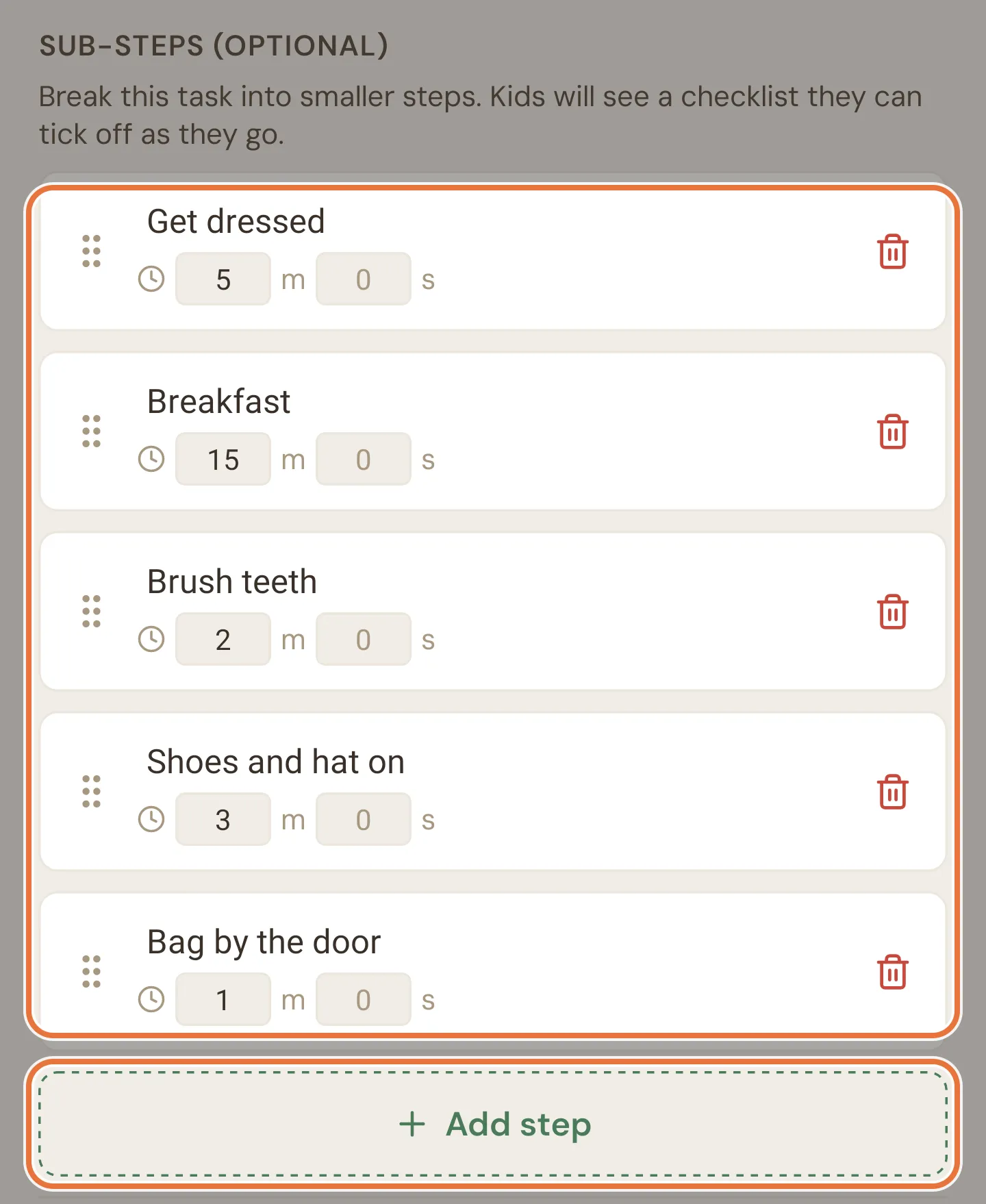
| Get dressed | 5 min |
| Breakfast | 15 min |
| Brush teeth | 2 min |
| Shoes and hat on | 3 min |
| Bag by the door | 1 min |
A few things we learned:
- Be honest about time. Two minutes of teeth brushing is the dentist’s number, not the eleven seconds you currently observe. Timers only help if they’re realistic.
- Keep steps small. “Get ready” isn’t a step. “Shoes on” is.
- Put the fun thing last. If screen time or a play happens before school, make it the reward for finishing, not step two.
2. Check the routine times
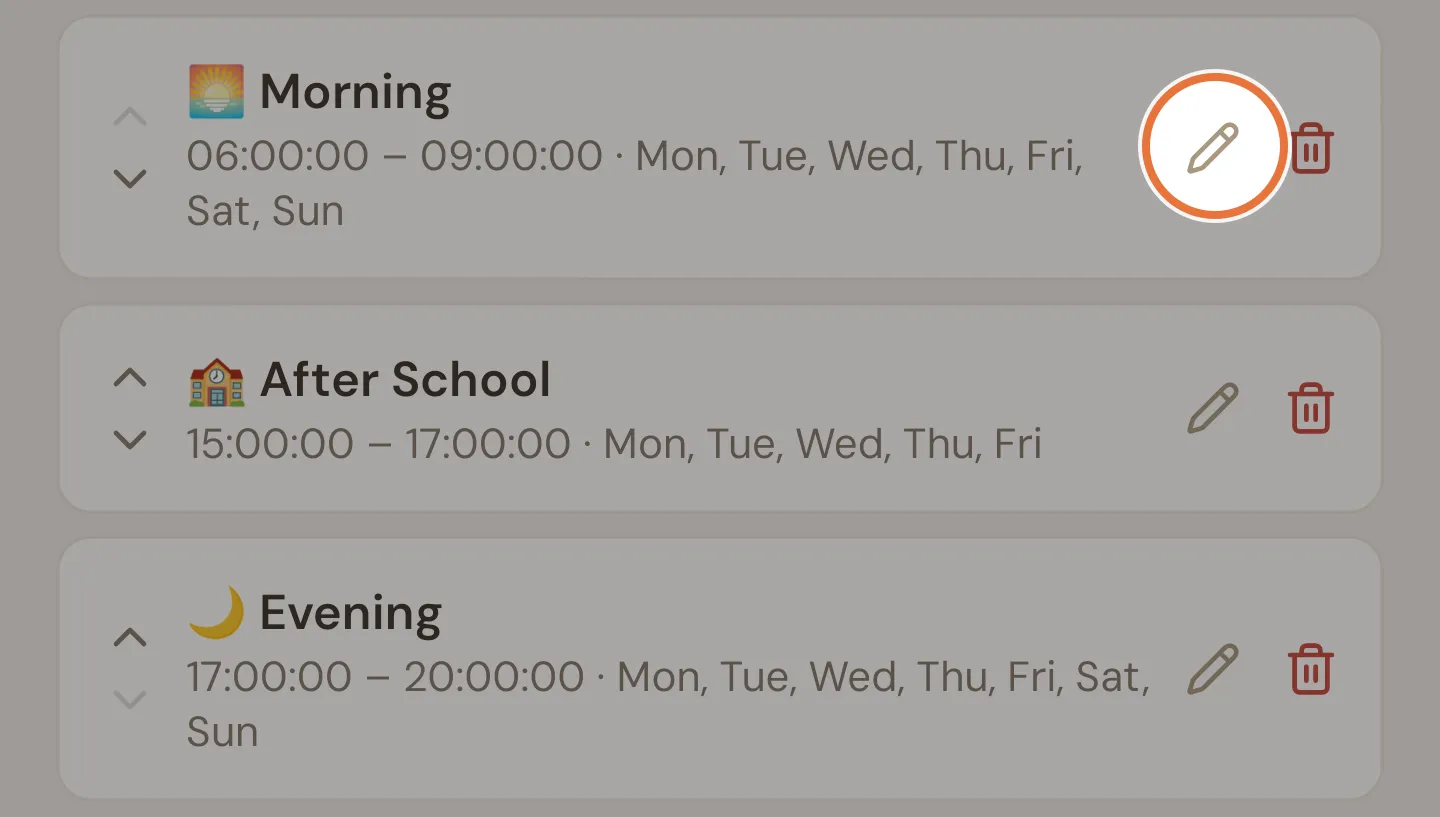
Section titled “2. Check the routine times”Every family starts with three routines: Morning (6 to 9 am, every day), After School (3 to 5 pm, weekdays) and Evening (5 to 8 pm, every day). Adjust them to fit your house.
-
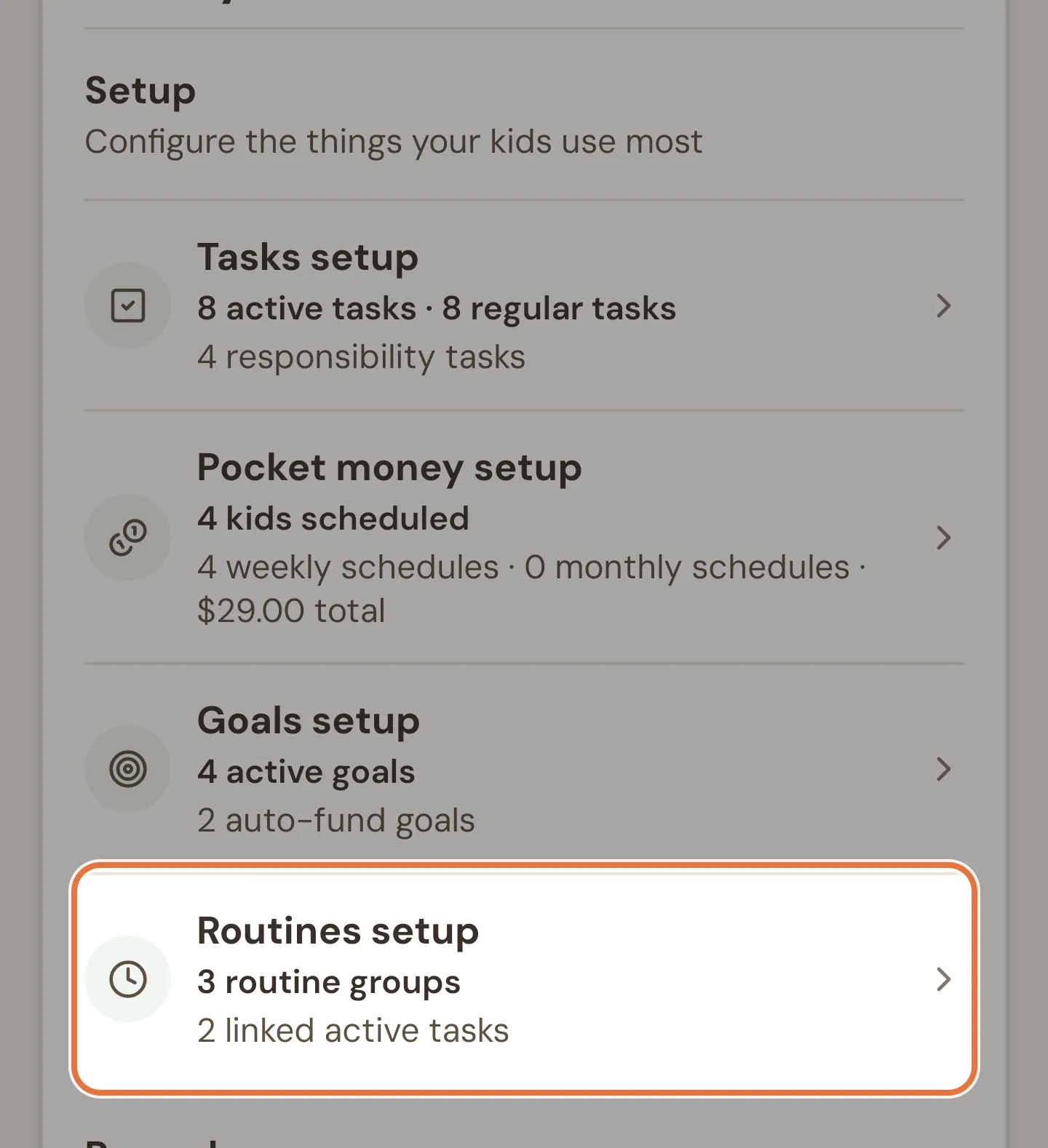
Open the Family tab and tap Routines setup under Setup.
-
Tap the pencil on Morning to change it, or + to add a new routine.
-
Set the start time, end time and days. Times are 24-hour; you can type
930and it becomes09:30.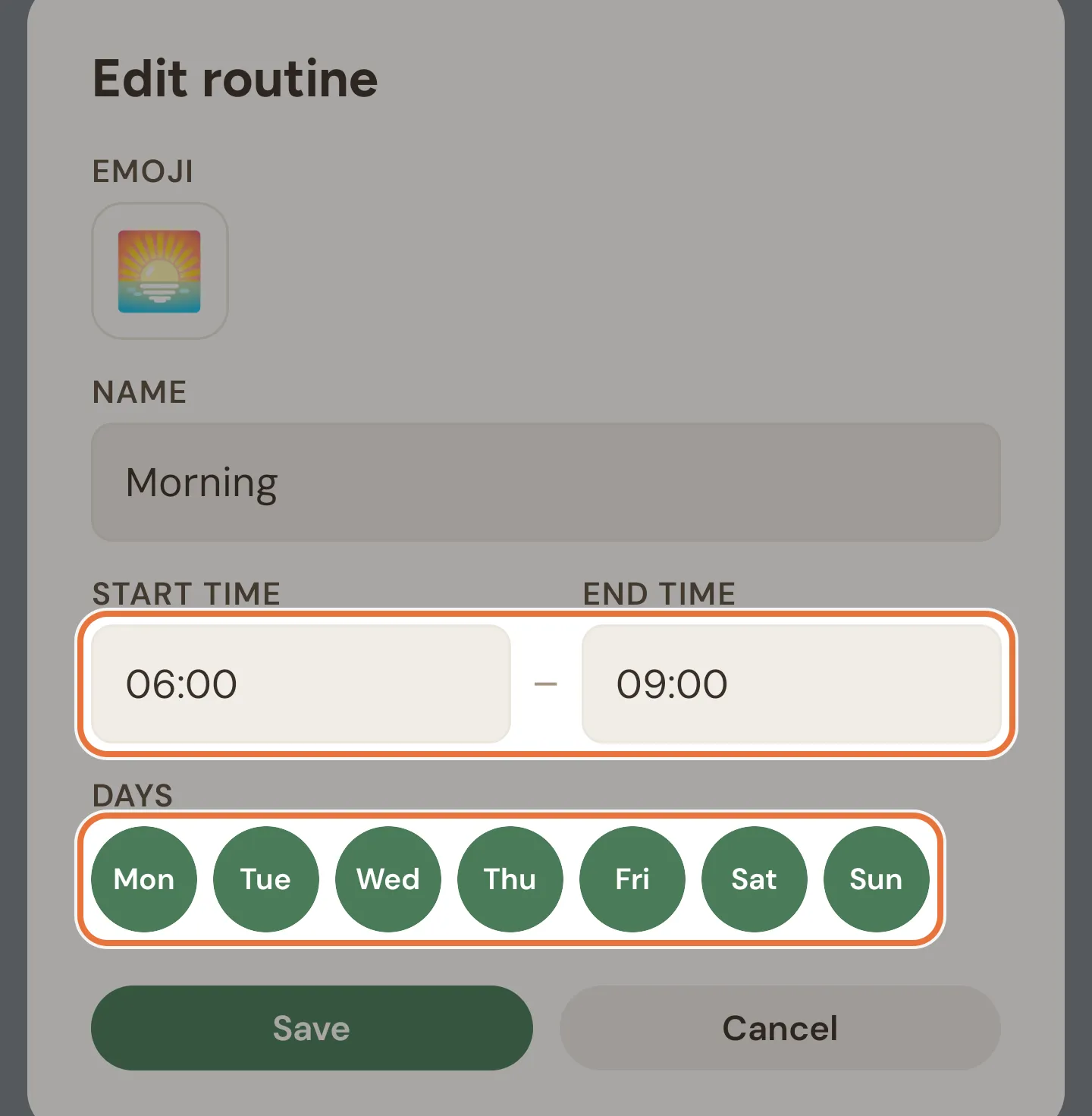
-
Tap Save (or Add Routine for a new one). Use the up and down arrows to change the order routines appear in.
Routines don’t hold tasks hostage
Deleting a routine doesn’t delete the tasks in it. They just move to “Other tasks”.
Routines change when you can excuse a job
A responsibility in a routine can be excused once that routine has ended for the day. One with no routine can’t be excused until the next day. More in When a day goes sideways.
3. Build the checklist task
Section titled “3. Build the checklist task”You’ve got two ways to do this:
- One task with steps (“Get ready for school”). Your kid works through a guided checklist and submits once. Best for younger kids.
- Separate tasks in the Morning routine (“Get dressed”, “Brush teeth”…). Each is ticked off and approved on its own. Best when some jobs pay and some don’t.
This recipe uses one task with steps.
-
Open Tasks › Assign tasks and tap the round + button. Name it “Get ready for school”, pick an emoji and choose your kids.
-
Choose a reward type. Responsibility makes it count toward pocket money; No Reward keeps it as a plain checklist.
-
Under Frequency, choose Weekly and tick the school days.
-
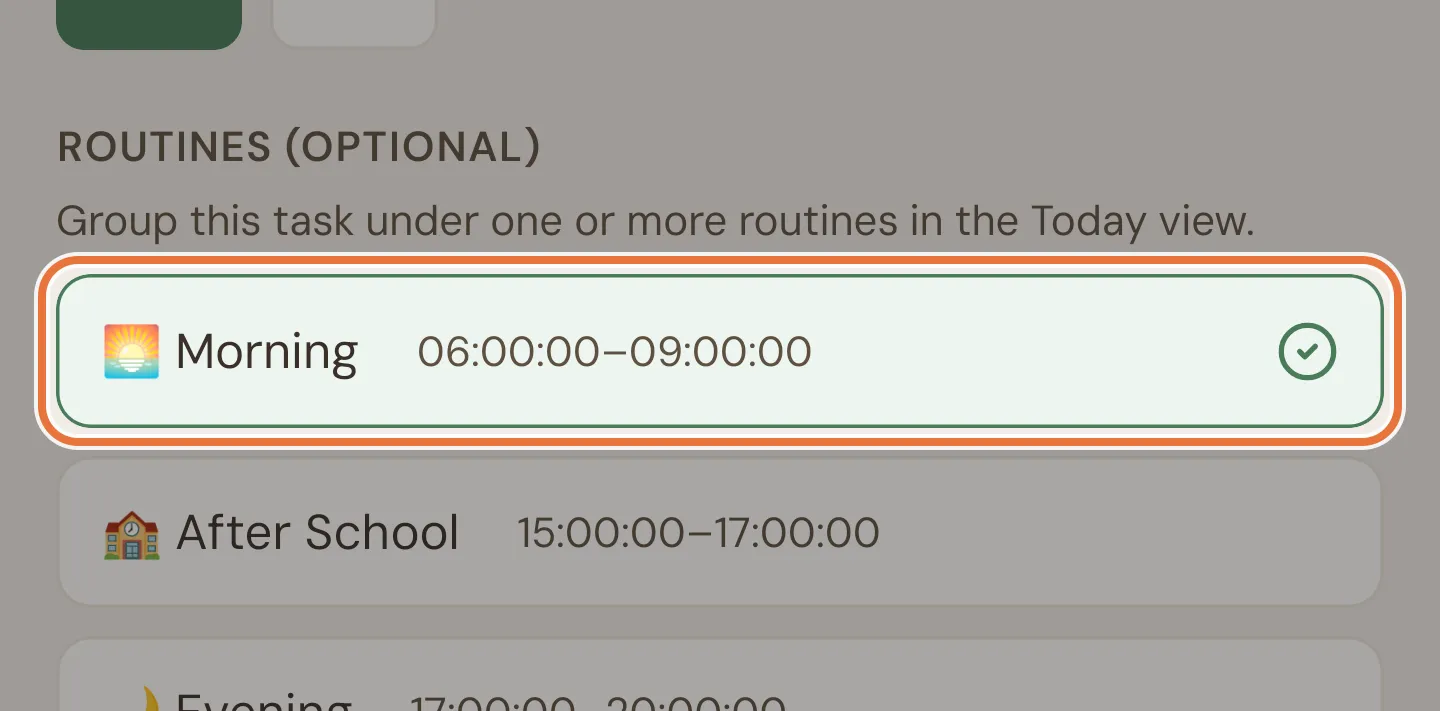
Under Routines, tap Morning.
-
Under Sub-steps, tap Add step and type the first step. Press return on the keyboard to add the next one.
-
Put a time on each step using the m and s boxes. Long-press the handle on the left to drag a step into a different position.
-
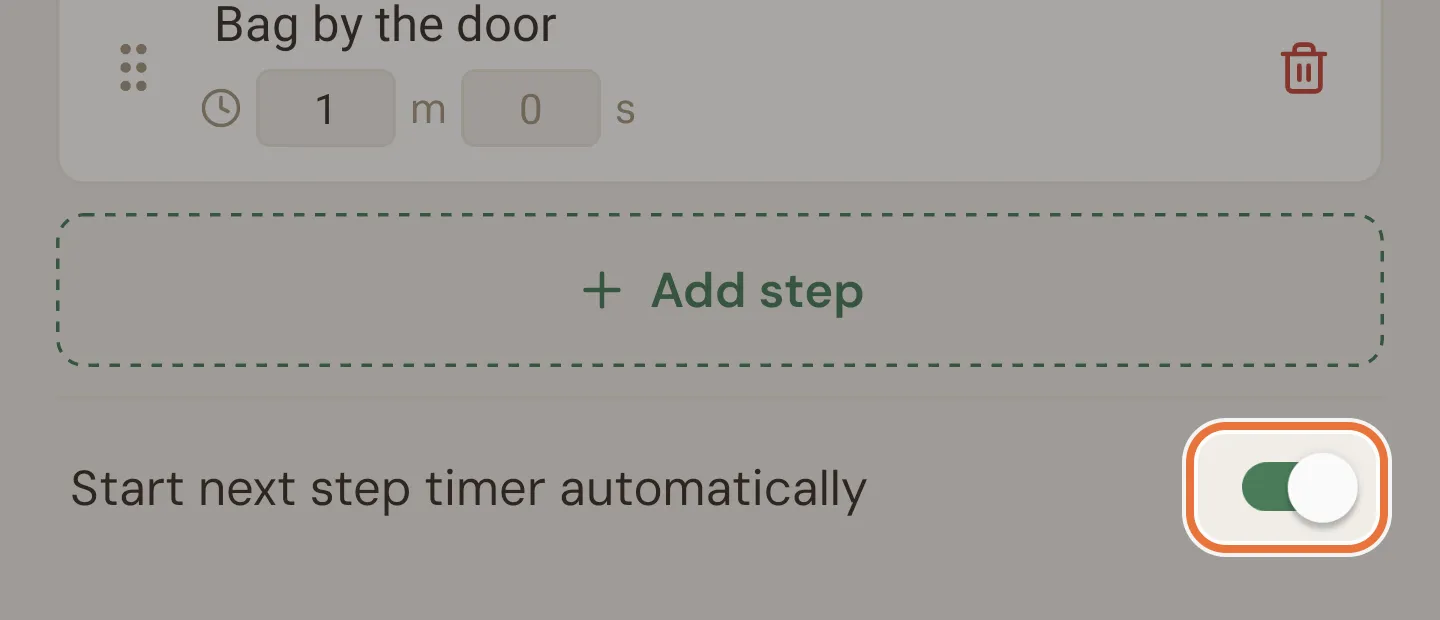
Leave Start next step timer automatically on if you want the next timer to start as soon as a step is done. Turn it off to give your kid a breather between steps.
-
Tap Create Task.
Limits on steps
A task can have up to 20 steps, each up to 100 characters. The auto-advance switch only appears once at least one step has a time.
A timer without steps
For a single job with a time goal (like 20 minutes of reading), skip the steps and use Task timer instead. It disappears once you add a step, because each step then gets its own timer.
4. What your kid sees
Section titled “4. What your kid sees”On their Quiddo page, the Tasks tab groups today’s jobs by routine, and the routine that’s on right now is marked Now. A checklist task shows its steps and roughly how long it takes.
-
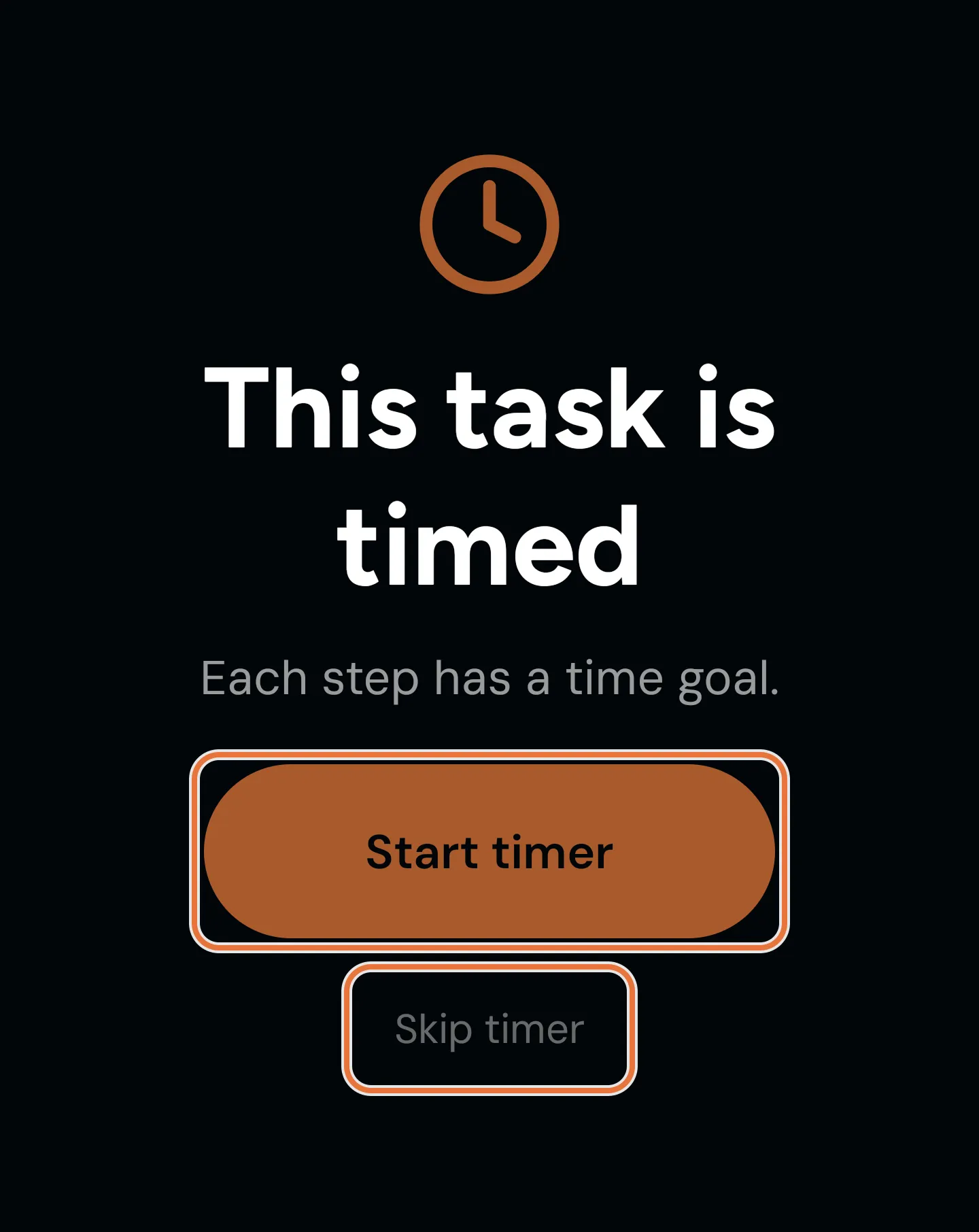
Your kid taps Start. For a timed task, Quiddo asks whether to Start timer or Skip timer.
-
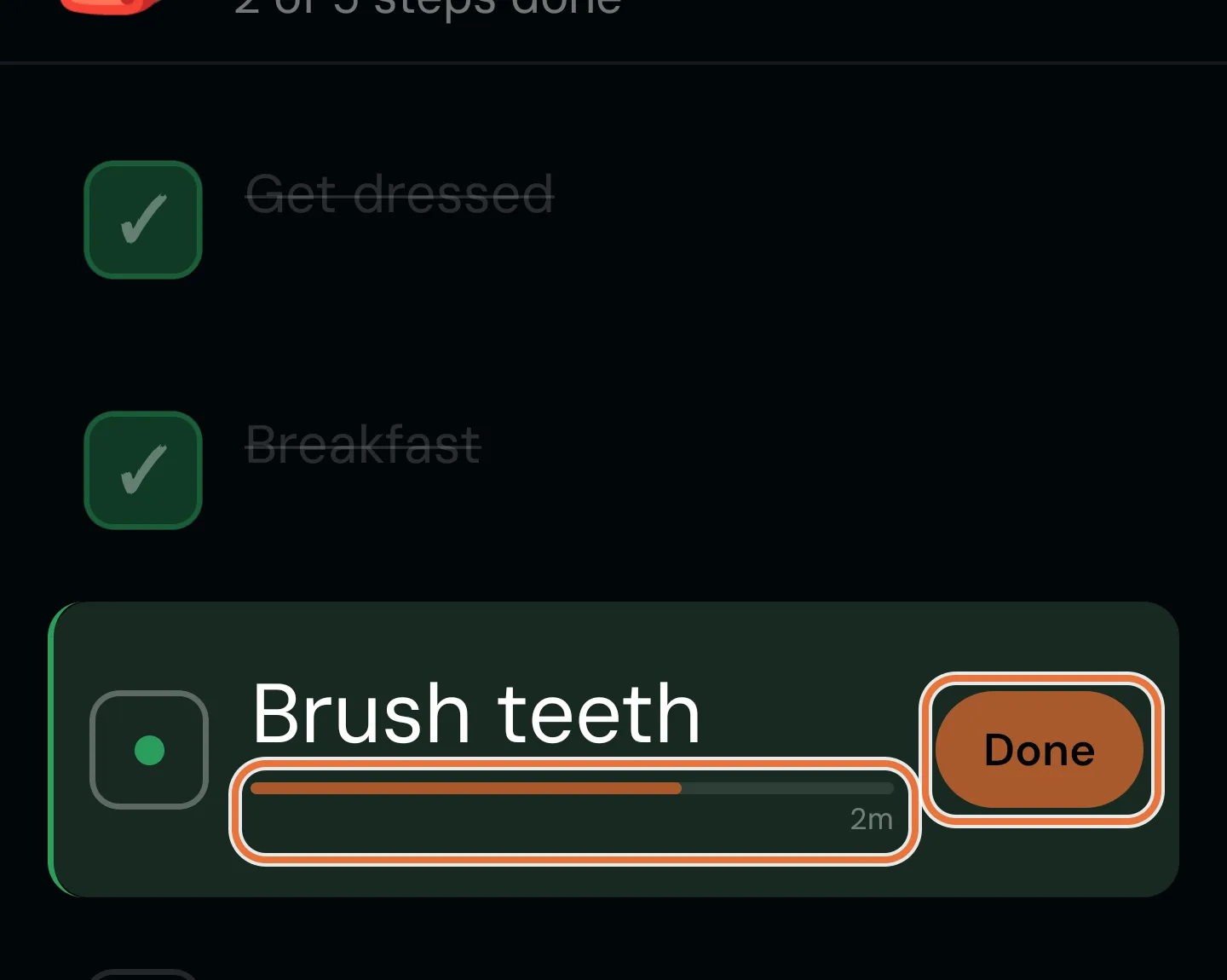
The current step is lit up with its countdown, and they tap Done when it’s finished. With auto-advance on, the next step’s timer starts straight away. Otherwise they see “Ready for the next step?” and start it themselves.
-
Pause stops the clock for a toilet break or a lost shoe. Undo last step reopens a step ticked by mistake. Close saves their progress, and the task card shows Continue to pick up where they left off.
-
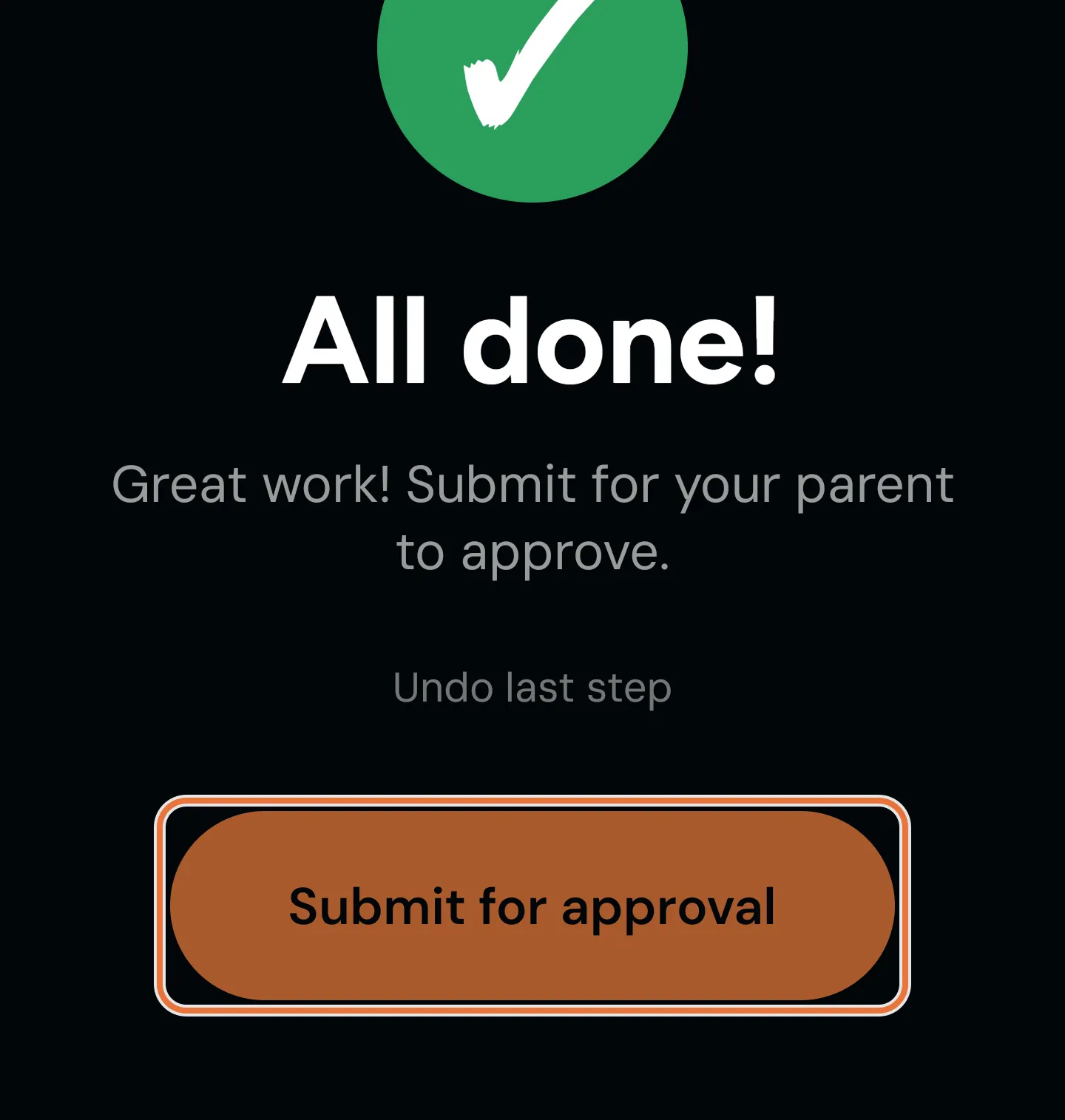
At the end they get “All done!” and tap Submit for approval (or I did it! if the task doesn’t need approval).
5. Put it on the kitchen bench
Section titled “5. Put it on the kitchen bench”Not every kid has a phone, and nobody wants to hand over theirs at 7:15 am. A family screen turns a spare tablet into a shared board showing each kid’s jobs for today.
-
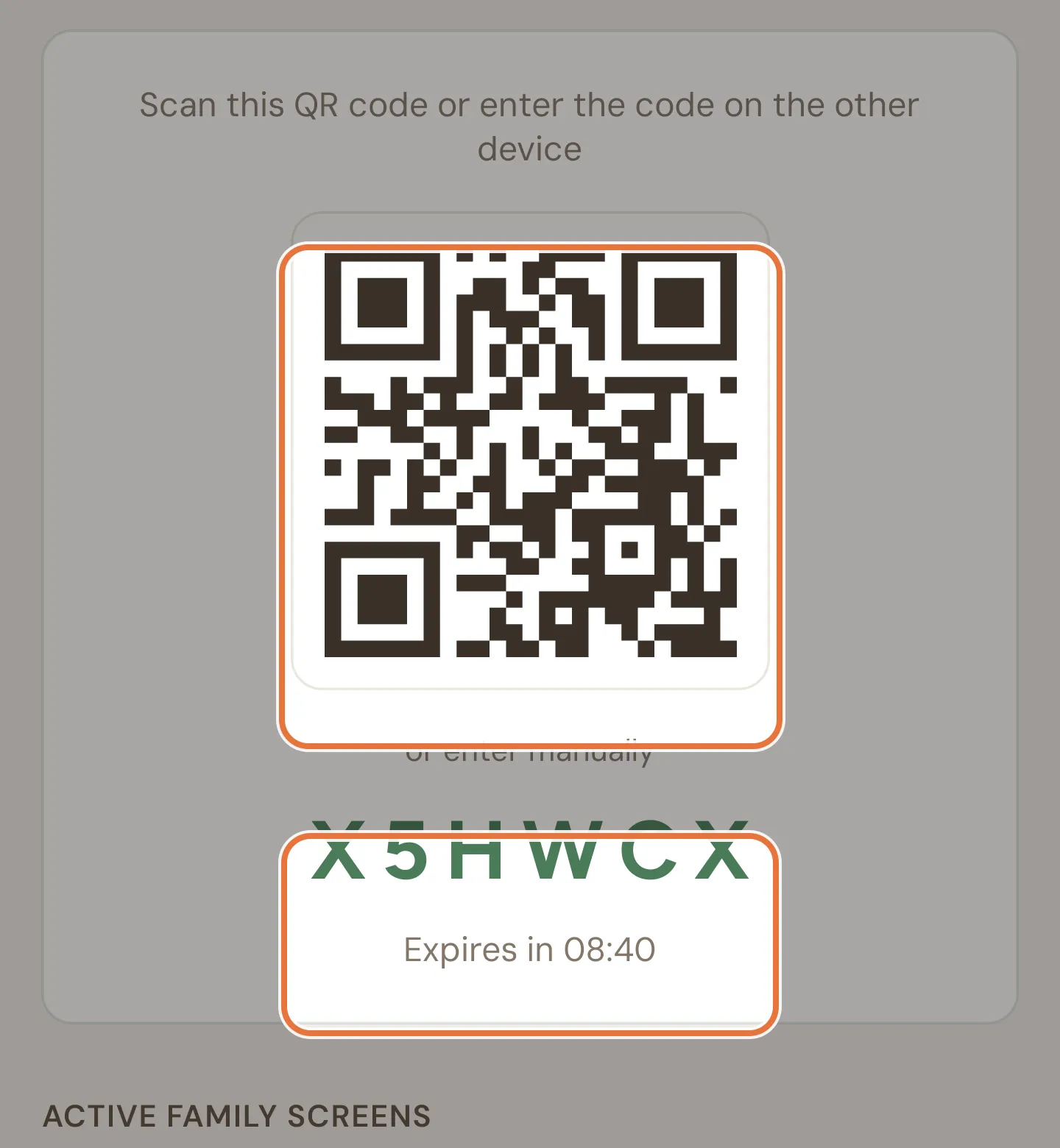
On your phone, open the Family tab, scroll to Family screen and tap Generate Link Code. You’ll get a QR code and a six-character code, valid for 10 minutes.
-
On the tablet, install Quiddo, tap Have a code? Enter it here, then scan the QR code or type the code.
-
Confirm Set up family screen. Your phone shows “Family screen connected” when it’s done.
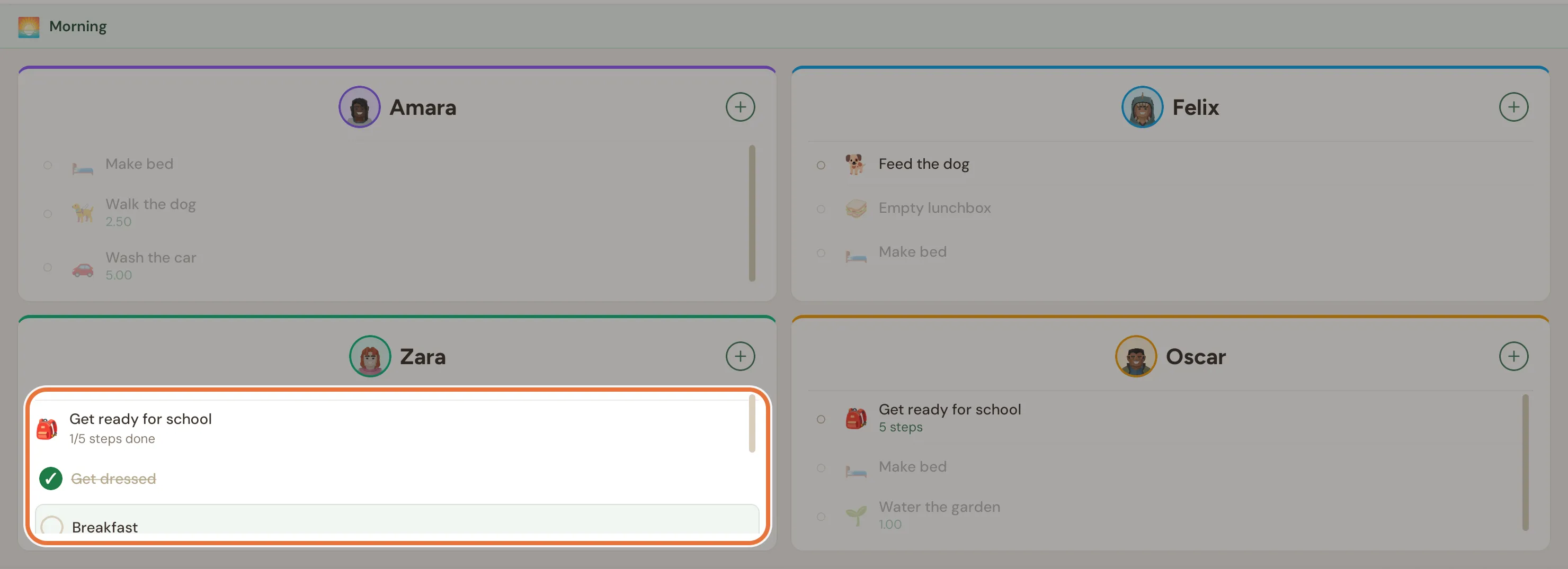
The tablet now shows a card for each kid with today’s jobs, the current routine first. Kids tap a job to mark it done, or Start the checklist to tick through the steps. A job with a single timer (no steps) shows how long it’s taking on the tablet too, and the screen stays awake while it runs. Per-step timers only run on a kid’s own device or your phone.
Kids can’t unplug it
Removing a family screen from the tablet needs a parent’s email and password. You can also remove it from your phone under Family screen › Active family screens.
Two more boards
The family screen also has Goals (everyone’s savings progress) and Balances (each kid’s buckets, and when pocket money is next due). Tabs along the bottom switch between them.
Known issue: Family screen code needs a verified email
You need a verified email address to generate a family screen code. If yours isn’t verified, the app says “Failed to generate link code” without saying why. Tap the Unverified badge at the top of the app to sort it out first.
6. Check in from your phone
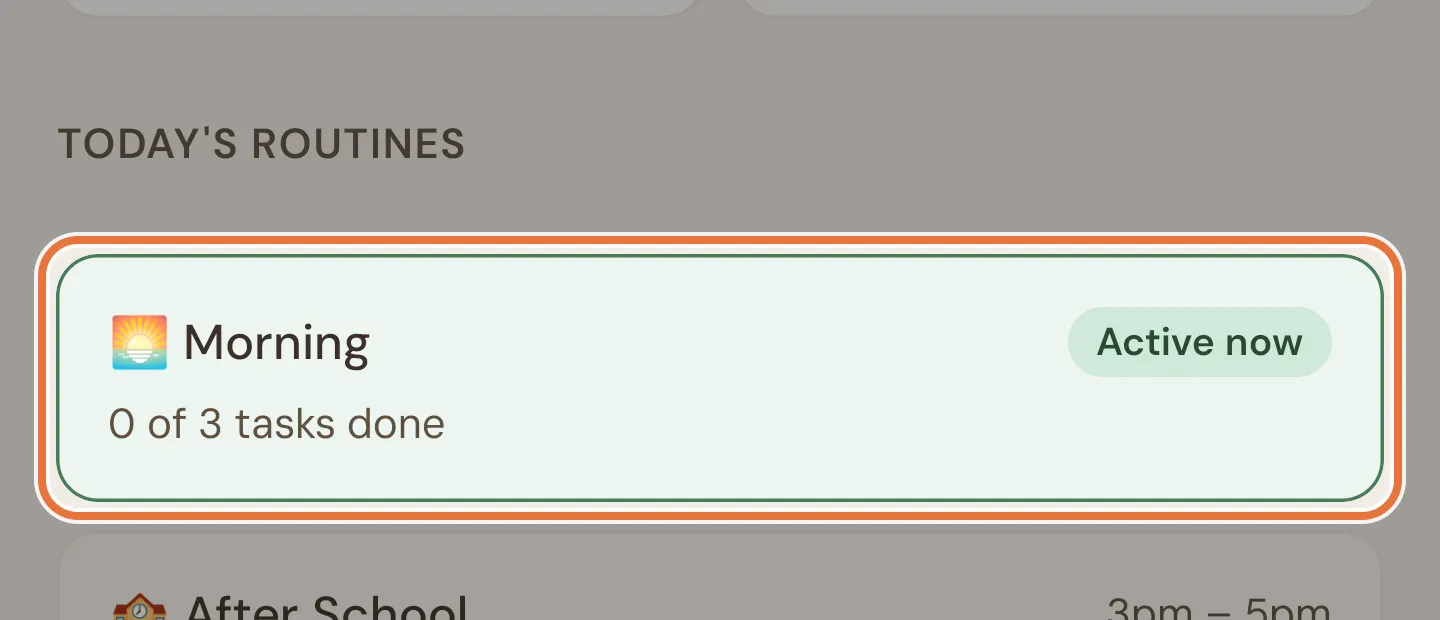
Section titled “6. Check in from your phone”The Tasks tab shows today’s routines, with the current one marked Active now and how many jobs are done. Each kid’s card shows who’s finished and who’s still looking for a shoe.
On the Daily screen, tap a task to see how long each step took. Family › Stats adds it up for the week: time spent on tasks, steps skipped, and which jobs get done most.
What a good morning looks like
Section titled “What a good morning looks like”| Time | Kid | You |
|---|---|---|
| 7:00 am | Taps Start on the kitchen tablet | Makes coffee |
| 7:05 am | Dressed; breakfast timer starts | Drinks coffee |
| 7:22 am | Teeth, shoes, bag. Submit for approval | Glances at the Tasks tab |
| 7:30 am | Asks if there’s time for a game | Approves, says yes |
Where to go next
Section titled “Where to go next”- Make the morning count toward pocket money: Weekly pocket money, with jobs that have to get done.
- Switch tasks off for school holidays (coming soon): School holidays and sick days.