
Creating and editing a task
Creating and editing a task use the same form. To create one, tap the round + button on the task list. If your family has no tasks yet, there’s also an Add task button on the Tasks setup row of the Family tab. To edit one, tap it on the task list (or tap its pencil icon).
The new task form opens as New Task. An existing task opens as Task. The fields are the same on both, top to bottom as described below.
Name and emoji
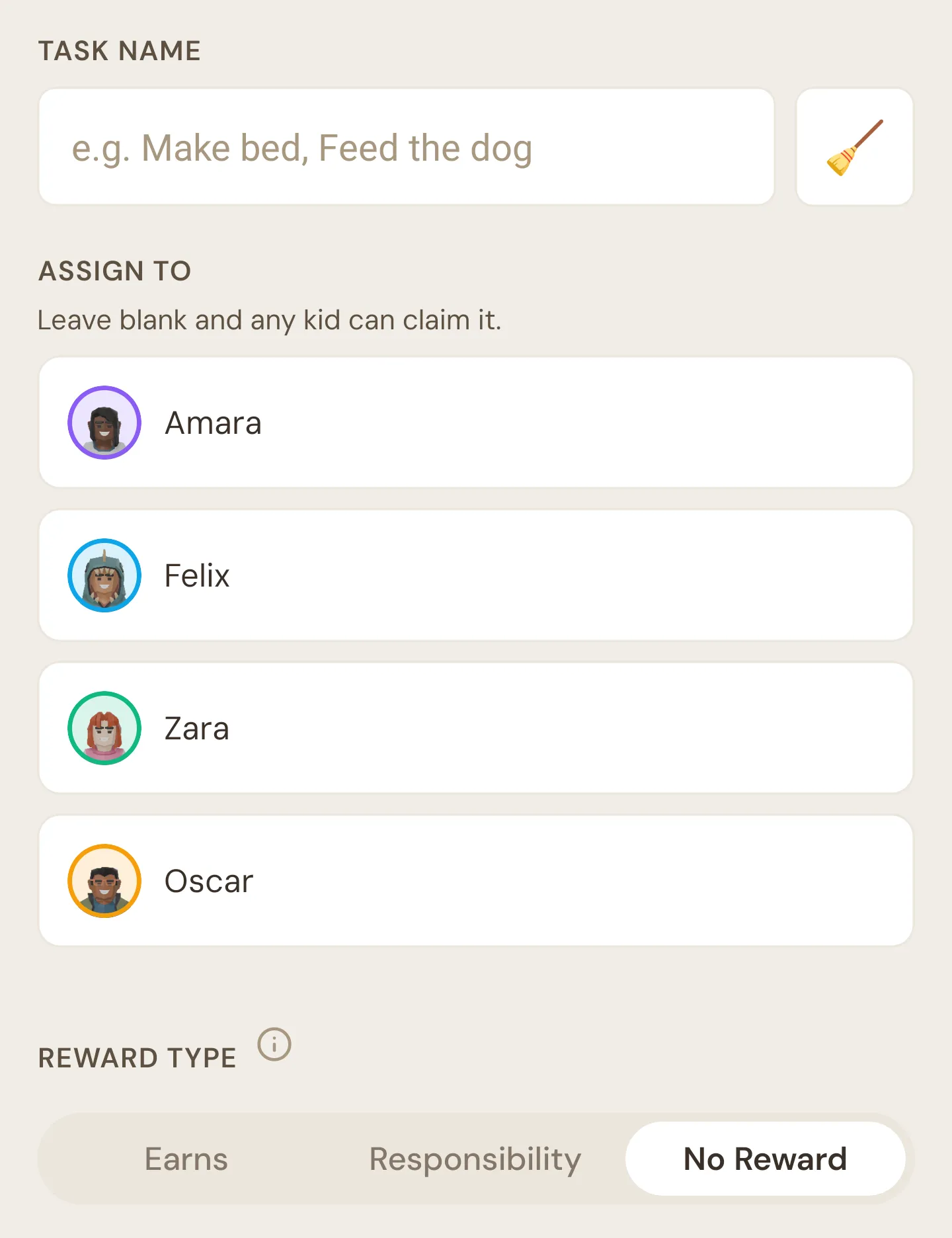
Section titled “Name and emoji”- Task name is the only field you must fill in. The placeholder suggests “e.g. Make bed, Feed the dog”.
- The square button next to the name is the task’s emoji. Tap it to open the emoji picker, which has a search box, a recently used row and categories along the top. New tasks start with 🧹.
The emoji shows on the task list, the Daily screen and your kid’s own Quiddo page, so it’s worth picking one a non-reader can recognise.
Assign to
Section titled “Assign to”A list of every kid in the family. Tap a kid to assign the task to them (a tick appears), and tap again to take them off. You can pick as many as you like, and each kid does the task on their own.
The hint says “Leave blank and any kid can claim it.”
This section disappears when Frequency is On Demand, because On Demand tasks are open to every kid. Switching a task to On Demand clears any kids you’d picked.
Reward type
Section titled “Reward type”Three options. Tap the ⓘ next to Reward type for a short explanation of each.
| Option | What happens when it’s done |
|---|---|
| Earns | Your kid is paid the reward amount each time the task is done and approved. |
| Responsibility | No money for the task itself. It counts toward pocket money: if responsibilities aren’t done when pocket money is due, the payment waits for you to release or withhold it. |
| No Reward | No money and no effect on pocket money. Good for reminders and habits. |
New tasks start on No Reward.
Responsibility isn’t available for On Demand tasks, since nobody is required to do them. If you switch a Responsibility task to On Demand, the reward type changes to No Reward, and the form says “Responsibility reward type is not available for On Demand tasks.”
For how responsibilities feed into pocket money, see Weekly pocket money, with jobs that have to get done. For paid jobs, see Paid jobs.
Reward amount
Section titled “Reward amount”Only shown for Earns. Reward Amount is how much the task pays each time it’s approved, in your family’s currency. It has to be more than zero.
The field uses Quiddo’s calculator keypad, so you can type a sum like 2+0.5 and it works it out. Which bucket the reward lands in is set for each kid under money routing in Editing a kid.
Frequency
Section titled “Frequency”Five options:
| Option | When it’s due | What you set |
|---|---|---|
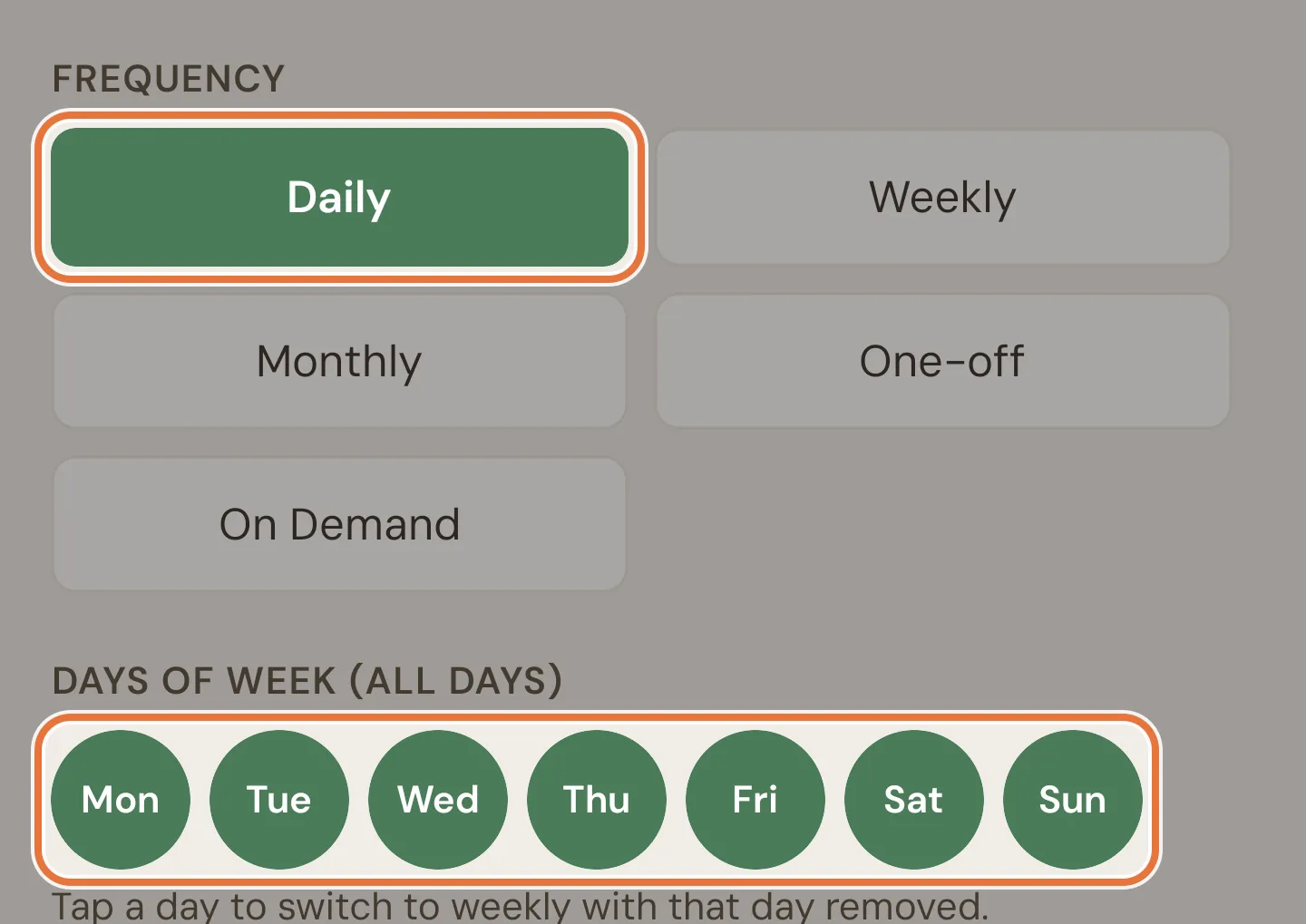
| Daily | Every day | Nothing more. The seven day circles are all ticked. |
| Weekly | The days you tick | Days of Week: tap the circles, Mon to Sun. |
| Monthly | One day each month | Day of Month, a number from 1 to 31. |
| One-off | Once, on one date | Date: tap Select a date and pick a day. |
| On Demand | Whenever a kid wants to do it | Nothing. There’s no schedule. |
New tasks start on Weekly, with today’s day ticked.
Some details:
- Daily is Weekly with every day ticked. On Daily, tapping one of the day circles switches the task to Weekly without that day. Going the other way, ticking all seven days on Weekly turns it into Daily. Choosing Weekly after Daily resets the days to Monday only. The task list shows daily tasks as weekly with all seven days.
- Weekly needs at least one day ticked, or the task won’t save.
- Monthly tasks set to a day a short month doesn’t have (like the 31st) fall on the last day of that month. If the day isn’t between 1 and 31, you’ll see “Please enter a day between 1 and 31.”
- One-off dates can’t be in the past. Leave the date empty for a job that can be done on any day.
- On Demand tasks show in every kid’s list of available jobs, and a kid claims one when they want to do it. Only one kid can have an On Demand task on a given day: once a kid has claimed it, it’s gone from their siblings’ lists until tomorrow (unless you send it back). You can also put one on a kid’s list for today from the task list.
Requires approval
Section titled “Requires approval”Yes (the default) or No.
- Yes: when your kid finishes, the task waits for you to approve or send it back on the Daily screen. Rewards are paid on approval.
- No: the task is approved the moment your kid finishes it, and any reward is paid straight away.
On tasks with steps or a timer, your kid’s last button reads Submit for approval when this is Yes.
Routines
Section titled “Routines”Routines (optional) only appears once your family has at least one routine. It lists each routine with its emoji, name and times. Tap as many as you like.
Routines group tasks by time of day on the Daily screen, the Tasks tab and your kid’s page. They don’t change which days a task is due; that’s what Frequency is for. See Routines for what else they affect.
Task timer
Section titled “Task timer”Task timer (optional) sets a time goal for a task without steps, in minutes (m) and seconds (s). Seconds go up to 59.
With a timer, your kid’s button for the task changes from I did it! to Start, and they see a timer while they work.
This section disappears as soon as you add a step, because each step then has its own time. A task timer you’d already entered is dropped when the task has steps.
Sub-steps
Section titled “Sub-steps”Sub-steps (optional) breaks a task into a checklist your kid ticks off as they go.
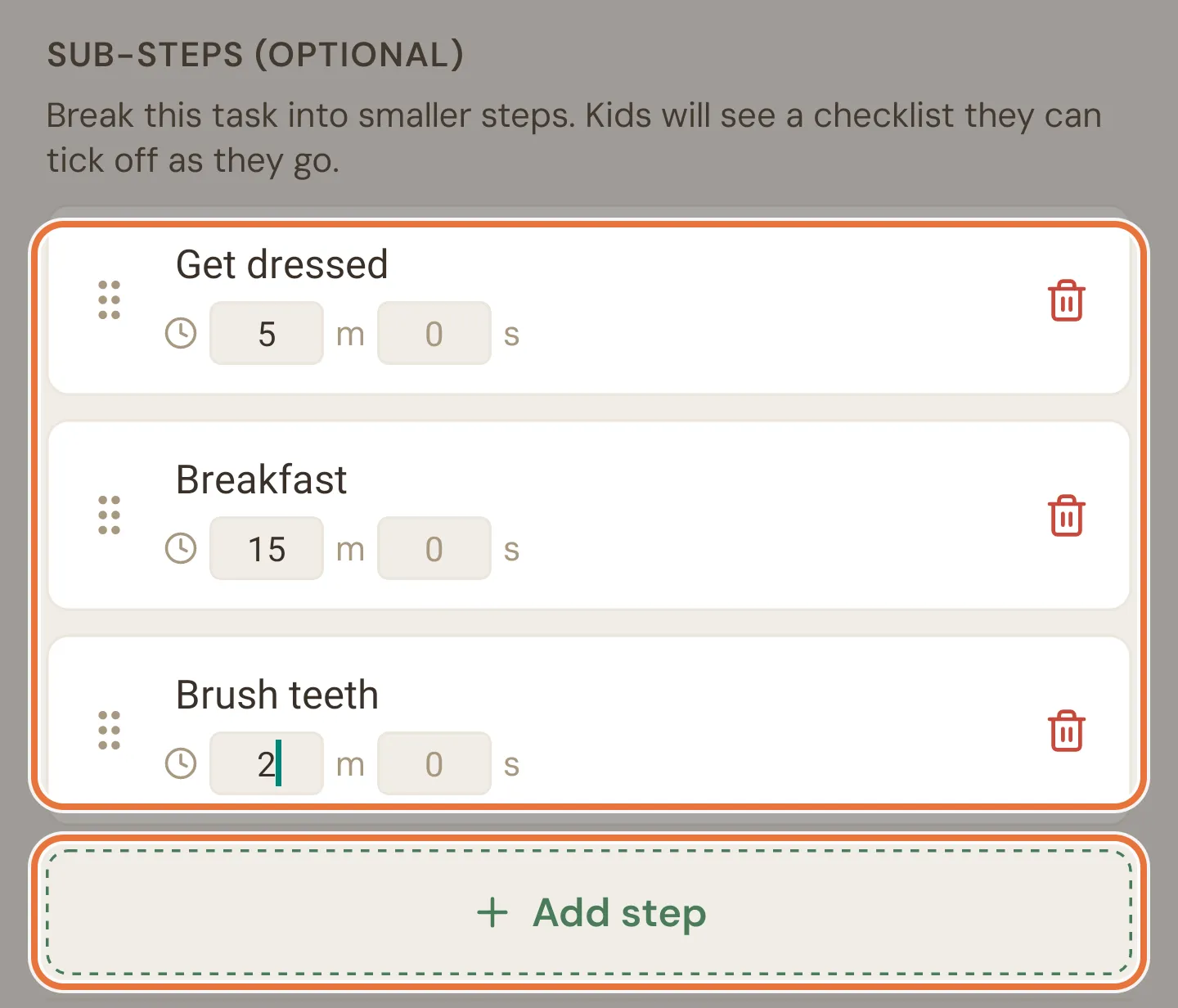
- Tap Add step to add one. Each step has a Step description (up to 100 characters, and it can’t be blank) and optional m and s boxes for how long it should take.
- Long-press the handle on the left of a step and drag to reorder.
- Tap the red bin to remove a step.
- A task can have up to 20 steps. After that, Add step is replaced by “Maximum 20 steps reached.”
Once any step has a time, a switch appears: Start next step timer automatically. When it’s on (the default), finishing a step starts the next step’s timer. Turn it off to give your kid a breather between steps. Your kid can flip it for a single run from their task screen; it goes back to your setting next time.
For a worked example, see A morning routine that runs itself.
Saving
Section titled “Saving”- Create Task or Save Changes saves and takes you back.
- Cancel leaves without saving.
If something can’t be saved, an Error message explains why.
How editing differs
Section titled “How editing differs”Editing uses the same fields, with a few differences:
- Changes apply from now on. Jobs already done keep the reward they had at the time. Editing never changes past completions.
- Create Task stays greyed out until the task has a name and, for Earns, an amount above zero. Save Changes is always available.
- When creating, pressing return on the keyboard in the last step adds a new step below it (and in any other step, jumps to the next one). When editing, use Add step.
- Switching an existing task to On Demand takes every kid off it.
- You can’t delete a task from here. Swipe it on the task list instead.