
Two households, one set of kids
Plenty of kids have more than one home. Week on, week off. Weekends at Dad’s. Every afternoon at Nana’s until someone finishes work. A paper chart on one fridge doesn’t survive that, and “Mum said I’d get paid for the lawn” is hard to check from the other side of town.
Quiddo lets several adults share the same kids. Everyone sees the same balances and the same jobs, anyone can approve and pay, and the kids don’t need to know or care which house the money came from.
You’ll need: a family already set up with your kids in it. If you’re starting from scratch, get pocket money going first with Weekly pocket money, with jobs that have to get done.
What you’re setting up
Section titled “What you’re setting up”| Piece | What it does |
|---|---|
| One shared family | Holds the kids, their buckets, jobs and pocket money. |
| Co-parents | Everyone else who looks after the kids, with the same day-to-day powers as you. |
| Parent names | What the kids call each of you, so they know who approved what. |
| Devices in each house | The kids’ own phones work anywhere; each house can have its own family screen. |
| Billing | One subscription for the family, paid by one person. |
1. Use one family, not two
Section titled “1. Use one family, not two”It’s tempting to set up a family per house. Don’t, unless the two houses really do run completely separate money.
Kids belong to one family. Two families means two copies of each kid, with two separate sets of balances, jobs and savings goals. The money your kid earned at Mum’s wouldn’t show up at Dad’s, and their phone can only be linked to one of them.
One shared family keeps a single balance per kid, whoever pays in.
2. Invite the other parent
Section titled “2. Invite the other parent”There are two ways in. In person is quicker.
-
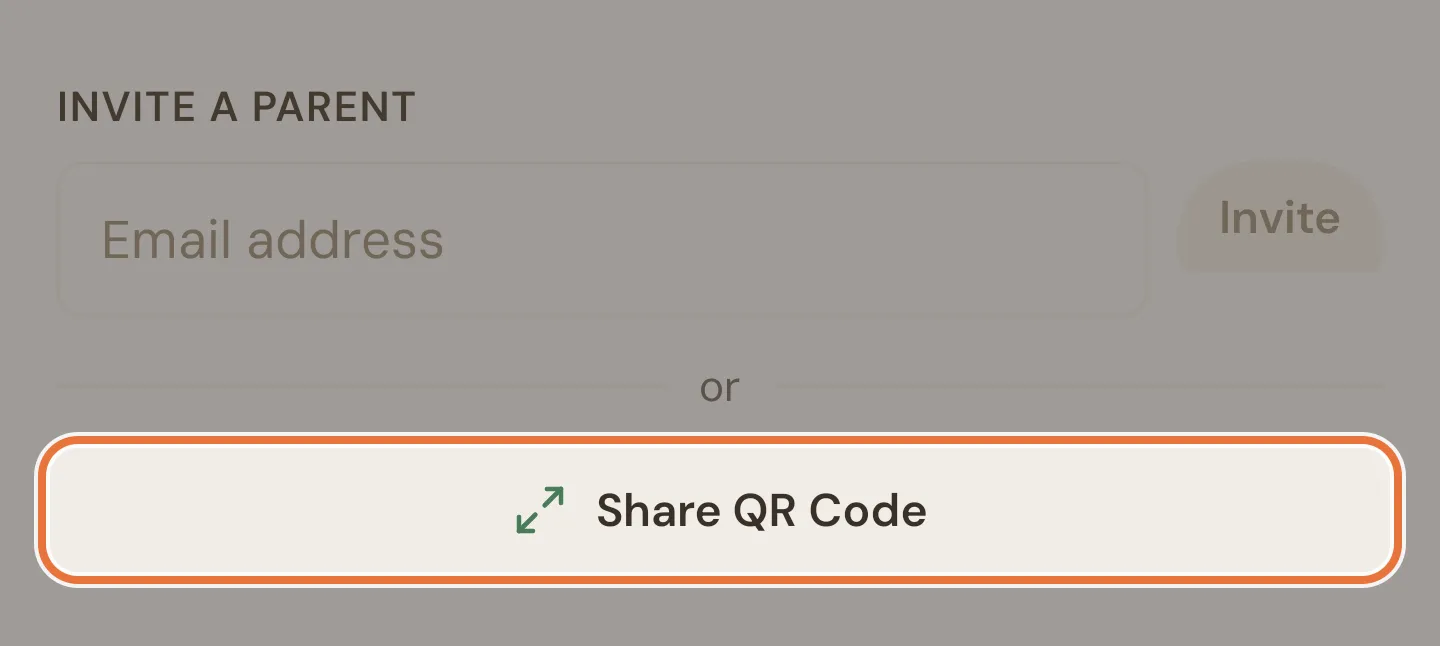
On your phone, open the Family tab and scroll to Invite a parent. Tap Share QR Code.
-
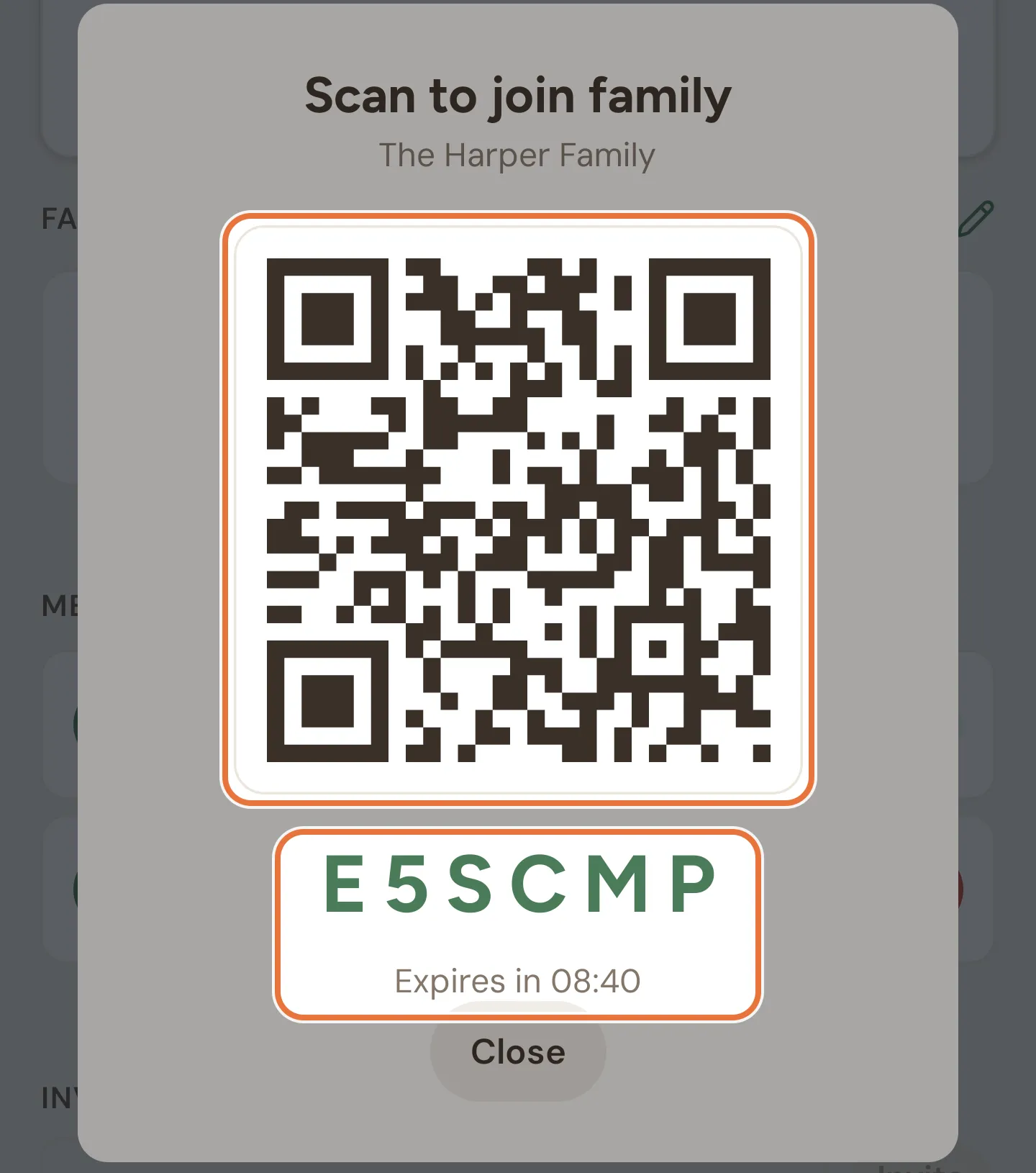
A QR code and a six-character code appear, valid for 10 minutes.
-
On their phone, they install Quiddo, tap Have a code? Enter it here on the sign-in screen, and scan the QR code (or type the code).
-
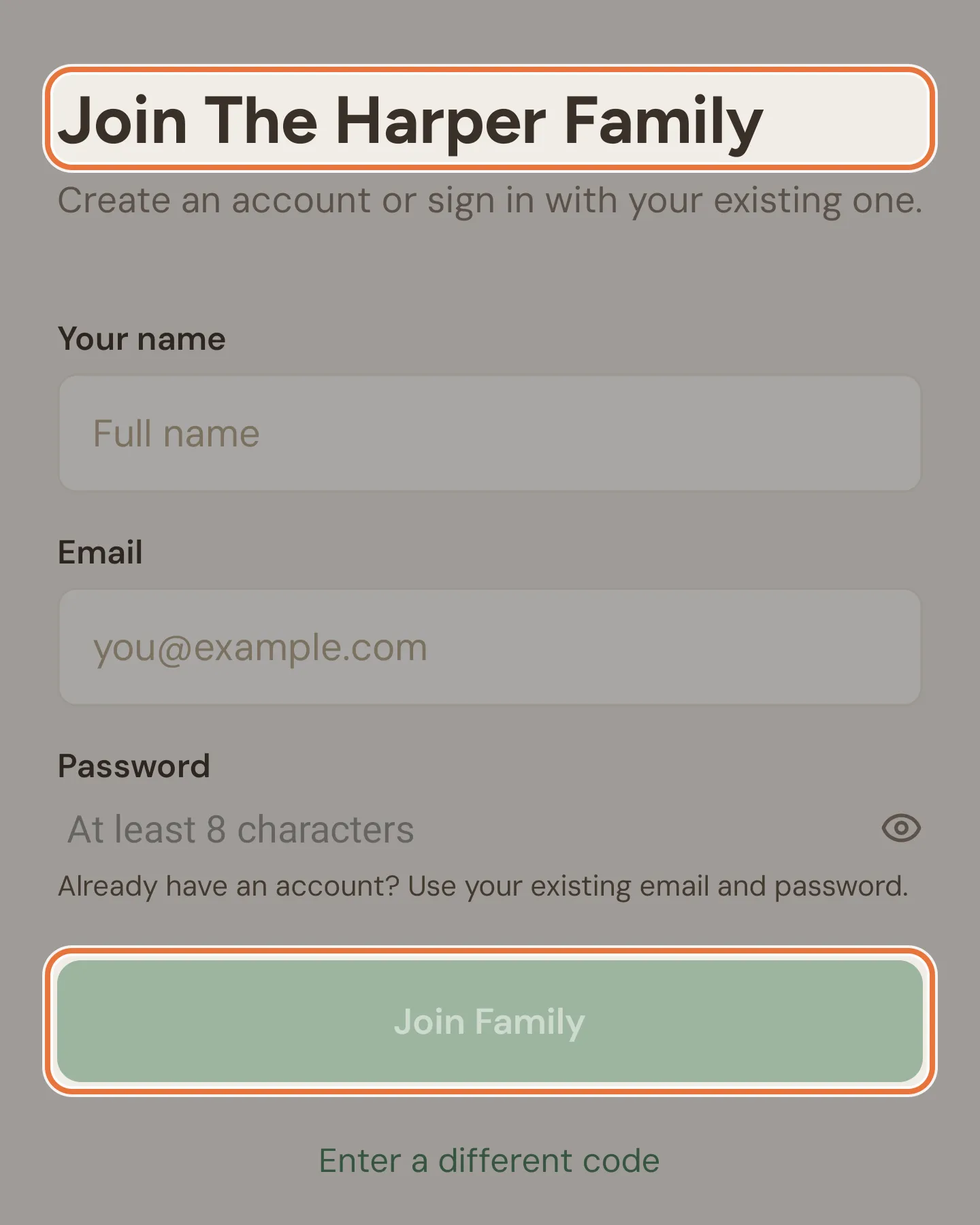
They enter their name, email and a password (or their existing login if they already use Quiddo) and tap Join Family.
Not in the same room? The family admin can type their email under Invite a parent and tap Invite instead. The invitation lasts 7 days. If they already use Quiddo, a banner saying who invited them appears on their Money tab, with Accept and ✕ (decline).
Codes are short-lived on purpose
A join code lasts 10 minutes, and making a new one cancels the old one. That’s why it’s worth doing in person. An email invitation stays valid for 7 days.
You’ll need a verified email
Inviting someone needs a verified email address on your account. If you see the Unverified badge at the top of the app, tap it and sort that out first.
Only the admin sees the email form
If you’re a co-parent rather than the family admin, Invite a parent shows a note (“Only a family admin can send email invites”) and the Share QR Code button, without the email box. The QR code works for any parent.
3. Tell the kids who’s who
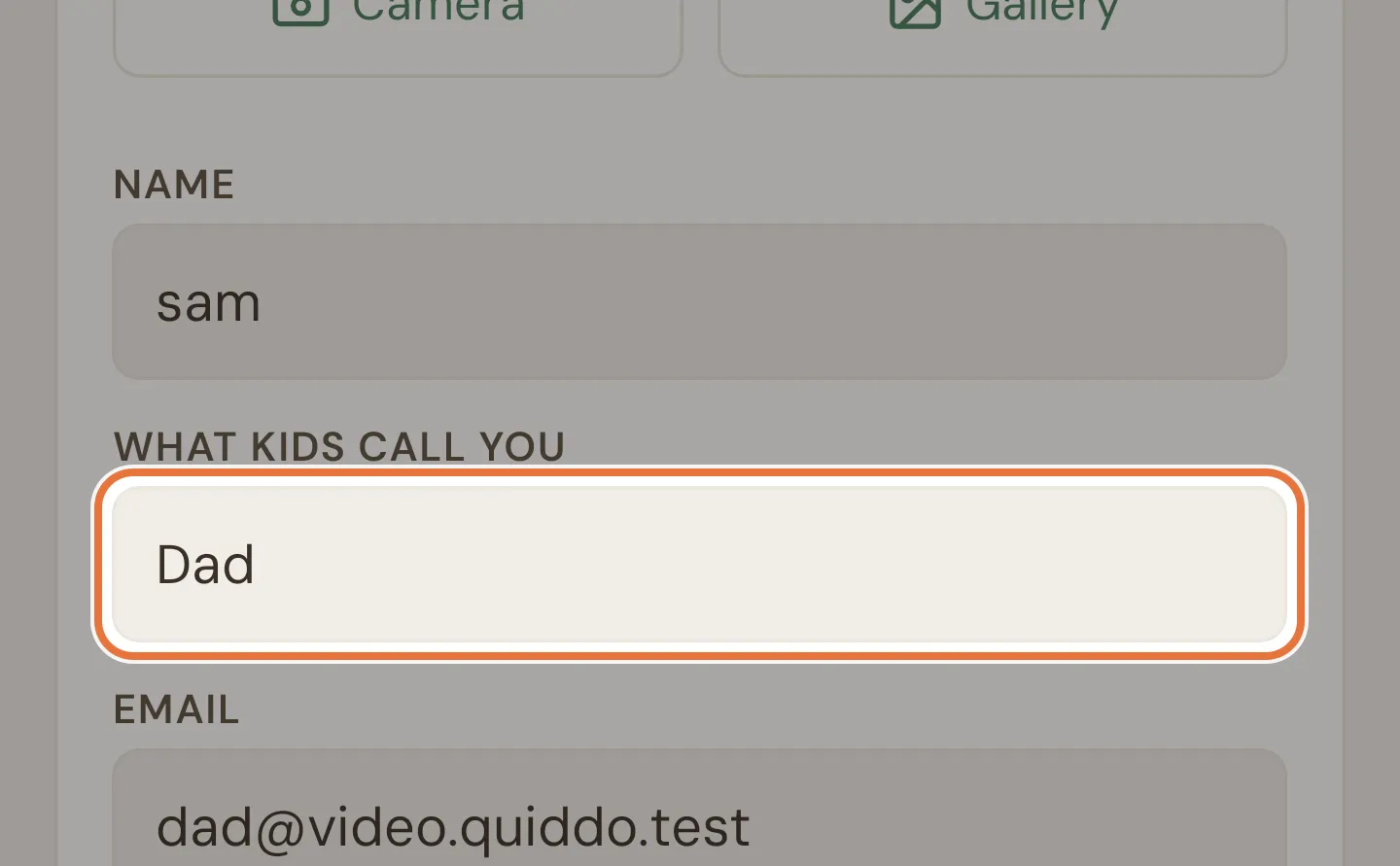
Section titled “3. Tell the kids who’s who”Each adult can set What kids call you: Mum, Dad, Nana, Steve, whatever fits. It shows up next to things you do, so your kid’s history reads “Approved Make bed · Dad” rather than an email address.
-
Tap your avatar at the top right, then Profile settings, then Edit Profile.
-
Fill in What kids call you and tap Save.
Ask every adult in the family to do this. It stops a lot of “who said I could have that?“
4. Decide who does what
Section titled “4. Decide who does what”There are two kinds of parent in a family:
- The family admin (usually whoever set it up).
- Co-parents (everyone who joined).
Day to day, there’s no difference. Anyone can approve jobs, release or withhold pocket money, add money, log spends, and set up kids, jobs and goals. The admin can also:
- change the family’s name, time zone and currency
- send and cancel email invitations
- change other parents’ roles, or remove them
- delete the family
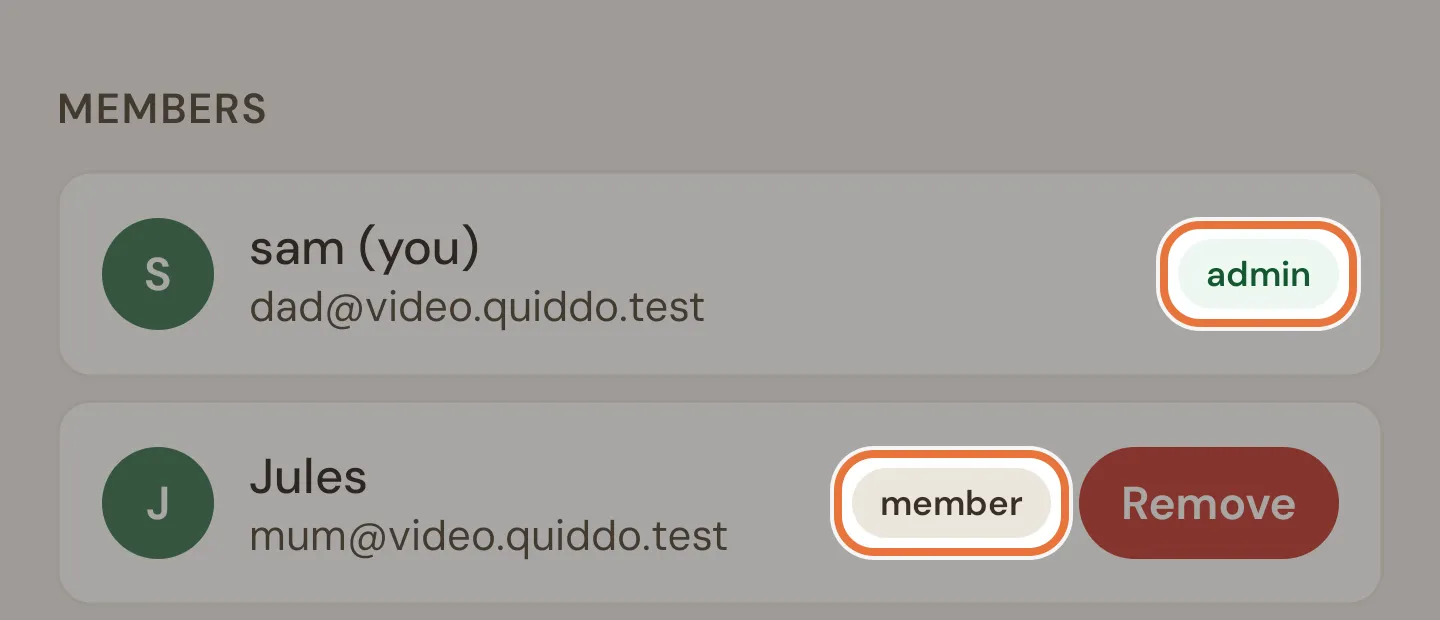
Known issue: Role change has no confirmation
Tapping someone’s role badge in the members list switches them between admin and member straight away, with no confirmation, and more than one person can end up as admin. Check before you tap.
One time zone per family
Pocket money comes out at the release time in the family’s time zone, wherever each parent lives. If the two houses are in different states, pick the time zone the kids mostly live in.
5. Devices in both houses
Section titled “5. Devices in both houses”Your kid’s own phone or tablet follows them around. Once linked (from their edit screen, under Device linking) it signs in as them anywhere. There’s nothing to set up at the second house.
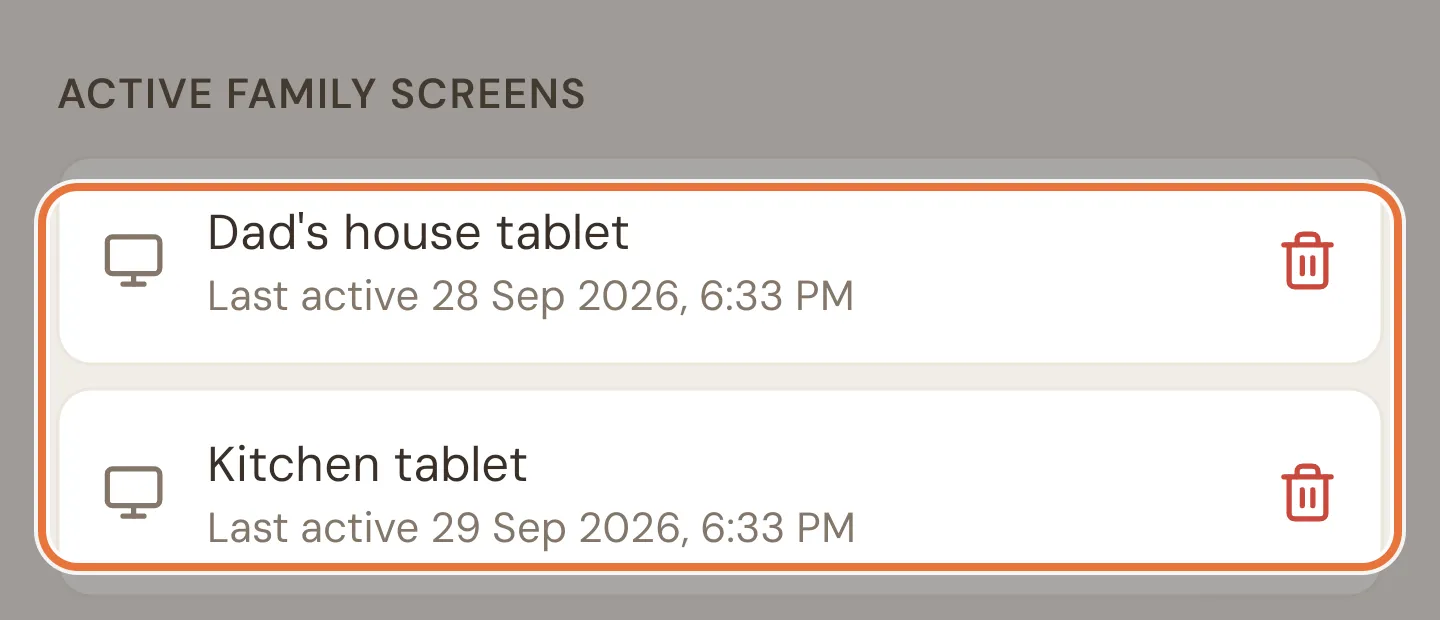
A family screen can live in each house. Link a tablet at Mum’s and another at Dad’s; both show the same kids and the same jobs. A family can have more than one screen connected. See Put it on the kitchen bench.
6. Everyone picks their own notifications
Section titled “6. Everyone picks their own notifications”Each adult chooses which notifications they get, under Profile settings › Notifications: tasks waiting for approval, pocket money released or held, savings goals reached, and family updates.
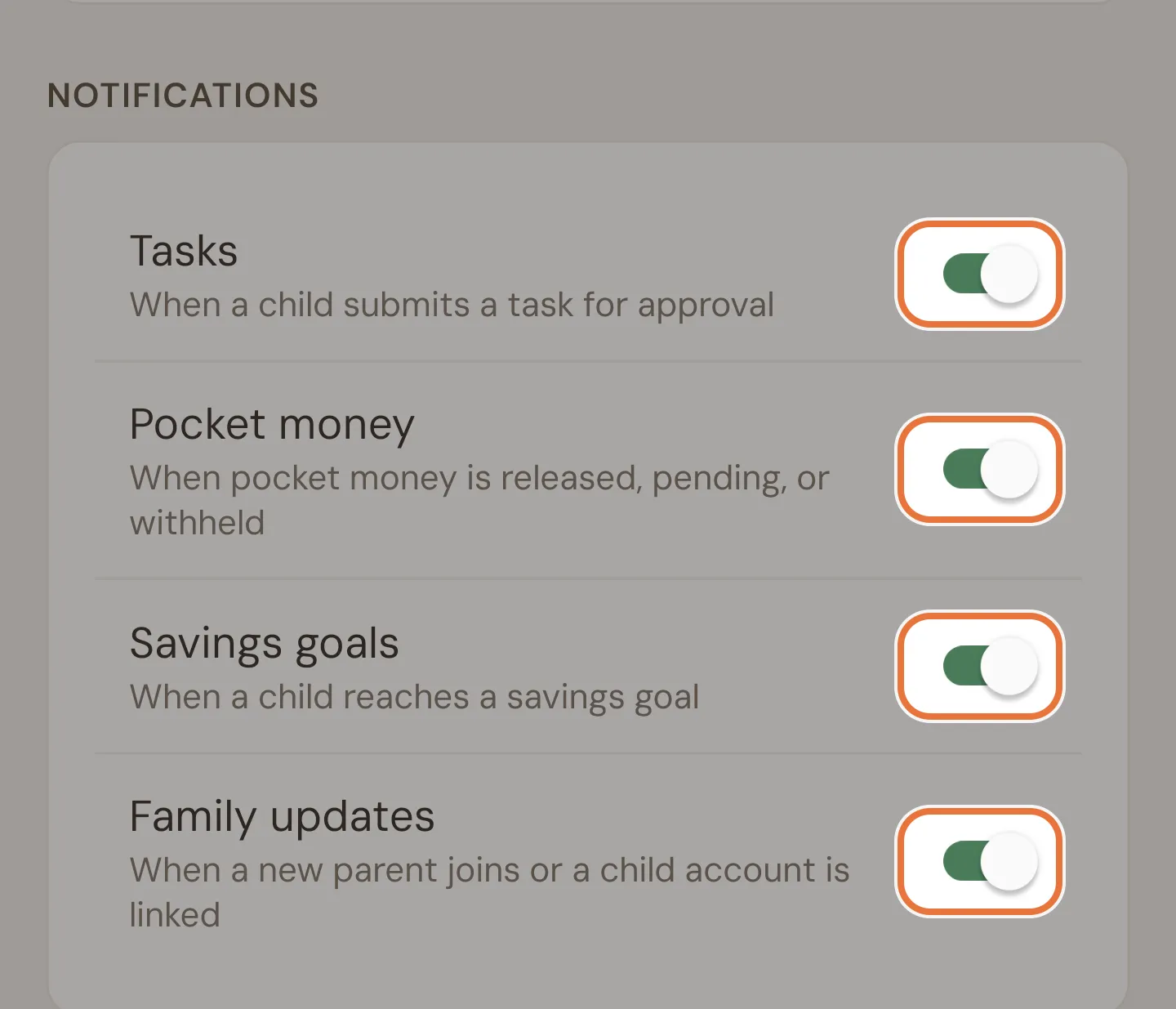
A setup that works for a lot of families: whoever has the kids this week keeps task notifications on, since they’re the one who can check the lawn actually got mowed.
7. Grandparents and other helpers
Section titled “7. Grandparents and other helpers”Grandparents, step-parents and regular babysitters join the same way as a co-parent. It’s worth knowing what that means before you invite them.
8. When you’re in more than one family
Section titled “8. When you’re in more than one family”If you’re in two families (your household plus a separate “Nana bank”, say), switch between them with the button next to the family name on the Family tab, or from the menu under your avatar. You stay on the same kind of screen when you switch.
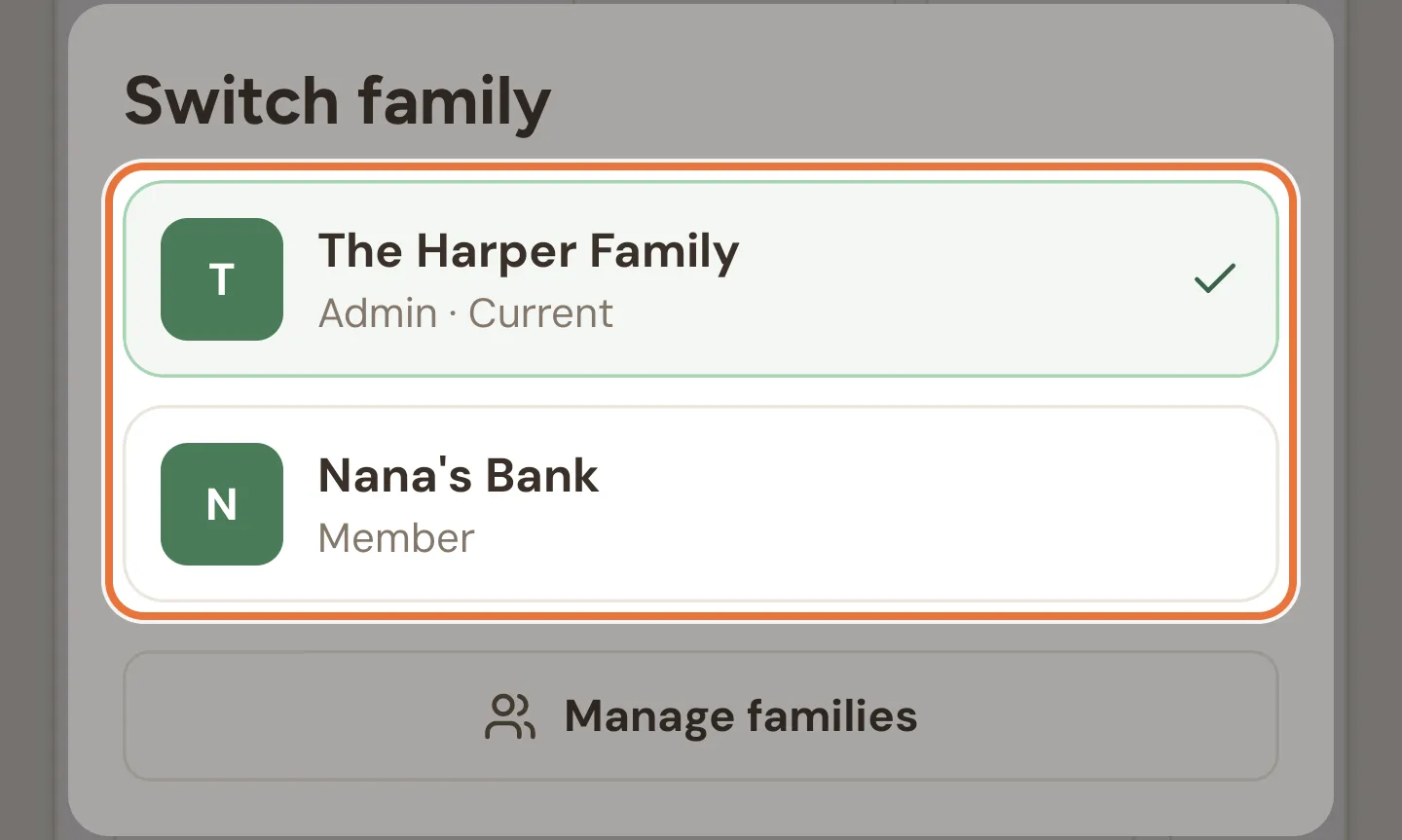
You can be admin of up to three families, and a co-parent in as many as you like.
9. Who pays
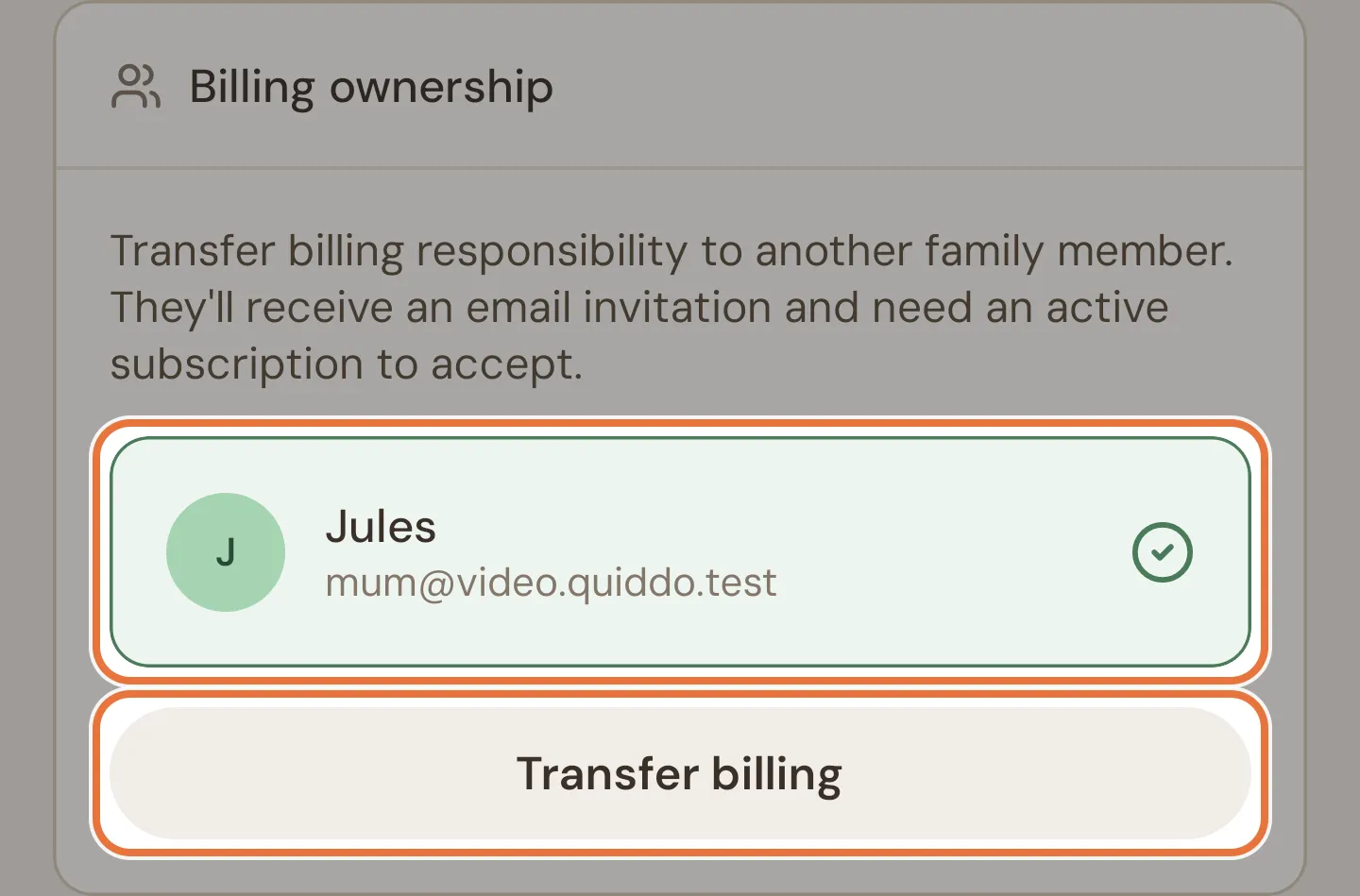
Section titled “9. Who pays”One subscription covers the family, paid by one person, the billing owner. Everyone else uses it for free. If the billing owner has more than one family, their subscription covers them all.
To hand billing over to another parent:
-
The billing owner opens Billing (from the menu under their avatar) and finds Billing ownership.
-
They select the other parent and tap Transfer billing, then Send invitation.
-
The other parent opens the invitation from their email and accepts. If they don’t have a subscription yet, they’re asked to start one first.
10. When someone leaves
Section titled “10. When someone leaves”Relationships change, and so do babysitters. The family admin can remove a parent from the members list. They keep read-only access for 30 days so nobody loses sight of the kids overnight, and they get an email letting them know.
A fortnight in two houses
Section titled “A fortnight in two houses”| When | Where the kids are | What happens |
|---|---|---|
| Week 1 | Mum’s | Mum approves jobs each evening. Dad’s phone stays quiet. |
| Friday | Mum’s | Pocket money comes out as usual. |
| Week 2, Monday | Dad’s | Same kids, same balances, same jobs. Dad approves. |
| Wednesday | Nana’s after school | Nana approves “Homework done” and is listed as Nana in the history. |
| Week 2, Friday | Dad’s | Pocket money comes out as usual. Nobody had to ask whose turn it was. |
Where to go next
Section titled “Where to go next”- A family screen for each house: A morning routine that runs itself.
- The pocket money setup everyone will share: Weekly pocket money, with jobs that have to get done.